Read seat usage for your plan, give pending users a seat, and move people between licensed and training-learner seats.
Every user holds an account class. The class decides which parts of ComplyTrain the person can reach at all and which seat of your plan they use. Roles then decide what the person can do inside the modules their class allows.
Admins and people with the Manage Users permission (users:manage) manage classes in Settings, User Management, All Users. A Manage Users holder cannot change an Admin's class.
Product location: /settings/users. Open User Management in Settings, then All Users. Seat usage and Pending users are at the top.
Class | What the person can open | Seat |
|---|---|---|
Licensed | Every module enabled for your organisation, subject to their roles and each module's own access settings. | Uses a licensed seat. |
Training learner | Training: their assigned courses, quizzes and completion signatures, and the AI help that supports their learning. Also their notifications and their own profile, password and sign-in security. | Uses a training-learner seat. |
Pending | Only the Your access is pending page, where they can sign out and return later. | Uses no seat. |
A training learner cannot open Quality Management, Risk Management, documents, knowledge sources, tenders or Settings administration, and the navigation shows them only what they can use. Roles do not widen a training learner's access: a role that grants document permissions has no effect until the person is licensed.
Administrators always use a licensed seat. An invited user takes their seat as soon as the invitation is created, before they first sign in.
Product location: /settings/users. Open User Management in Settings, then All Users. Seat usage and Pending users are at the top.
Three cards at the top of User Management show your organisation's seats:
Licensed users and Training learners show "… of …" against the number your plan includes, with a progress bar, or "… of Unlimited" when your plan has no limit.
Pending assignment shows "… waiting", or No users are waiting for a seat. Its note reads: "Users waiting for a seat. They cannot access any module until you assign one."
When all included seats are in use, the cards explain what your plan allows next:
Situation | Message on the card |
|---|---|
Unlimited plan | No message. |
All licensed seats used; extra users are charged | You've used every seat your plan includes. You can still add users — each additional user is billed at amount per month. |
Licensed users beyond the plan; extra users are charged | Extra users beyond your plan: n. You are billed amount per month for these. |
All licensed seats used; extra users are free | You've used every seat your plan includes. You can still add users — extra seats are free on your current plan. |
Licensed users beyond the plan; extra users are free | Extra users beyond what your plan includes: n. These are not charged. |
All licensed seats used; plan does not allow extra users | You've used every licensed seat your plan includes. Upgrade your plan to add more users. |
All training-learner seats used | Seat cap reached — new users will be parked as pending until you free a seat or upgrade. |
The amount in "You are billed amount per month for these" is the monthly total for all extra users together. If the figures cannot be loaded, the panel shows Seat data unavailable — refresh to retry. with Refresh. To change your plan, see manage your subscription and plan.
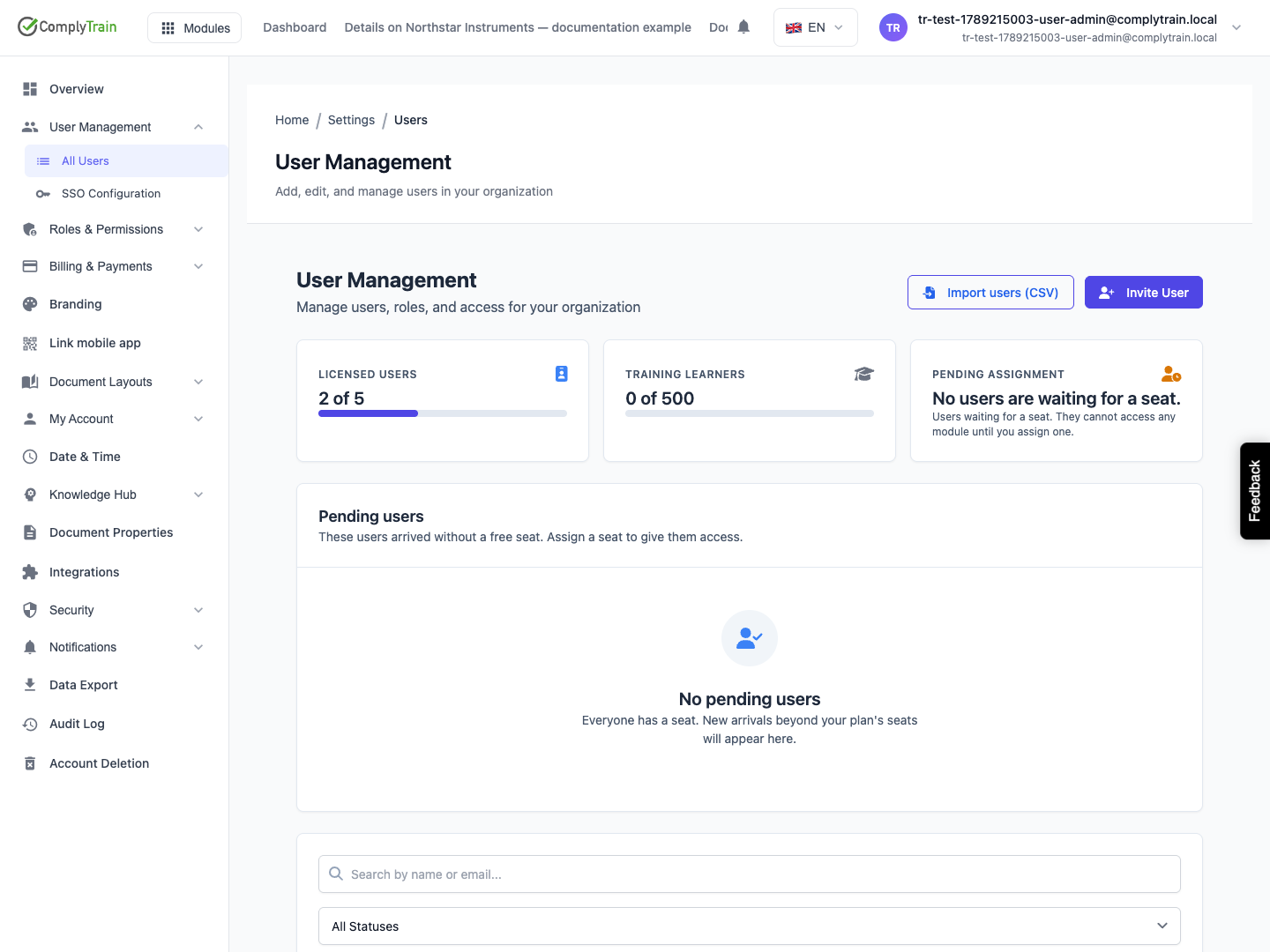
Product location: /settings/users. Open User Management in Settings, then All Users. Seat usage and Pending users are at the top.
Nobody is invited straight into Pending. People arrive there in two ways:
A CSV import reaches a row for which no seat of the requested class is free, and your plan does not allow an extra one.
Someone signs in through single sign-on for the first time without an existing account. A person who arrives by following a link to a training course is given a training-learner seat instead, when one is free and Training is enabled for your organisation.
Each time, every Admin receives a high-priority User awaiting access notification that links to seat management. The person sees Your access is pending until someone assigns a seat.
Product location: /settings/users. Open User Management in Settings, then All Users. Seat usage and Pending users are at the top.
Pending users lists everyone waiting, with User, Department and First login. When nobody is waiting it shows No pending users.
Find the person and check the name and email address.
Choose Assign licensed seat or Assign training seat.
Read the confirmation, which asks "Assign a … seat to …?". For a licensed seat it adds a cost note when your licensed seats are all in use (see the table).
Choose Assign seat. Seat assigned confirms that the person "now has a … seat".
Your plan, with all licensed seats in use | What the confirmation shows |
|---|---|
Charges for extra users | The title Assign a seat for … per month? and a note that the seat is billed on top of your plan, that the rest of the current billing period is charged now, and that it is not refunded if you release the seat later. |
Does not allow extra users | A note that the assignment will be refused and that you should upgrade your plan first. |
Allows extra users at no charge | No cost note. |
The person can use ComplyTrain the next time they load it. The seat cards, the pending list and the user's Account class update straight away.
If no seat of that class is available, the section shows an alert that no licensed seats, or no training seats, are available, with View plans, which opens the plan choice, and Dismiss.
Product location: /settings/users. Open User Management in Settings, then All Users. Seat usage and Pending users are at the top.
In the user list, choose Change class… on the person's row.
In Change account class, check that "Select the seat class for …" names the right person.
Under Account class, choose Licensed or Training learner. Change class is available only when the choice differs from the current class.
Read the notes the dialog adds (see the table), including "This change takes effect immediately."
Choose Change class. The list and seat cards refresh.
Change | Note in the dialog |
|---|---|
To Training learner | "Training-learner accounts can only access the Training module — other modules become inaccessible." |
To Licensed, extra users are charged | The price per month on top of your plan, and that the rest of the current billing period is charged now and is not refunded if you change the account back later. |
To Licensed, extra users are free | "Your plan's licensed seats are all in use. You can still make this change — extra seats are free on your current plan." |
To Licensed, plan does not allow extra users | That your plan does not allow extra seats, so the change will be refused, and that you should upgrade first. |
The cost notes appear only when all licensed seats are already in use.
Change class… also works for a pending user, as an alternative to the buttons in Pending users. You cannot change your own class: the dialog shows You cannot change your own account class. Ask another administrator.
Product location: /settings/users. Open User Management in Settings, then All Users. Seat usage and Pending users are at the top.
Access: the new class applies on the person's next action. A new training learner loses every module except Training at once, including documents or records they were working on. Hand over their open Quality, Risk and document responsibilities first.
Roles: roles and group memberships are kept. They have no effect outside Training while the person is a training learner, and apply again if the person becomes licensed.
New licensed users: moving someone from training learner or pending to licensed does not give them any module role. Give them roles on their Role & Permissions tab or add them to a user group.
Billing: a licensed seat beyond your plan's allowance is charged from the moment of the change, as described above. Your subscription's usage shows the new count.
Product location: /settings/users. Open User Management in Settings, then All Users. Seat usage and Pending users are at the top.
Maria Jensen joined as a training learner on the packing line. She now owns the line-clearance process and must maintain its procedure and evidence in Quality Management.
Open User Management, find Maria and choose Change class….
Choose Licensed. Your plan's licensed seats are all in use and extra users are charged, so read the price in the note and choose Change class.
Open Settings, Roles & Permissions, User Groups, open Process Owners and add Maria as a member.
Ask Maria to refresh ComplyTrain. Quality Management now appears, with the permissions of the Process Owner role, and her training history is unchanged.
