Save unfinished answers, find and resume the correct response, choose how to leave, and continue a saved draft on another device.
Use Save Draft when you want to pause a form and continue later. Reopen the saved response from Data Collection → Drafts to continue the same work, including when you change devices.
Product location: /qms/{standardCode}/forms (fallback: /qms/standards). Open the intended form or saved draft and use the named control.
Action | Use it when | What to check next |
|---|---|---|
Save Draft | You have useful answers but are not ready to submit. | Find and reopen the saved draft. |
Submit Form | The response is complete and ready for processing. | Review the saved submission and any configured outputs. |
Stay on form | You want to keep editing before deciding. | Continue working with the values already entered. |
Saving a draft retains work in progress. Required questions can remain unanswered while you prepare the response. Final submission validates the response and any required training before processing it. A draft save does not represent submission, approval or successful execution of output rules.
Product location: /qms/{standardCode}/forms (fallback: /qms/standards). Open the intended form or saved draft and use the named control.
Open the intended standard's Forms page and start or resume the correct form.
Enter the information you already know. Read the field labels, units and help text.
Select Save Draft in the form footer.
Wait for the save to finish. When ComplyTrain confirms the draft, My Drafts opens; find the response you just saved. If the save fails, Draft not saved explains why, your answers stay on the form, and Try Again retries the save.
Reopen it and confirm the answers that matter, such as an equipment identifier, date, selected result and notes.
For example, you can record the equipment and reference details of a calibration response before the remaining results are ready. Resume that saved response when the missing information becomes available.
Product location: /qms/drafts. Refresh the saved draft list and select the intended form and standard.
Expand Data Collection in QMS and choose Drafts, or open /qms/drafts. Select Refresh to load the latest saved information.
Use the form name, template code, standard and Last edited value to identify the intended response. The fields filled count helps you recognise how much information has been entered; it is not a validation or approval result. Check the actual answers after opening the draft.
A form card can use a document-specific title while its draft uses the underlying template name. Compare the template code and standard as well as the name before continuing.
Product location: /qms/drafts. Refresh the saved draft list and select the intended form and standard.
Select the saved draft. The form opens under its associated standard with its saved answers restored.
Confirm the form and standard shown in the header.
Review the restored values before adding more information.
Continue through the form's sections. For a wizard, use Previous and Next to review the relevant steps.
Correct any values that have changed and complete the remaining questions.
Choose Save Draft again to pause, or Submit Form when the response is ready.
Use the saved response as your starting point when continuing existing work. Reopening the form catalogue is useful for choosing a form, but the draft row identifies the particular work you saved.
Product location: /qms/{standardCode}/forms (fallback: /qms/drafts). Use the verified standard code, form template ID and saved draft ID together.
An exact resume link uses the associated standard code, form template ID and saved draft ID:
/qms/{standardCode}/forms?templateId={templateId}&draftId={draftId}
Use identifiers from the saved response. The template ID identifies the form definition; the draft ID identifies the saved work. A form document ID and a final submission ID identify different records.
An agent directing a user to a draft should use the verified identifiers together. If they are unknown, direct the user to /qms/drafts to choose the correct response. After opening an exact link, confirm the form identity and restored answers before editing.
Product location: /qms/{standardCode}/forms (fallback: /qms/standards). Open the intended form or saved draft and use the named control.
The form can keep a local recovery copy as you enter information. If you return after reloading the page, opening the same form can restore that local work. Check the restored values before continuing.
Use Save Draft to save work to ComplyTrain for later continuation. Automatic browser recovery and a saved server draft are different: seeing text return in the editor does not establish that a draft was saved to your account.
When you deliberately reopen a saved draft, review the saved response presented by that route. Save any further changes before moving to another device.
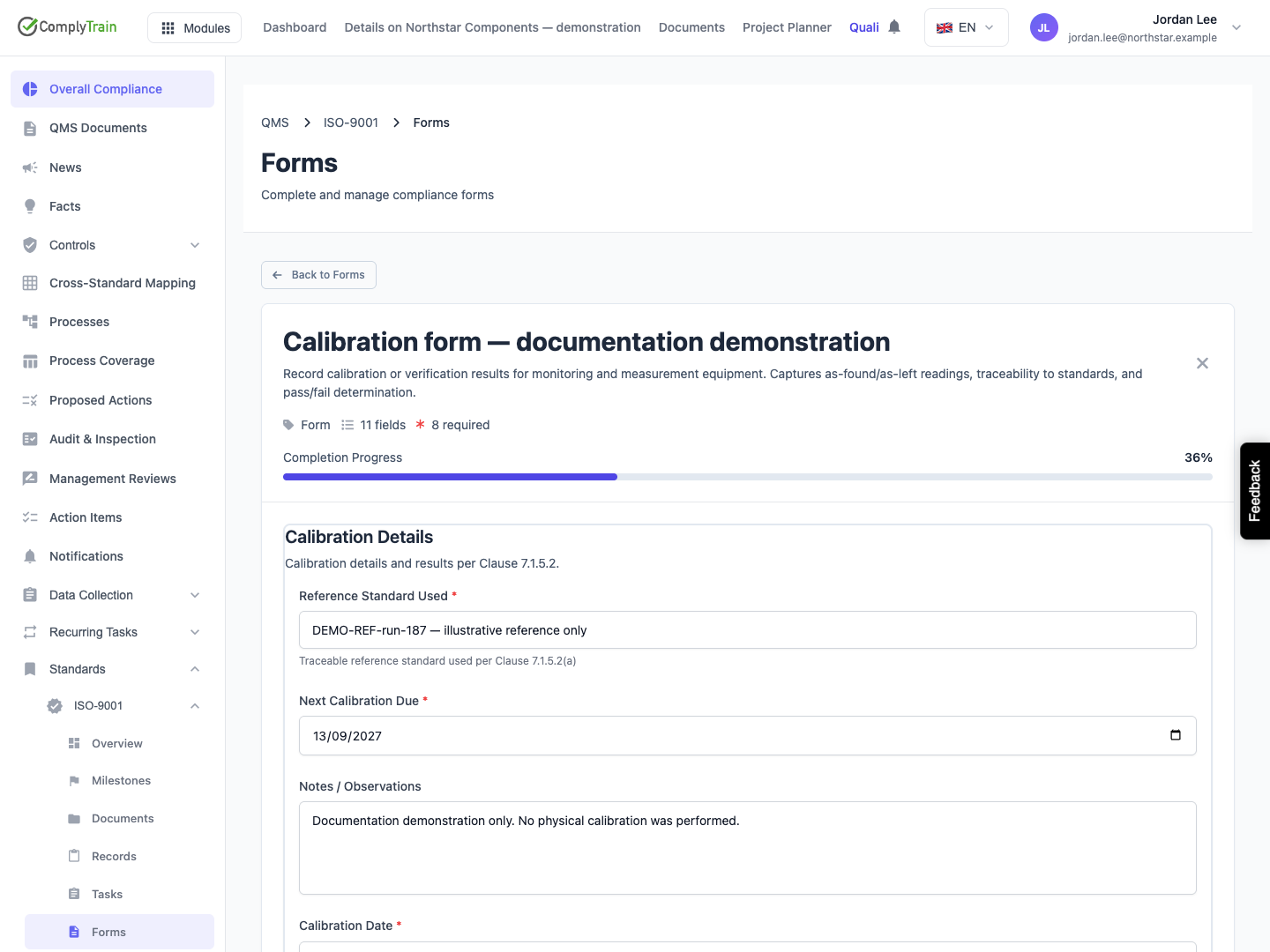
Product location: /qms/{standardCode}/forms (fallback: /qms/standards). Open the intended form or saved draft and use the named control.
When leaving a form with unsaved changes, use the leave-work dialog to decide what happens to the current edits. Every way out of a changed form asks this: the close control, Cancel, Back to Forms and following another link in ComplyTrain. The dialog is titled Leave without saving?. Reloading or closing the browser tab shows the browser's own warning instead. The checkbox Save my draft to ComplyTrain so I can resume on another device starts selected.
Choice | Result |
|---|---|
Stay on form | Keeps the form open with the current values. |
Leave form with the save checkbox selected | Saves the draft, then leaves after the save succeeds. |
Leave form with the checkbox cleared | Discards the current unsaved local copy and leaves. An earlier saved server draft remains separate. |
If the form does not keep drafts, the dialog has no checkbox and warns that leaving means answering the form again from the start.
Read the checkbox before choosing Leave form. Choose Stay on form if you want to review the answers first. If saving fails, keep the response open, resolve the reported problem and retry the save.
Product location: /qms/drafts. Refresh the saved draft list and select the intended form and standard.
Save the draft before moving devices. Sign in to the same organisation with your account, open QMS Drafts, refresh the list and select the saved response.
Compare the restored answers and last edited time with the work you saved. Continue from that saved state and save again when you pause. This is also a useful check that the response was saved to ComplyTrain rather than recovered only in the original browser.
Product location: /qms/{standardCode}/forms (fallback: /qms/standards). Open the intended form or saved draft and use the named control.
Review every section, resolve validation feedback and complete any training required for submission. Then select Submit Form and wait for confirmation.
Open the resulting submission and check its saved answers. The completed response leaves the draft workflow. Review configured automatic outputs separately: a saved submission and a successfully created record, task or evidence link are distinct results.
See Complete and submit a standard form and Review form submissions and automatic outputs for the next steps.
Product location: /qms/drafts. Refresh the saved draft list and select the intended form and standard.
For a save failure, keep the entered answers available while you resolve the reported cause. Retry saving and verify the saved response before leaving the form.
For a load problem, check that you are signed in to the intended organisation and have access to the form. Retry loading the draft or return to Drafts and select the correct response. Use Refresh for a list-load error.
If you need help, provide the form name and template code, the standard, the time of the attempted save and a verified draft link when available. These details help an administrator identify the saved work without creating another response.
