Design questions, defaults and validation; maintain field dependencies and verify the respondent experience.
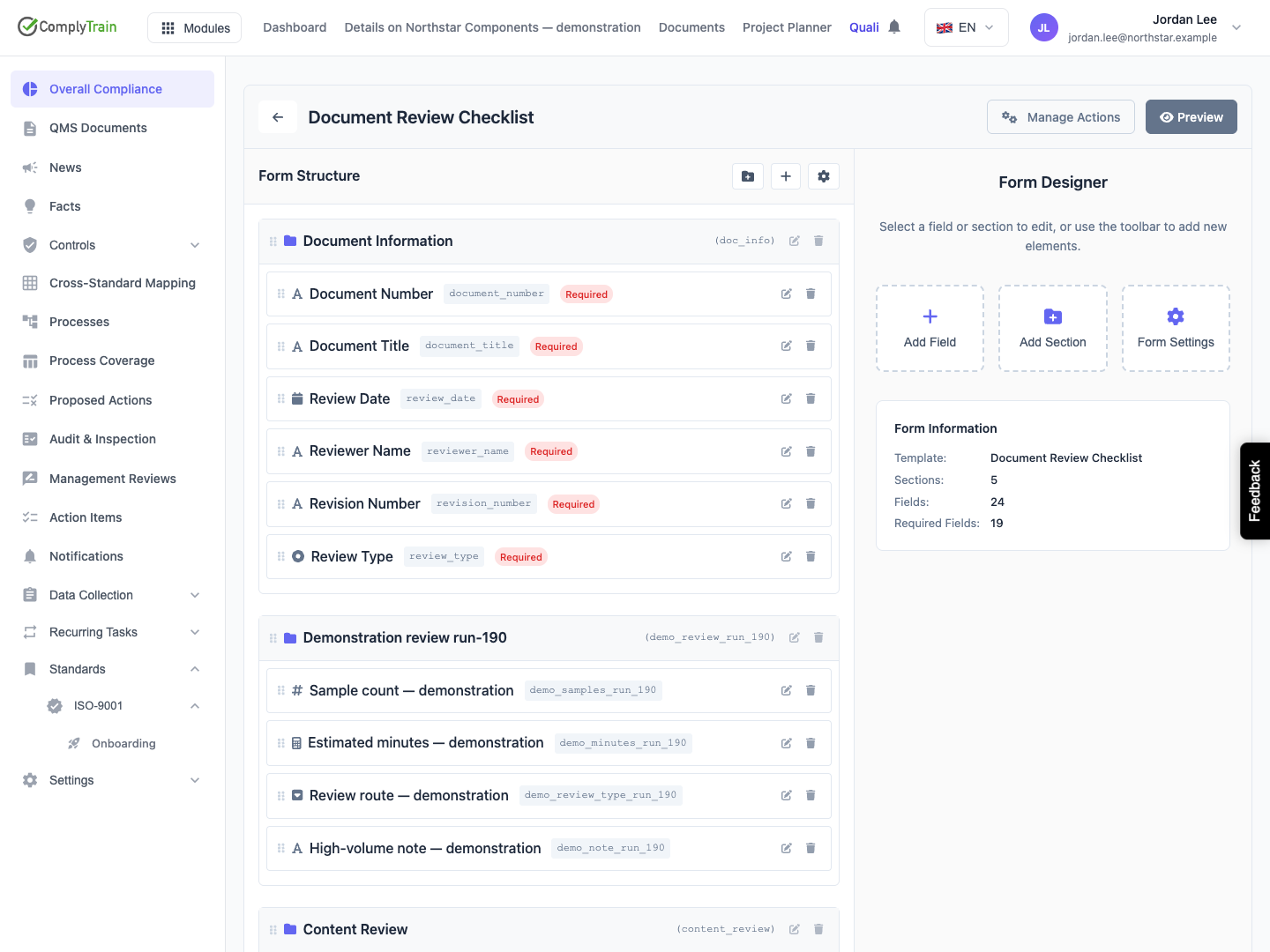
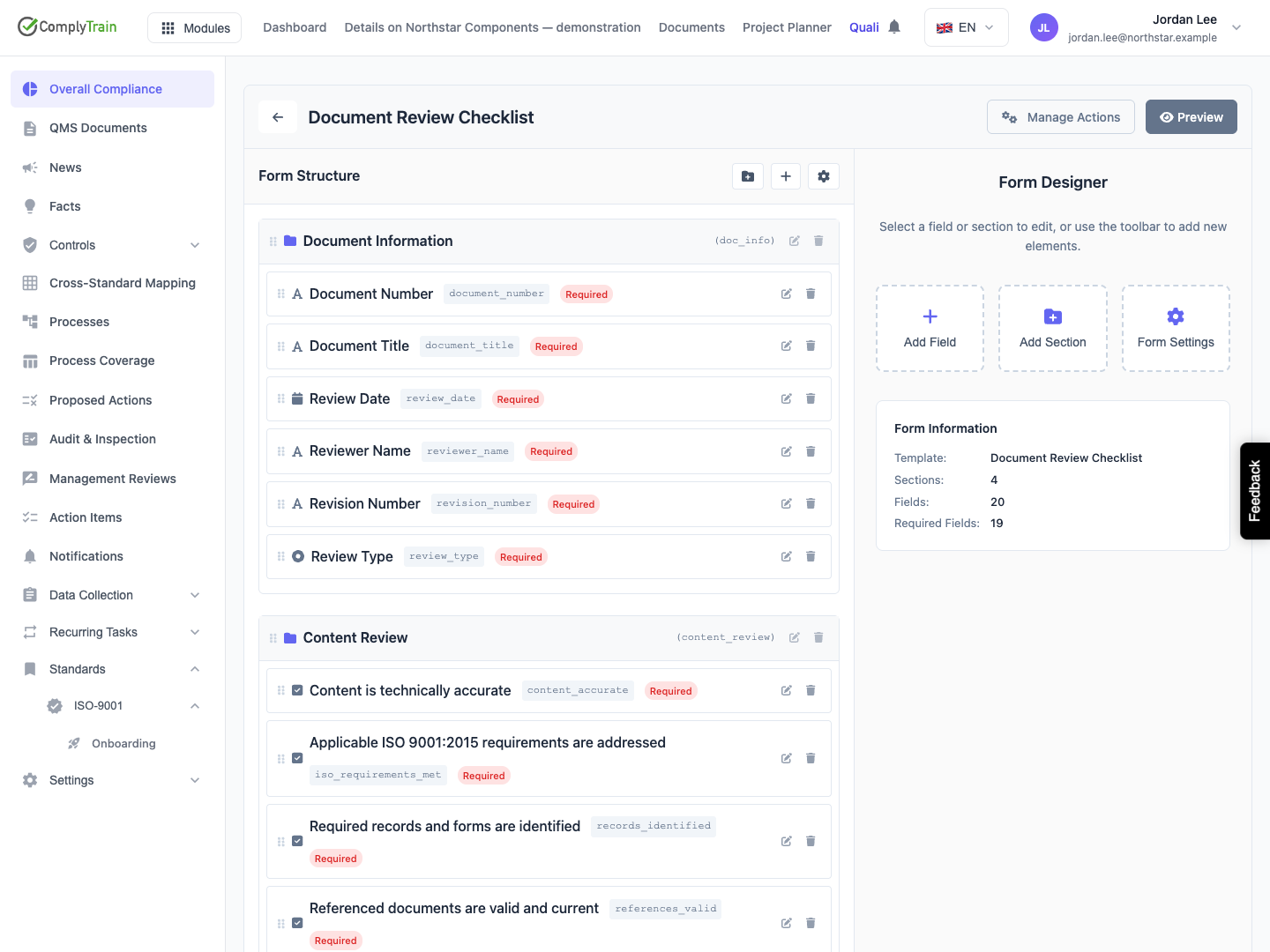
A form template defines the questions used to collect repeatable records. Design it around the decisions the answers must support, then connect those answers to any automatic outputs. The Document Review Checklist used in the illustrations contains synthetic demonstration questions.
For AI-assisted definition and maintenance, see design forms with AI. You can inspect and refine the same saved fields through this editor.
Product location: /qms/{standardCode}/forms/{templateId}/edit (fallback: /qms/standards). Open the intended form template and use the field, section or preview controls described here.
Open the intended standard's Forms, find the template and choose Edit Form from its card menu. The editor uses the form template identifier. A submitted response and the QMS document displaying a form have separate identifiers.
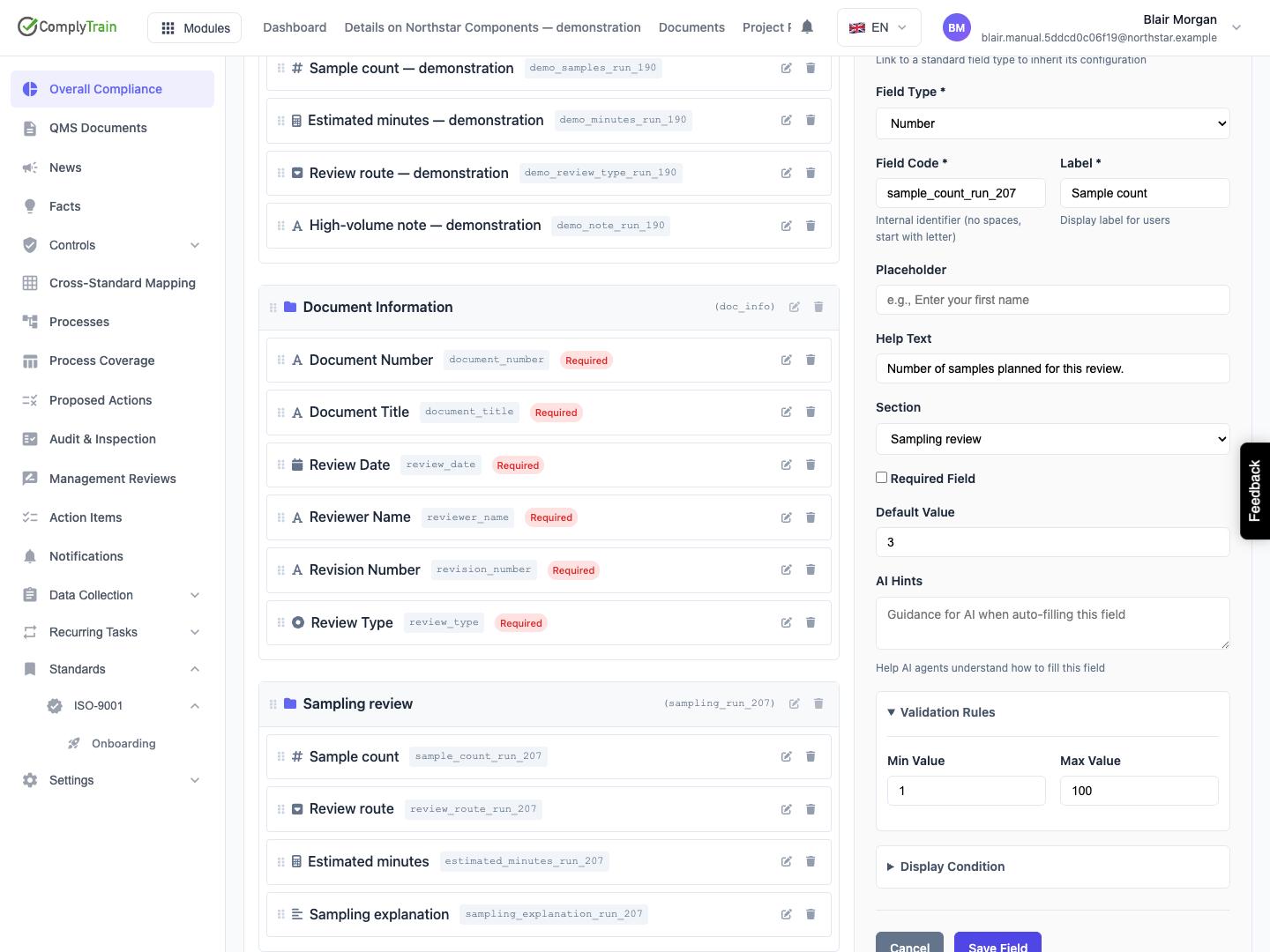
The left Form Structure panel lists sections and fields. Select an item's edit icon to open its controls on the right. Add Section, Add Field and Form Settings configure different parts of the template. Preview shows the response layout; Manage Actions opens automatic output rules.
Use a role with QMS Manage forms permission. Responding to a form, reviewing its submissions and changing its definition are separate responsibilities.
Product location: /qms/{standardCode}/forms/{templateId}/edit (fallback: /qms/standards). Open the intended form template and use the field, section or preview controls described here.
Before adding fields, identify the record's purpose, the people completing it and the information needed for its follow-up. For a document review, this might be the document reference, review date, reviewer, review outcome and explanation of any required changes.
Decide which values must be entered, which can have sensible defaults and which should be calculated. Use structured choices when an output rule must distinguish outcomes such as accepted and changes_required. Use explanatory text for the supporting reasoning.
Review automatic actions before choosing field codes: a CAPA title, evidence target or task owner can depend on a particular answer.
Product location: /qms/{standardCode}/forms/{templateId}/edit (fallback: /qms/standards). Open the intended form template and use the field, section or preview controls described here.
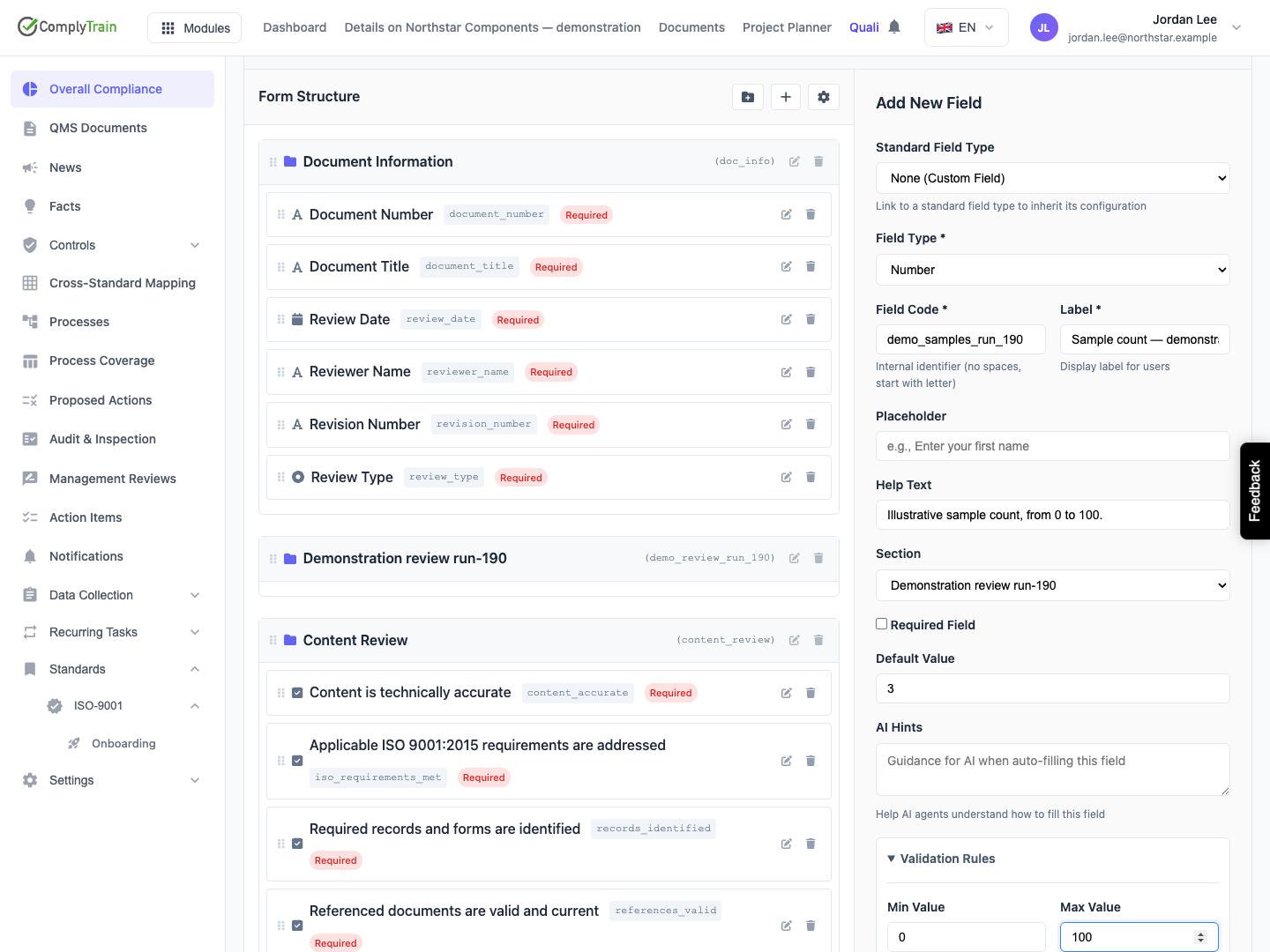
Choose Add Field, then configure the question.
Control | Purpose and example |
|---|---|
Standard Field Type | Start from a reusable definition, or keep None (Custom Field) to configure this question yourself. |
Field Type | Select the answer format, such as Number for a sample count. |
Field Code | Give the question a stable identifier such as |
Label | Write the question respondents see, such as “Number of samples reviewed”. |
Placeholder | Show a short example while the input is empty. |
Help Text | Explain the expected answer, unit or source of information. |
Section | Choose the part of the form containing the question, or No Section. |
Required Field | Require an answer when this question is applicable and visible. |
Default Value | Supply an initial answer appropriate to the selected field type. |
AI Hints | Explain the field's meaning to an AI consumer, including the expected evidence or unit. |
For a new field, typing a label derives a lower-case code with underscores until you edit the code yourself. Renaming an existing label keeps the code. Use the label to improve wording while keeping the code stable for calculations, conditions and output mappings.
A placeholder illustrates an answer; a default actually supplies one. Keep important instructions in Help Text so they remain understandable after a value has been entered.
Product location: /qms/{standardCode}/forms/{templateId}/edit (fallback: /qms/standards). Open the intended form template and use the field, section or preview controls described here.
Use the field-type reference to choose among text, numeric, date/time, selection, entity and calculated inputs. Select Text Area for a reasoned explanation, Dropdown for a controlled outcome and Number for a quantity used in calculations.
A Checkbox records a checked or unchecked answer. Use Yes/No Toggle for an explicit yes/no question. An Entity Picker selects existing records such as users or risks; configure its source so the saved answer identifies the intended record.
Use a Repeating Group when the same questions apply to several entries, such as several samples. Use a section when you only need to group different questions under a heading. A Calculated Field derives its result from other answers and is read-only for respondents.
Product location: /qms/{standardCode}/forms/{templateId}/edit (fallback: /qms/standards). Open the intended form template and use the field, section or preview controls described here.
Expand Validation Rules and set the controls appropriate to the field type.
Control | Use it for |
|---|---|
Min Length / Max Length | The permitted length of a text answer. |
Min Value / Max Value | Inclusive numeric bounds in the unit described by the question. |
Regex Pattern | A defined text format, such as an internal reference number. |
Pattern Error Message | A plain-language instruction explaining how to correct that format. |
For a sample count, a minimum of 0 and maximum of 100 allow both boundaries. For a measurement, choose bounds matching the real range: negative temperatures or decimal tolerances may be appropriate. Keep the minimum at or below the maximum. Clearing a bound removes that bound.
For a reference such as DOC-1234, the pattern ^DOC-[0-9]{4}$ requires the prefix followed by four digits. Pair it with “Enter DOC- followed by four digits.” Test both a valid value and a near miss so the message helps the respondent correct the answer.
Required status and format checks serve different purposes. An optional question can be left unanswered; a supplied answer must still meet its applicable validation rules.
Product location: /qms/{standardCode}/forms/{templateId}/edit (fallback: /qms/standards). Open the intended form template and use the field, section or preview controls described here.
Set a default only when it is a reasonable starting answer for the intended population. For a selection, enter its stored option value, such as internal, rather than its display label. Check that the default is valid against the field's options and bounds.
An explicit 0 or false answer has meaning and must be reviewed as such. Avoid pre-filling an assessment or attestation simply to make the form appear complete. Respondents should be able to tell which values came from a default and which they have checked.
Use Display Condition to show a follow-up question when a relevant earlier answer makes it applicable. Hidden questions retain their answers for later editing, but those answers are excluded from submission and automatic outputs while hidden. See conditions and calculations.
Product location: /qms/{standardCode}/forms/{templateId}/edit (fallback: /qms/standards). Open the intended form template and use the field, section or preview controls described here.
Choose Save Field to save the selected question. Use Cancel to discard the edits still open in that field editor. Repeat this for each question; sections and form-wide settings have their own save actions.
Reopen the field and check its code, type, section, required status and type-specific configuration. To remove an optional setting, clear it and save. To remove a display rule, select No condition and save. A later label or help-text edit should retain the other configuration.
If a save reports that another change has occurred, reload the latest definition before applying your change again. Compare the latest values with the change you intended so another designer's work is retained.
Product location: /qms/{standardCode}/forms/{templateId}/edit (fallback: /qms/standards). Open the intended form template and use the field, section or preview controls described here.
Open Preview and walk through the questions in order. Try ordinary values, the numeric or length boundaries, an invalid value and an empty required answer. Check both sides of each display condition and change the inputs to calculated fields.
Check the form in its chosen page or wizard presentation. Read the labels and help as a respondent would, including the units and meanings of choices. Use form settings and preview for validation timing, progress, layout and draft controls.
Then use an authorised example response to confirm live selection sources, saved answers and any follow-up outputs. Inspect the submitted record separately from the success message.
Product location: /qms/{standardCode}/forms/{templateId}/edit (fallback: /qms/standards). Open the intended form template and use the field, section or preview controls described here.
Before changing a field's code, type or options, check the formulas, conditions and output rules that use it. A label change can improve the wording while preserving those references. Changing a stored option value changes the value future answers and rules use.
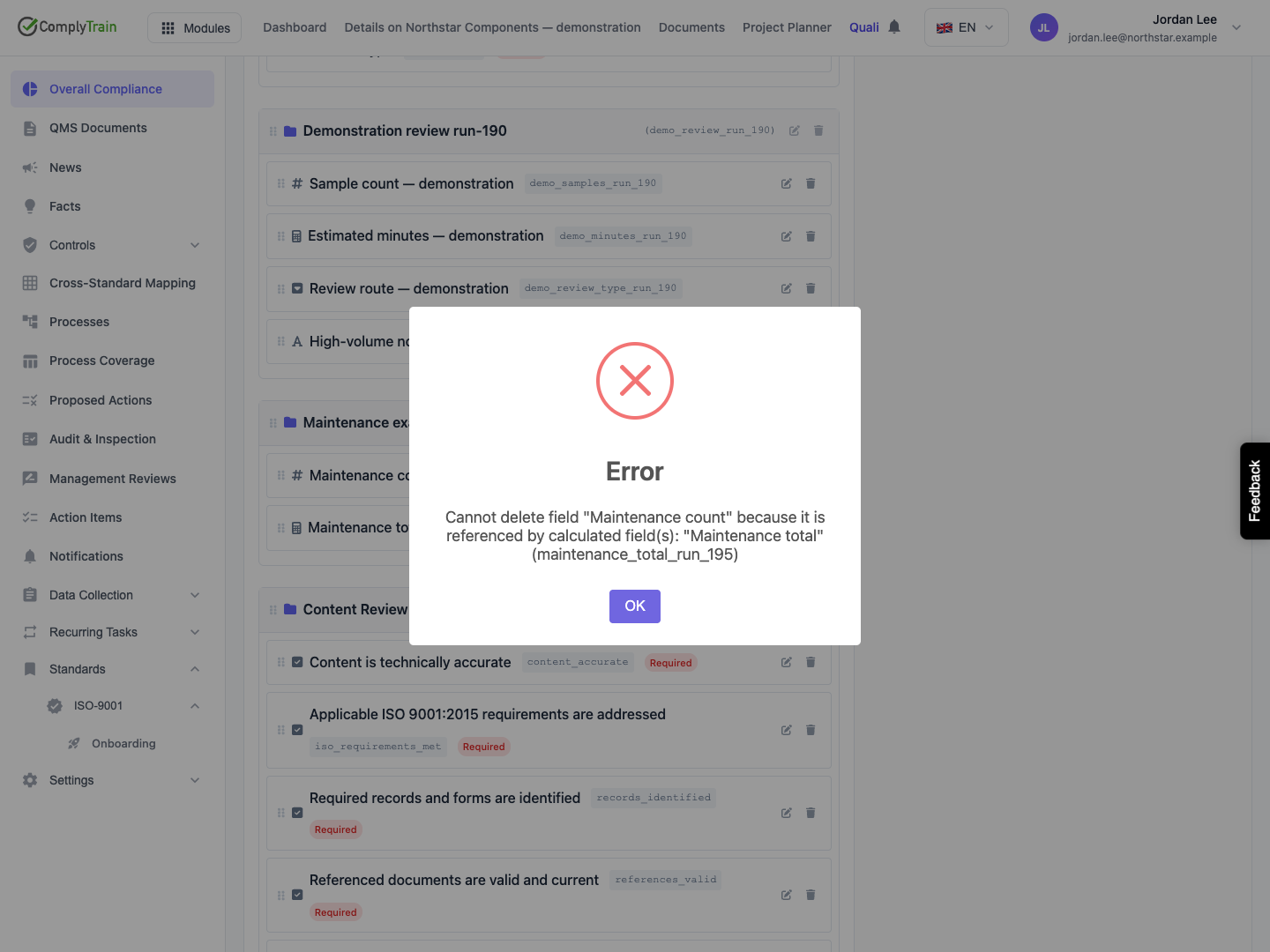
When a calculation references a field, resolve that dependency before renaming or deleting the referenced field. Read the named dependent calculation and decide whether to revise or remove it. Test the resulting formula and its output mappings together.
For an established template, also review how respondents with saved drafts and reviewers of earlier submissions will understand the revised definition. Keep the purpose of the record clear across those changes.
Product location: /qms/{standardCode}/forms/{templateId}/edit (fallback: /qms/standards). Open the intended form template and use the field, section or preview controls described here.
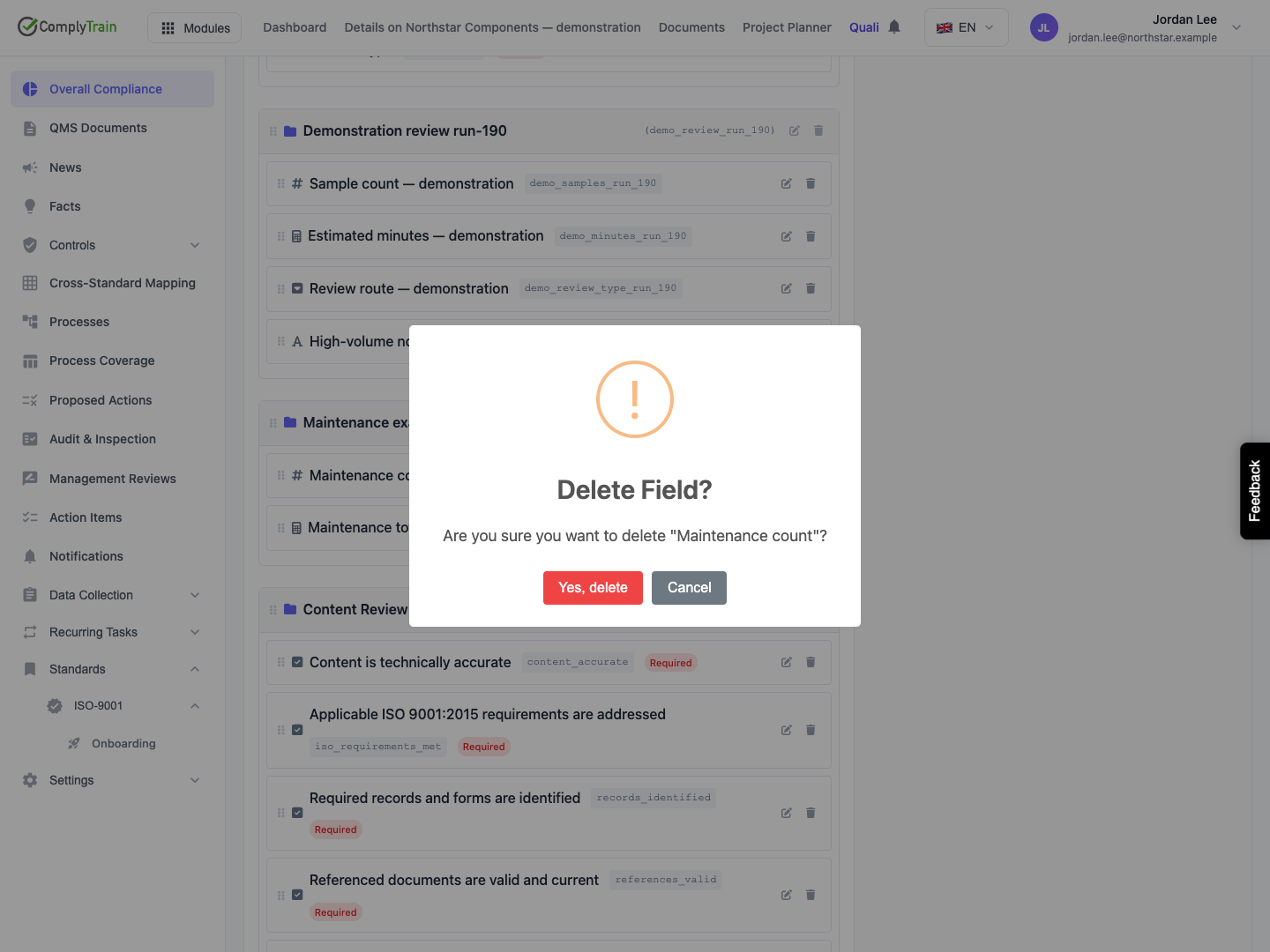
Select the field's delete icon and read the confirmation naming the question. Choose Cancel if it is not the intended field. Confirm only after reviewing its dependencies and the information future responses need to collect.
If a dependency check names a calculated field, return to that calculation and resolve its reference first. After deletion, inspect Form Structure and Preview to confirm the intended question was removed and the surrounding questions remain in the correct sections.
For questions that should move to another section, change Section instead of deleting and recreating them. This preserves their identity and associated configuration.