Configure choices, formulas and conditional questions, including how hidden answers are handled.
Use options to collect consistent answers, calculations to derive results and display conditions to ask relevant follow-up questions. Keep field codes and stored option values stable so automatic actions interpret the answers correctly.
Product location: /qms/{standardCode}/forms/{templateId}/edit (fallback: /qms/standards). Open the intended form template and use the field, section or preview controls described here.
For a Dropdown or Radio Buttons field, choose Static Options in Options Source. Enter one option per line using value:label, for example:
internal:Internal review
external:External review
The label is shown to respondents. The value is saved and used by conditions and output mappings. Choose distinct, meaningful values and arrange the lines in the order people should see the choices. Everything after the first colon is the label, so a label can itself contain a colon. Each value must be unique, ignoring letter case; the editor refuses to save two choices that share a value. Enter internal as the Default Value when Internal review is the appropriate starting choice.
Save, reopen and inspect the list. Changing a label changes its wording; changing the stored value affects how future responses match rules. Review dependent rules before changing values already used operationally.
Product location: /qms/{standardCode}/forms/{templateId}/edit (fallback: /qms/standards). Open the intended form template and use the field, section or preview controls described here.
Select a named Options Source when choices should follow records maintained elsewhere. The source supplies current choices when the form is used.
Source | Typical use |
|---|---|
Tenant users | Select a person from the organisation. |
Compliance Standards | Identify a configured standard. |
QMS Roles | Select a quality-management responsibility. |
Question Categories | Classify a question by a maintained category. |
Risk Scoring Methodologies | Choose the methodology for a risk-related response. |
Risk Categories | Classify a risk. |
Affected Objectives | Identify the business objective affected. |
Check the source's description and the kind of value it returns before mapping the answer to an action. A choice showing a user's name can carry that user's identifier; it is not interchangeable with free text containing the same name.
Use the builder preview to check placement and an authorised response to check the real choices. If choices fail to load, use the available retry control and check access to the underlying records before changing the definition.
Product location: /qms/{standardCode}/forms/{templateId}/edit (fallback: /qms/standards). Open the intended form template and use the field, section or preview controls described here.
Select a Standard Field Type to copy its configured data type, validation and options. Its AI hints fill an empty AI Hints control. Review all populated controls before saving, particularly defaults, bounds and the option source.
The selected type's code keeps the association with the reusable definition. Returning to None (Custom Field) removes that association while retaining the values already copied into the editor. Adjust the individual values to make the question your own.
A System badge identifies provisioned configuration. Follow your organisation's ownership and change process when adapting a shared template for local use.
Product location: /qms/{standardCode}/forms/{templateId}/edit (fallback: /qms/standards). Open the intended form template and use the field, section or preview controls described here.
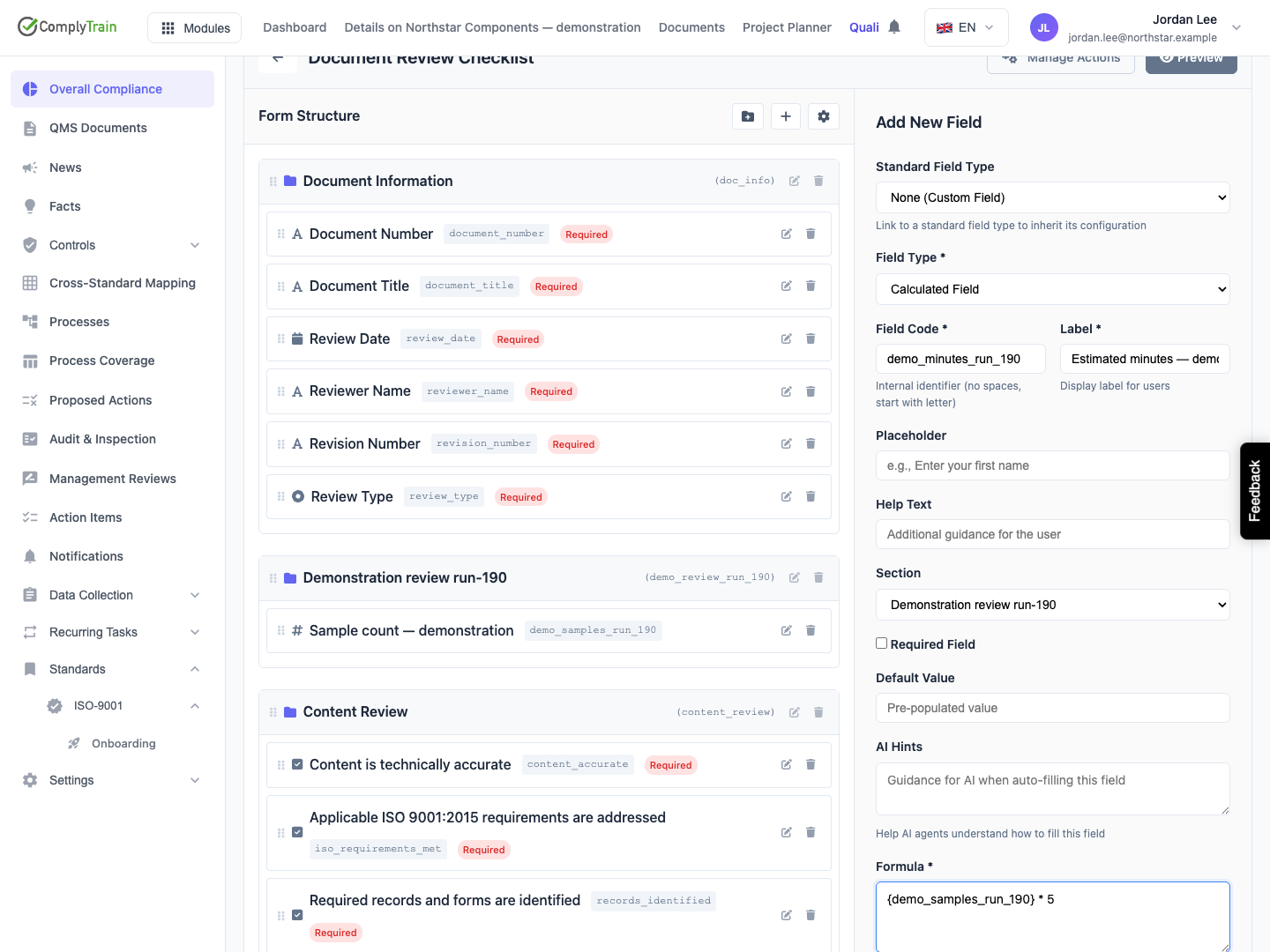
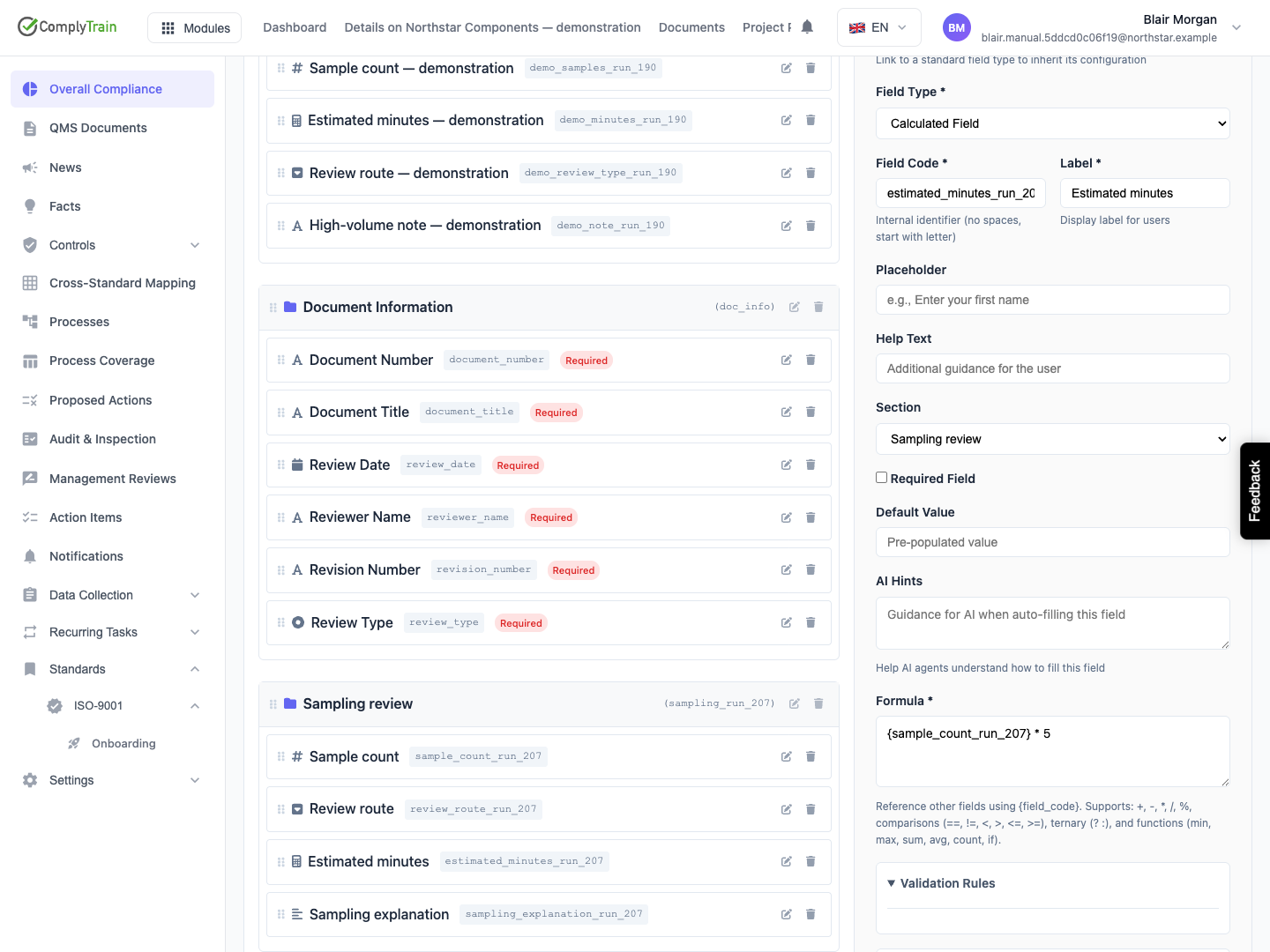
First save the numeric input questions. Add a Calculated Field, give it a stable code and label, then enter its Formula. Refer to other fields by their codes in braces.
For example, create sample_count and calculate estimated minutes with {sample_count} * 5. A count of 3 produces 15; a count of 4 produces 20. In the illustrated template, the demonstration codes include a suffix, so its formula uses that full saved code.
Save the field and open Preview. Change the inputs and check the calculated result. Respondents edit the input questions; the calculated answer is read-only. Include the result's unit in its label or help text.
Product location: /qms/{standardCode}/forms/{templateId}/edit (fallback: /qms/standards). Open the intended form template and use the field, section or preview controls described here.
Use arithmetic, comparisons and conditional expressions to describe the calculation. For example, if({sample_count} > 10, 30, 15) selects a review duration according to the count. Parentheses make the order of a more involved calculation explicit.
The functions are min, max, sum, avg, count, product, weighted_sum and if. Repeating-group references can calculate across entries, such as sum({samples[*].quantity}).
See the formula reference for syntax, worked examples, group references and validation. Check expected results by hand before relying on a formula in a decision or output rule.
Product location: /qms/{standardCode}/forms/{templateId}/edit (fallback: /qms/standards). Open the intended form template and use the field, section or preview controls described here.
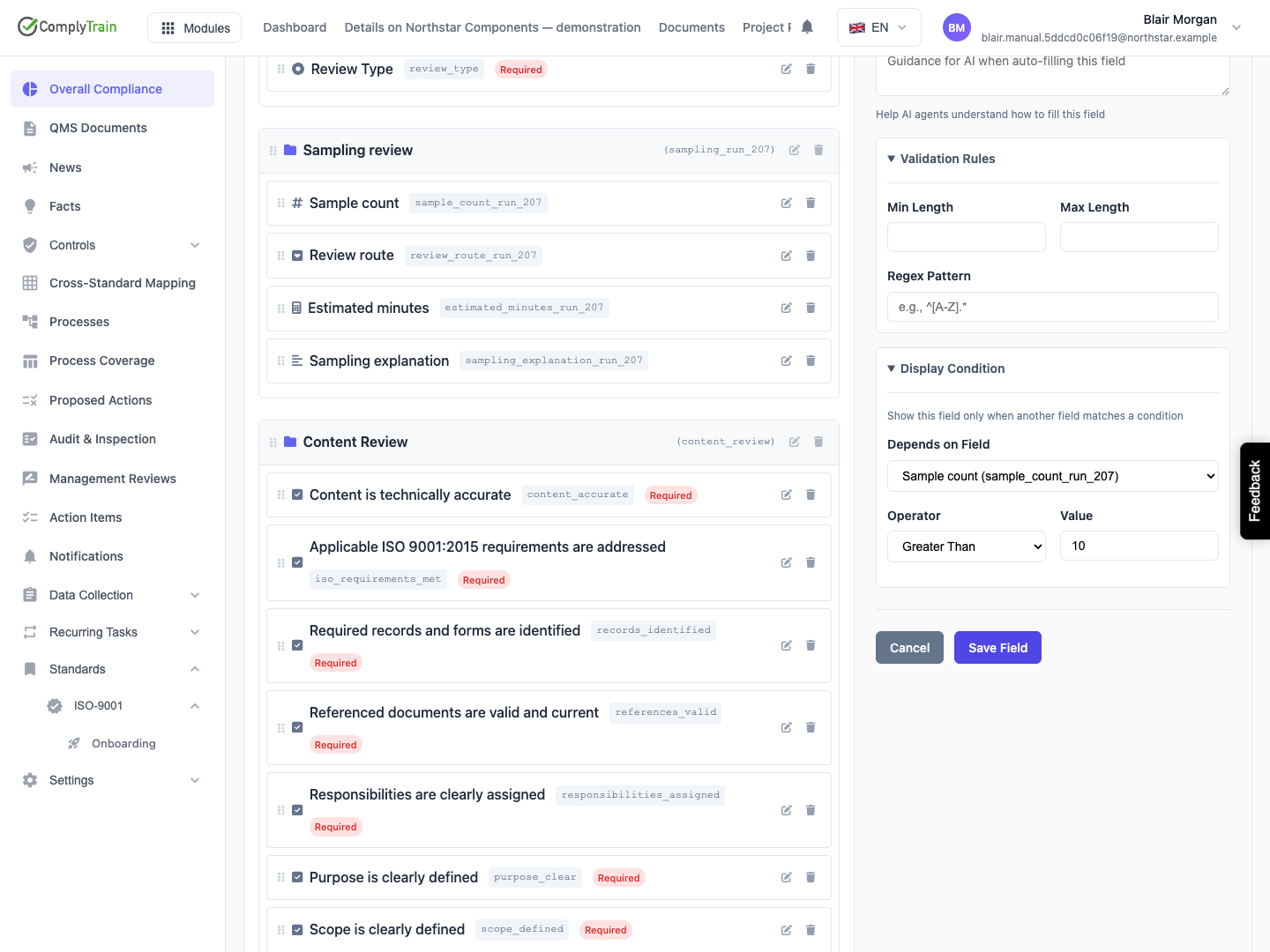
Expand Display Condition in the follow-up field. Select Depends on Field, choose an Operator and enter its comparison Value where required.
Operator | Display the question when |
|---|---|
Equals | The earlier answer matches the comparison value. |
Not Equals | The earlier answer differs from the comparison value. |
Contains | The earlier answer contains the specified value. |
Greater Than | The numeric answer is above the threshold. |
Less Than | The numeric answer is below the threshold. |
Is Empty | The earlier question has no answer. |
Is Not Empty | The earlier question has an answer. |
For example, show Sampling explanation when sample_count is greater than 10. A count of 10 leaves the explanation hidden; 11 shows it. Use thresholds respondents can actually enter within the controlling field's validation bounds.
For selection fields, compare the stored value, such as external, rather than the label “External review”. Empty checks need no comparison value. Test zero and explicit No answers separately from an unanswered question.
Product location: /qms/{standardCode}/forms/{templateId}/edit (fallback: /qms/standards). Open the intended form template and use the field, section or preview controls described here.
A respondent may answer a follow-up question, then change the earlier answer so the follow-up becomes hidden. ComplyTrain keeps that answer in the editing state so it can return if the question becomes visible again.
While the question is hidden, its answer is excluded from the submitted response and output-rule processing. A hidden required question does not block submission. If it becomes visible again, its retained answer must satisfy the question's validation before submission.
For example, a respondent explains an external review, switches to internal review and submits. The hidden external-review explanation is excluded. If the respondent switches back before submitting, the explanation returns for review.
Product location: /qms/{standardCode}/forms/{templateId}/edit (fallback: /qms/standards). Open the intended form template and use the field, section or preview controls described here.
To show a question without a dependency, select No condition and Save Field. Reopen it and confirm that no controlling field remains selected. The question then follows the form's ordinary layout and required-field rules.
To remove a placeholder, default, help text or validation setting, clear that control and save. Review the saved field and preview the result. Clearing one setting should preserve the field's other configuration.
Product location: /qms/{standardCode}/forms/{templateId}/edit (fallback: /qms/standards). Open the intended form template and use the field, section or preview controls described here.
A display condition decides which answers are relevant to the current response. Access to records is controlled by permissions. Put confidential information in the appropriate access-controlled record and choose fields suitable for the form's audience.
Check every action that uses an optional or conditional field. A hidden answer must not select a CAPA, supply a task owner, satisfy a rule condition or populate a generated record. Define an explicit relevant condition or an appropriate configured fallback where the action supports one.
When a calculated result drives an action, verify the submitted result and destination record together. Review both matching and non-matching cases, including a changed answer that hides a previously completed question.
Product location: /qms/{standardCode}/forms/{templateId}/edit (fallback: /qms/standards). Open the intended form template and use the field, section or preview controls described here.
Use a short set of examples covering each branch: a normal response, a threshold value, a value just beyond it, an empty optional answer and a required answer still missing. For each condition, show the field, answer it, hide it and show it again.
For calculations, include zero, allowed negative or decimal inputs and a case that would otherwise divide by zero. Compare preview, submission and generated outputs. See submission review to inspect each saved action result.
