Group and reorder questions, configure page or wizard presentation and maintain sections safely.
Sections organise related questions into a readable sequence. Use them to help respondents prepare information, complete the work and review the result. A repeating group serves a different purpose: collecting several entries with the same questions.
Product location: /qms/{standardCode}/forms/{templateId}/edit (fallback: /qms/standards). Open the intended form template and use the field, section or preview controls described here.
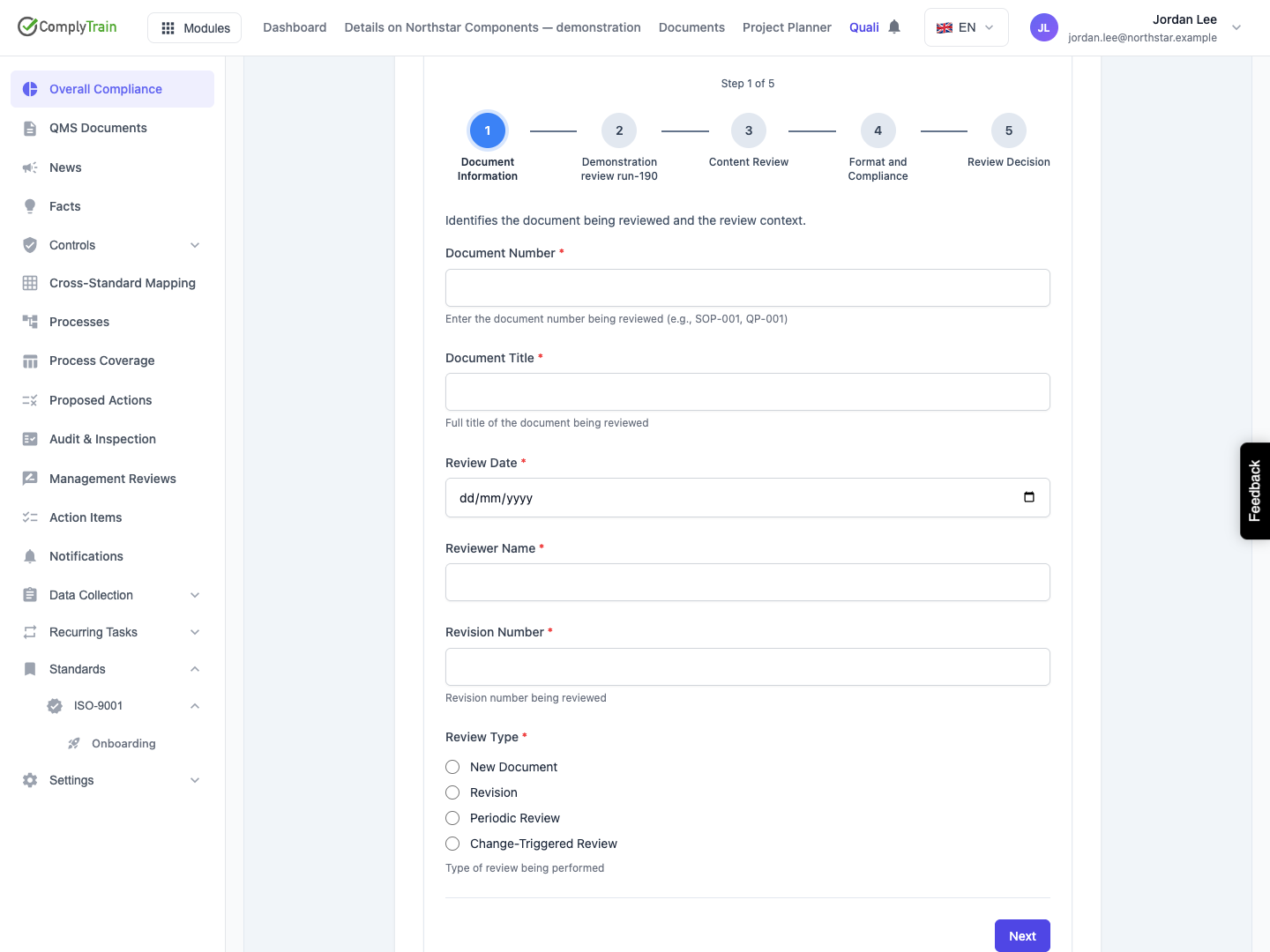
Group questions by the respondent's task. A document-review form might use Document Information, Content Review, Format and Compliance, then Review Outcome. Keep the identifying details first and the final decision after the questions supporting it.
Choose concise names that work both as headings and wizard steps. Use each description to explain the information needed for that part of the form.
Product location: /qms/{standardCode}/forms/{templateId}/edit (fallback: /qms/standards). Open the intended form template and use the field, section or preview controls described here.
Choose Add Section. Enter a Section Code, Section Name and optional Description. Use a stable code beginning with a letter and containing letters, numbers and underscores, such as review_outcome. Choose the code carefully; it is fixed once the section is saved.
Enter the code yourself and use the name for the wording respondents see. Choose Save Section to create the section. It appears in Form Structure ready for questions; add or assign those questions separately.
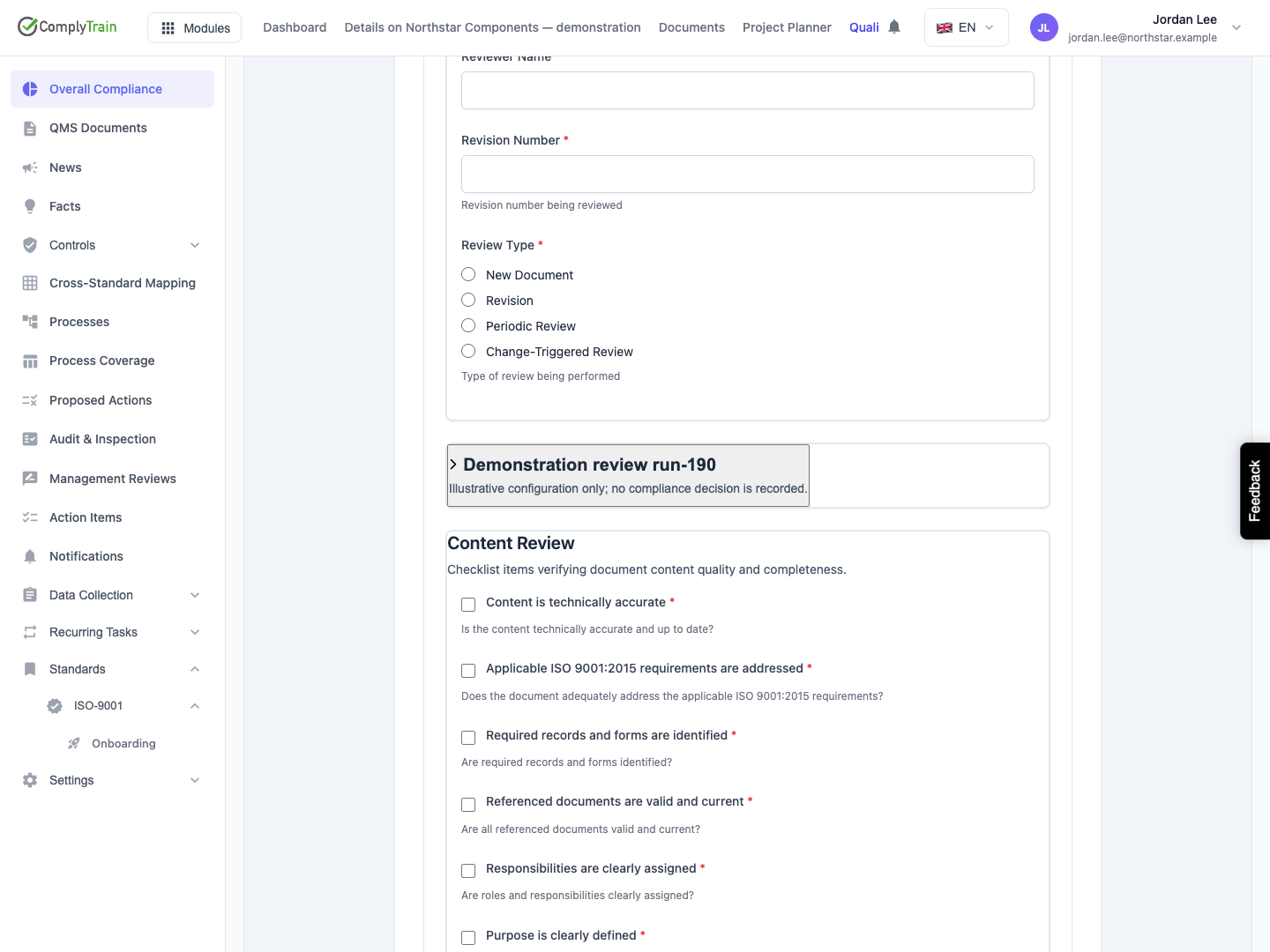
The illustrated section contains additional demonstration questions. Its description distinguishes those examples from the operational review questions.
Product location: /qms/{standardCode}/forms/{templateId}/edit (fallback: /qms/standards). Open the intended form template and use the field, section or preview controls described here.
Select the section's edit icon. Adjust its name, description or presentation controls and choose Save Section. Use Cancel to discard the changes still open in the editor.
A section's code cannot be changed once the section exists, because other parts of the form refer to it. Improve its visible name and instructions instead. To remove a description, clear it and save. Reopen the section to check the result, then read it in Preview alongside the actual questions.
Product location: /qms/{standardCode}/forms/{templateId}/edit (fallback: /qms/standards). Open the intended form template and use the field, section or preview controls described here.
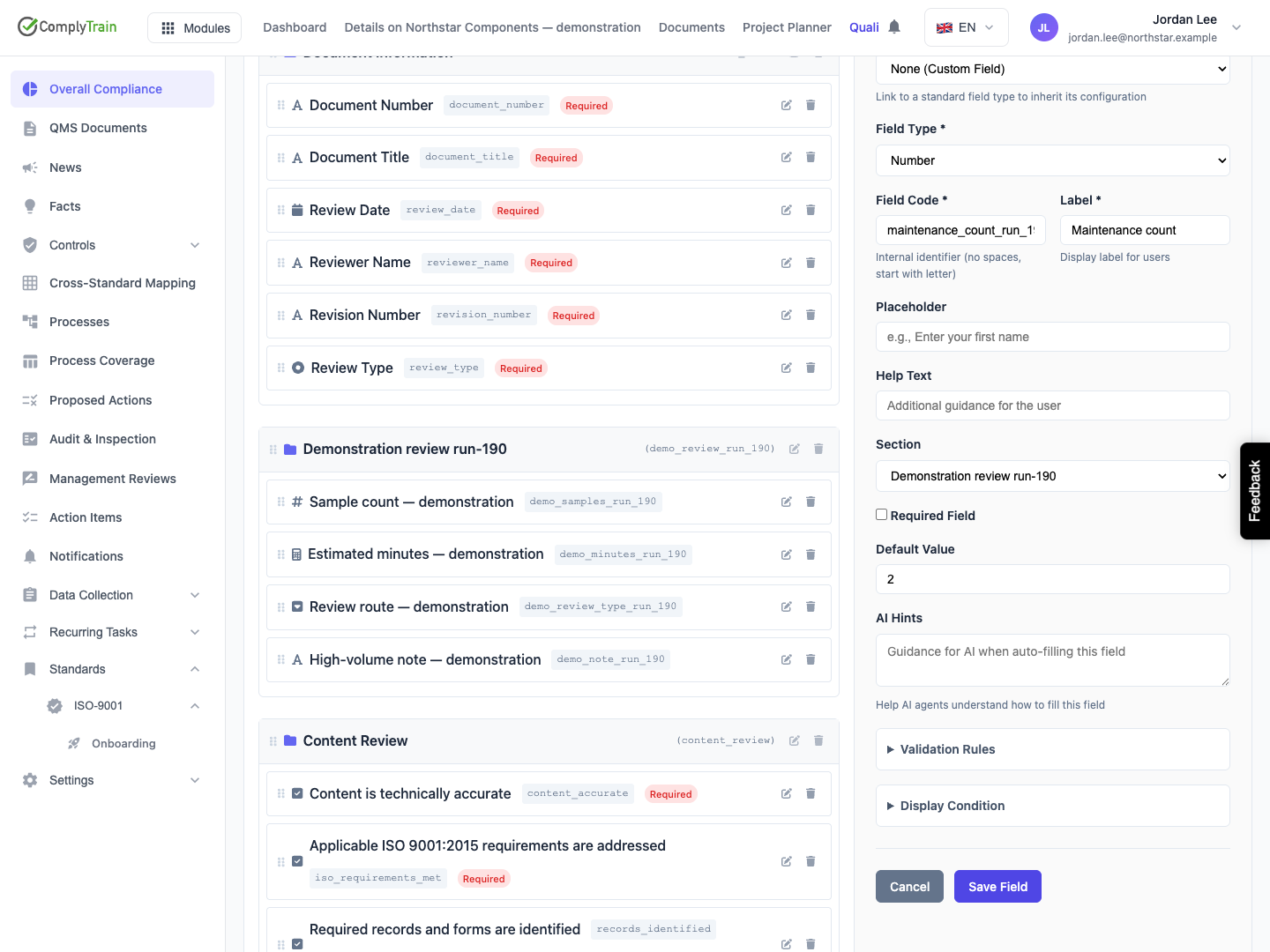
Open a field, select its Section and choose Save Field. Repeat for the other questions belonging together. Check the selection on newly added fields so they appear under the intended heading.
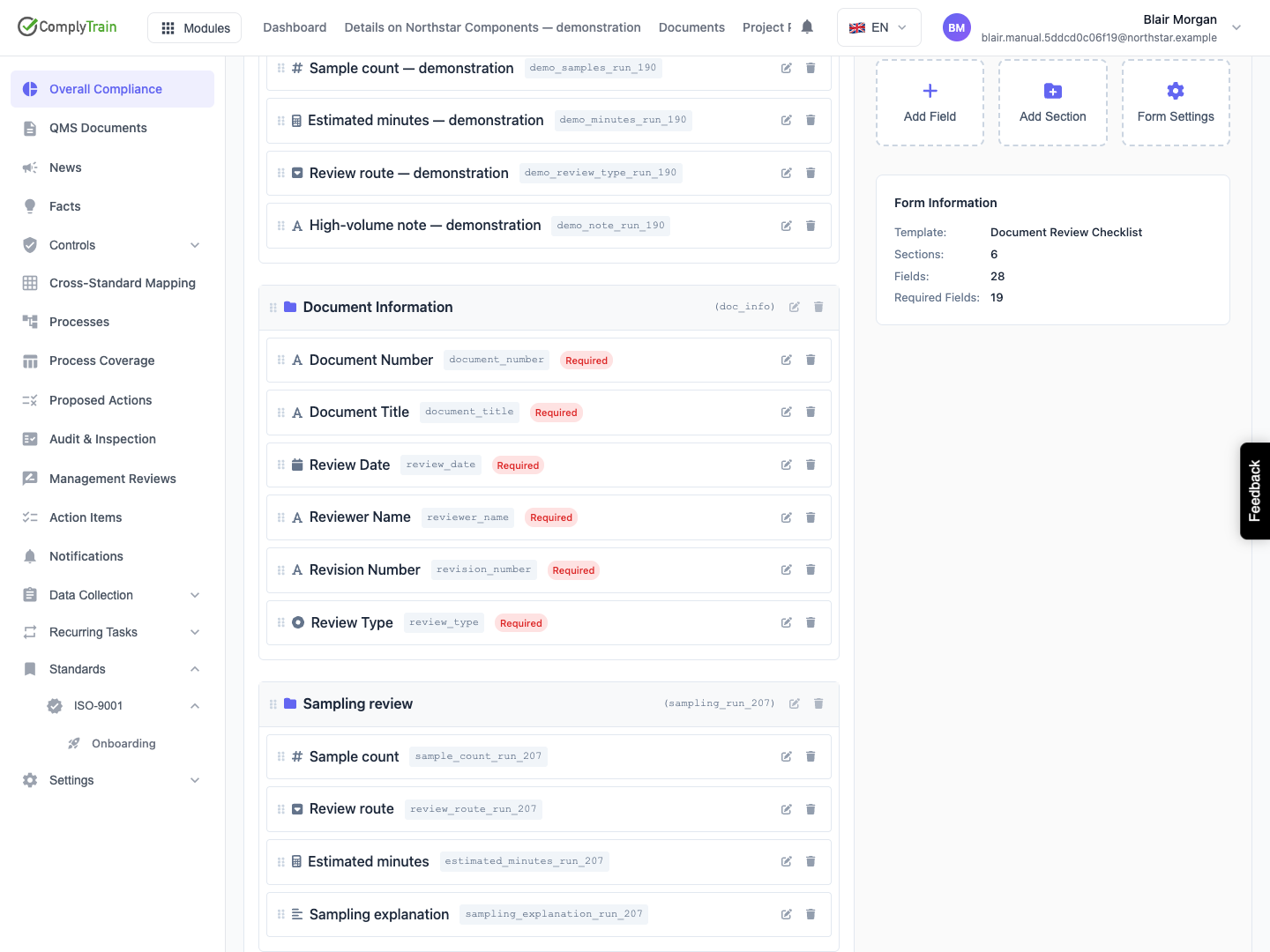
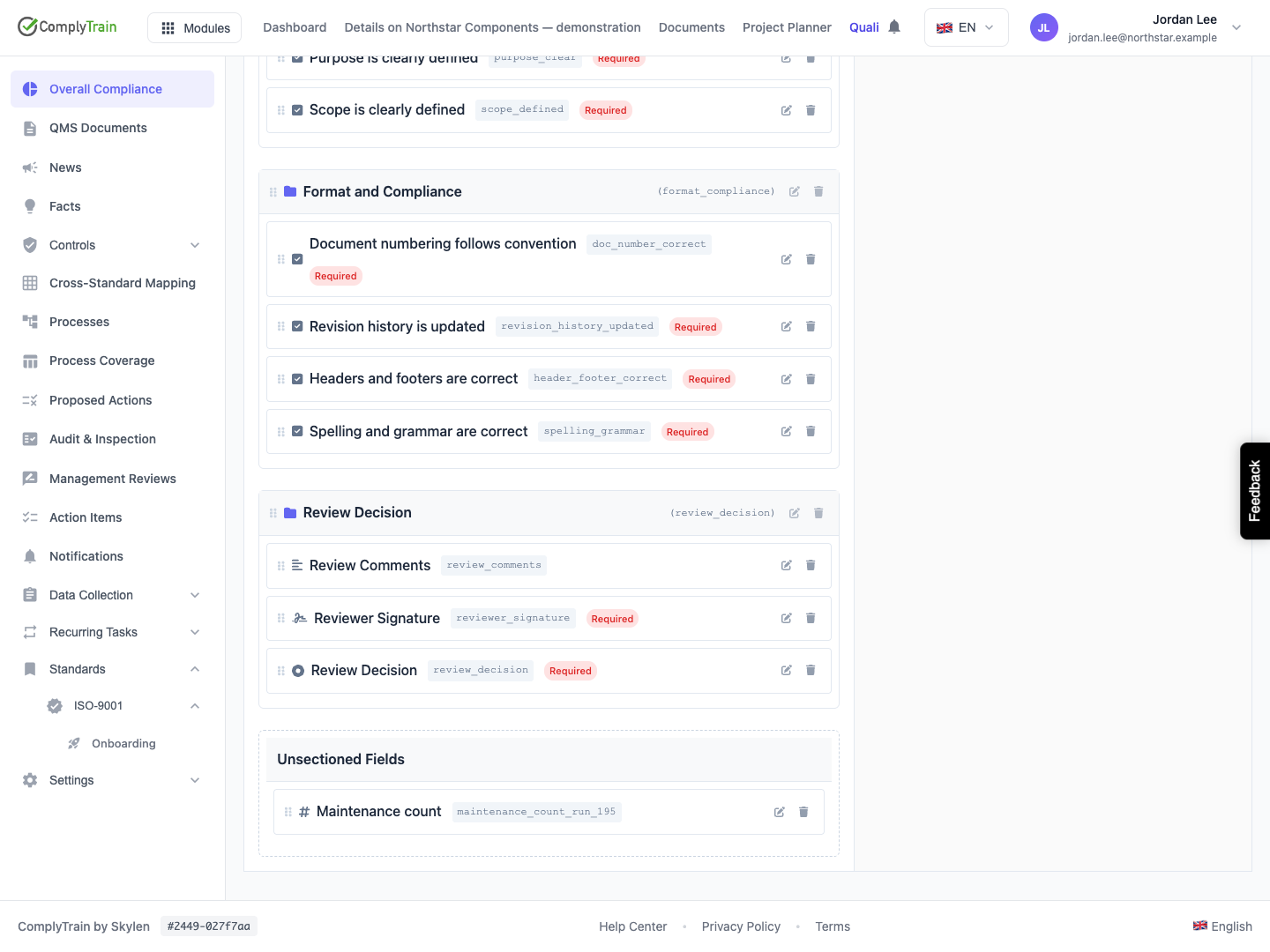
Select No Section for a question outside the named sections. The structure panel shows these under Unsectioned Fields. Assign an unsectioned question to an existing section through the same selector.
Changing a field's section preserves the question's identity and configuration. For repeated samples or participants, configure repeating entries rather than creating a separate section for every expected entry.
Product location: /qms/{standardCode}/forms/{templateId}/edit (fallback: /qms/standards). Open the intended form template and use the field, section or preview controls described here.
Select Collapsible Section to let respondents fold the section in single-page presentation. Enable Start Collapsed when it should initially show only its heading and description. New sections start with both controls off; Start Collapsed appears when collapsibility is enabled.
Save and open Preview. Expand and collapse the heading to check that the right questions are grouped beneath it. Keep frequently needed introductory questions easy to find.
Required questions still need valid answers even if their section is folded closed. Conditional visibility determines whether a question applies; collapsing the section only changes how it is displayed.
Product location: /qms/{standardCode}/forms/{templateId}/edit (fallback: /qms/standards). Open the intended form template and use the field, section or preview controls described here.
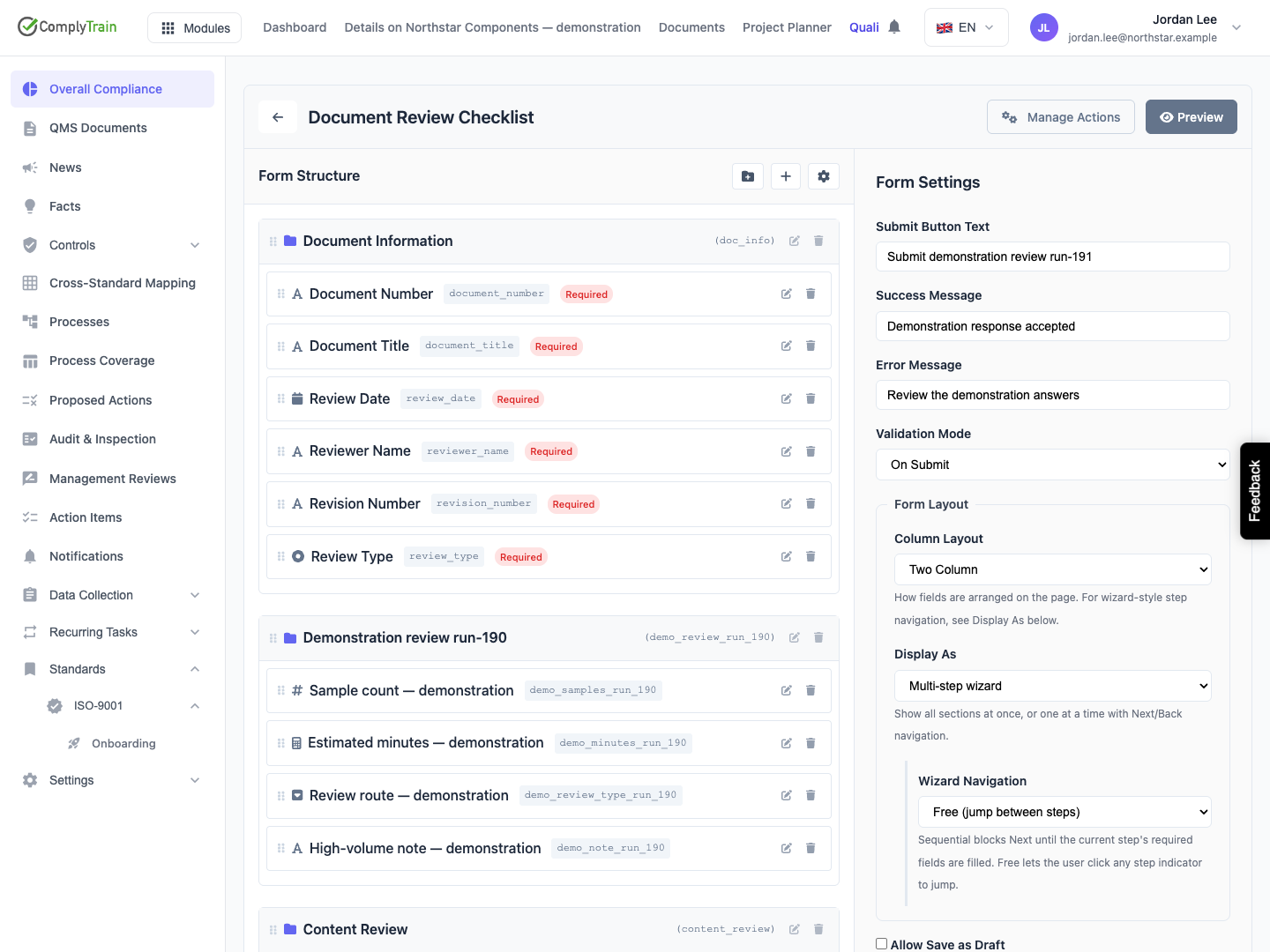
Open Form Settings. Single page shows sections together and uses their collapse settings. Multi-step wizard presents sections as steps.
Choose sequential navigation when each stage should be completed before moving forward, or free navigation when respondents need to revisit and move among sections. Check the form's required-section and progress settings as well. See form settings and preview for each control.
Column layout controls the arrangement of questions within the presentation. Preview the chosen combination with both short questions and longer explanations.
Product location: /qms/{standardCode}/forms/{templateId}/edit (fallback: /qms/standards). Open the intended form template and use the field, section or preview controls described here.
Drag a section using its handle to change the section sequence. Drag a question within its section to change the question sequence there. Keep related inputs before the calculated results or follow-up questions that use them.
To move a question to another section, use its Section selector and save. Inspect the final order in Form Structure, then in Preview. Confirm that the other sections still contain their intended questions.
If a reorder cannot be saved, a message explains why and the list returns to its previous order; nothing is moved. Dismiss the message and try the move again, or ask your administrator for access if the message says you lack permission. If another designer has changed the form, start from the latest saved structure.
Product location: /qms/{standardCode}/forms/{templateId}/edit (fallback: /qms/standards). Open the intended form template and use the field, section or preview controls described here.
Walk through the form as a respondent. Check the section descriptions, required questions and calculated results. In a wizard, try moving forward with missing required information and then completing it.
Where a condition hides all questions in a section, check the resulting path alongside the form's section-completion settings. If a repeating group is present, check its minimum entries and required questions for each entry. A completed top-level question should not obscure work still needed in a group.
For forms connected to training, follow training prerequisites before recording the response. Section names should describe the work clearly even when a surrounding workflow also has a prerequisite.
Product location: /qms/{standardCode}/forms/{templateId}/edit (fallback: /qms/standards). Open the intended form template and use the field, section or preview controls described here.
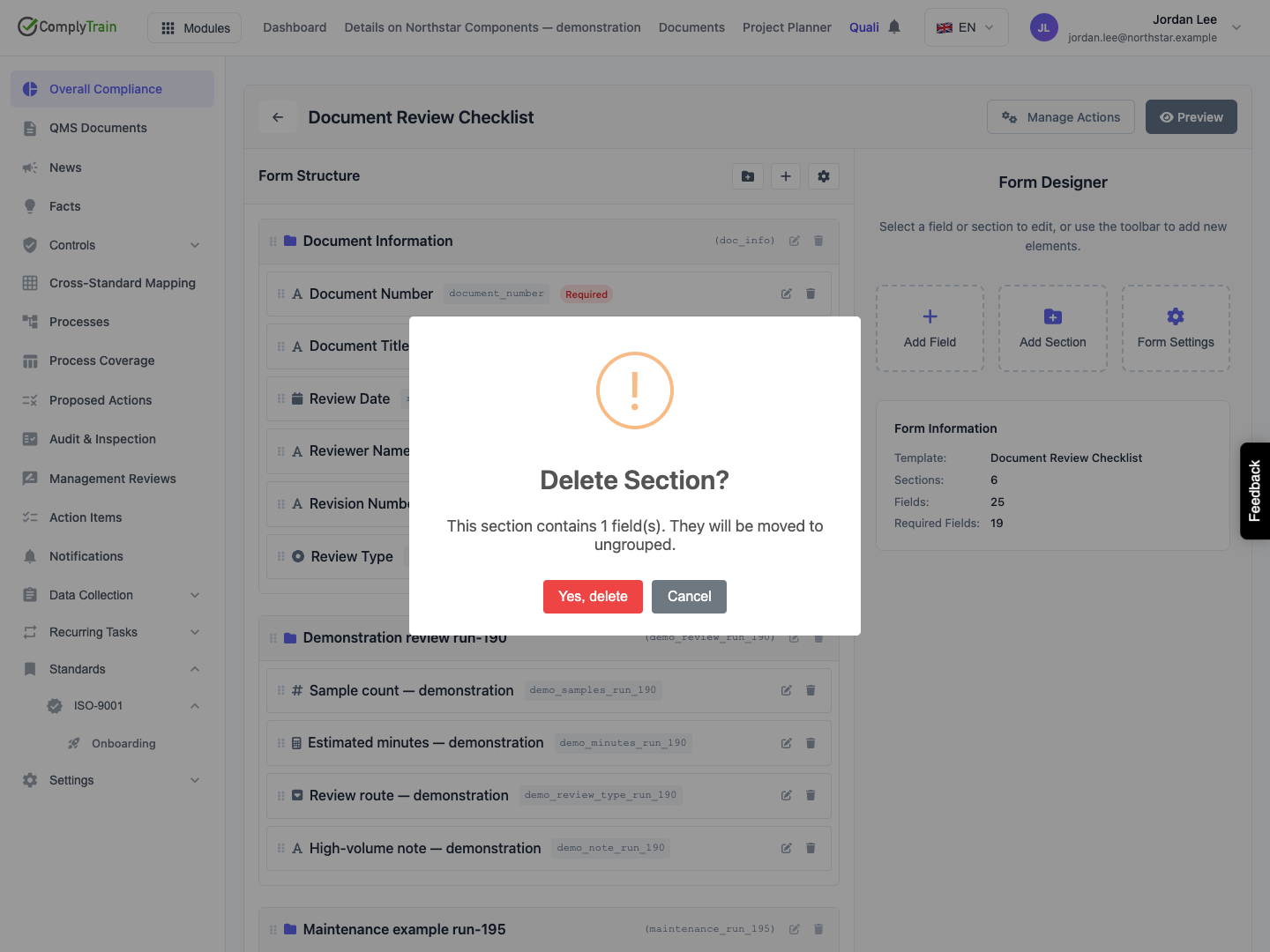
Select the section's delete icon and read the confirmation. For a section containing questions, it explains that the fields will move to the ungrouped area. Choose Cancel to keep the section, or confirm to remove the heading while retaining its questions.
Find the retained questions under Unsectioned Fields. Open each one, choose the intended destination section and Save Field. Create a new section first if the questions need a new heading.
Inspect the resulting form in Preview. Check that every question still belongs in the response and that conditional and calculated relationships remain understandable after the structural change.
Product location: /qms/{standardCode}/forms/{templateId}/edit (fallback: /qms/standards). Open the intended form template and use the field, section or preview controls described here.
For an established form, review changes with the person responsible for its records. A new sequence can affect instructions used in training, a reordered wizard can affect the respondent's path and a changed section name can affect how reviewers explain the form.
Complete a controlled example using the saved structure and inspect its submission. Check any automatic outputs that rely on fields moved during the edit. Use the submission guide to distinguish the response from its follow-up results.
