Choose a form, define matching conditions, order actions, and verify saved configuration and actual outcomes.
A rule decides when automatic actions run after a form is submitted. Its actions decide what to create or request. Saving a rule does not execute it, and a successful form submission does not guarantee that every automatic action succeeds.
Product location: /qms/output-rules
Expand Data Collection and select Output Rules at /qms/output-rules. You can also choose Manage Actions on a form card or in its builder to open that form's rules directly.
Select the intended form to open /qms/output-rules/{documentTemplateId}. These locations use the form template identifier, rather than an individual QMS document or submission identifier. Confirm the form's name and standard before editing its automation. You need QMS Manage forms to read and maintain output rules; permission to submit a form is a separate responsibility.
The overview groups existing rules by form. Each form card identifies the form, shows its number of Rules, Active rules and Actions, and previews up to three rule names; open the card to inspect the complete list. When a form's name cannot be loaded, the card shows Form name unavailable and the form identifier; its counts are still complete. Available Form Templates provides a starting point for forms that have no rules yet. Use Refresh after another administrator changes the configuration.
Overview figure | What it tells you |
|---|---|
Forms with Rules | Number of form templates with configured rules. |
Total Rules | Saved rules, including inactive rules. |
Active Rules | Rules currently enabled for matching submissions. |
Total Actions | Saved actions belonging to the rules, including inactive actions. The figure beneath it shows how many of those actions are active. |
Use the figures to understand the configuration, then inspect the relevant rule and its actions. Counts describe saved setup; the submission review shows what happened for an actual response.
Product location: /qms/output-rules/{documentTemplateId} (fallback: /qms/output-rules). Expand the intended rule to inspect its actions.
Use Active Only to display enabled rules, or leave it unchecked to include inactive rules. This filter changes the list you see, not a rule's saved Active setting. Refresh reloads the list; expand the rule again to inspect its actions.
A rule card shows its name, description, Active or Inactive status, sort order and conditions. Customized identifies a saved customization. Custom Rule identifies a rule without a linked source-template identifier; an automatically created Create Record rule can also have this badge. Review the rule's purpose and settings when deciding whether it belongs in the form's automation.
Select a rule header to expand Actions. Each action shows its type, summary, order and inactive/customized badges. The action's own edit and delete icons operate on that action. The icons beside the rule name operate on the whole rule, including its child actions when the rule is deleted.
Review every active rule for the form before adding new automation. All matching rules are eligible to run, so a form can create more than one output from a single submission. Include any provisioned Create Record rule in this review. An action summary describes saved configuration; check the resulting object or delivery when testing the rule.
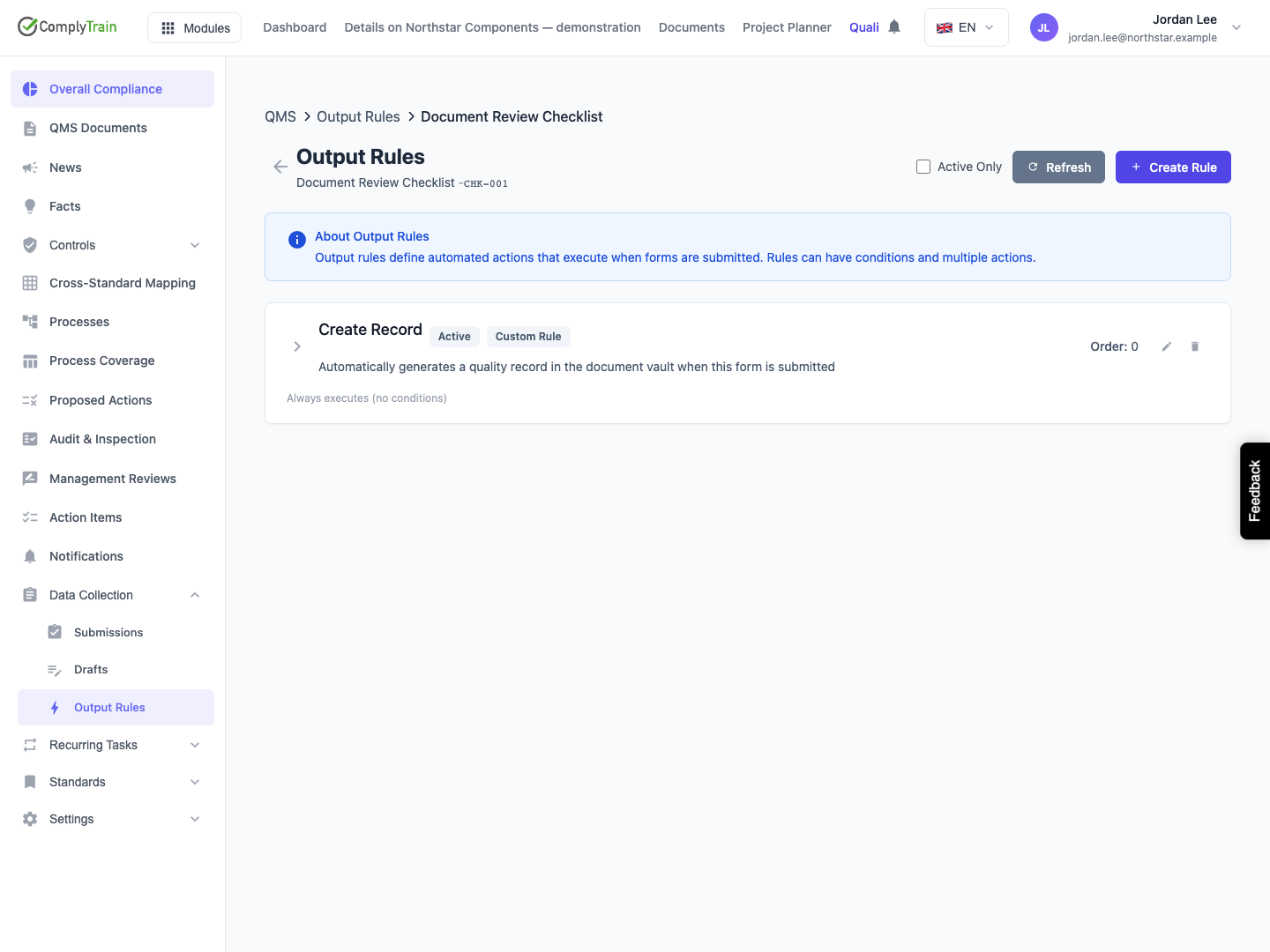
Product location: /qms/output-rules/{documentTemplateId}/rules/new (fallback: /qms/output-rules)
Select Create Rule at /qms/output-rules/{documentTemplateId}/rules/new.
Control | What to enter |
|---|---|
Name | Required name, up to 200 characters. Describe the business condition or intended output. |
Description | Optional explanation, up to 2,000 characters. Include the purpose and expected outcome. |
Sort Order | Non-negative order value. Lower numbers run first. New rules start at 0. |
Active | New rules start active. Clear this while preparing an unfinished configuration. |
Conditions | The submitted answers that must match. An empty list matches every final submission. |
Give the rule a clear purpose, such as Review follow-up.
Clear Active while defining conditions and actions. An inactive rule retains its settings without starting new outputs.
Choose its order relative to the form's other rules. Distinct values such as 10, 20 and 30 make the intended sequence easy to read and leave room for later additions.
Add the matching conditions, then choose Create.
Reopen the saved rule and check its form, name, description, active state, order and conditions. Add its actions before activating it for a controlled test.
Cancel leaves without saving the current editor. A rule without actions creates no output merely because its conditions match.
To edit a saved rule, select its edit icon at /qms/output-rules/{documentTemplateId}/rules/{ruleId} and choose Update after changing it. Read any System Rule notice before customizing provisioned behavior, and review the intended configuration with the quality-system owner.
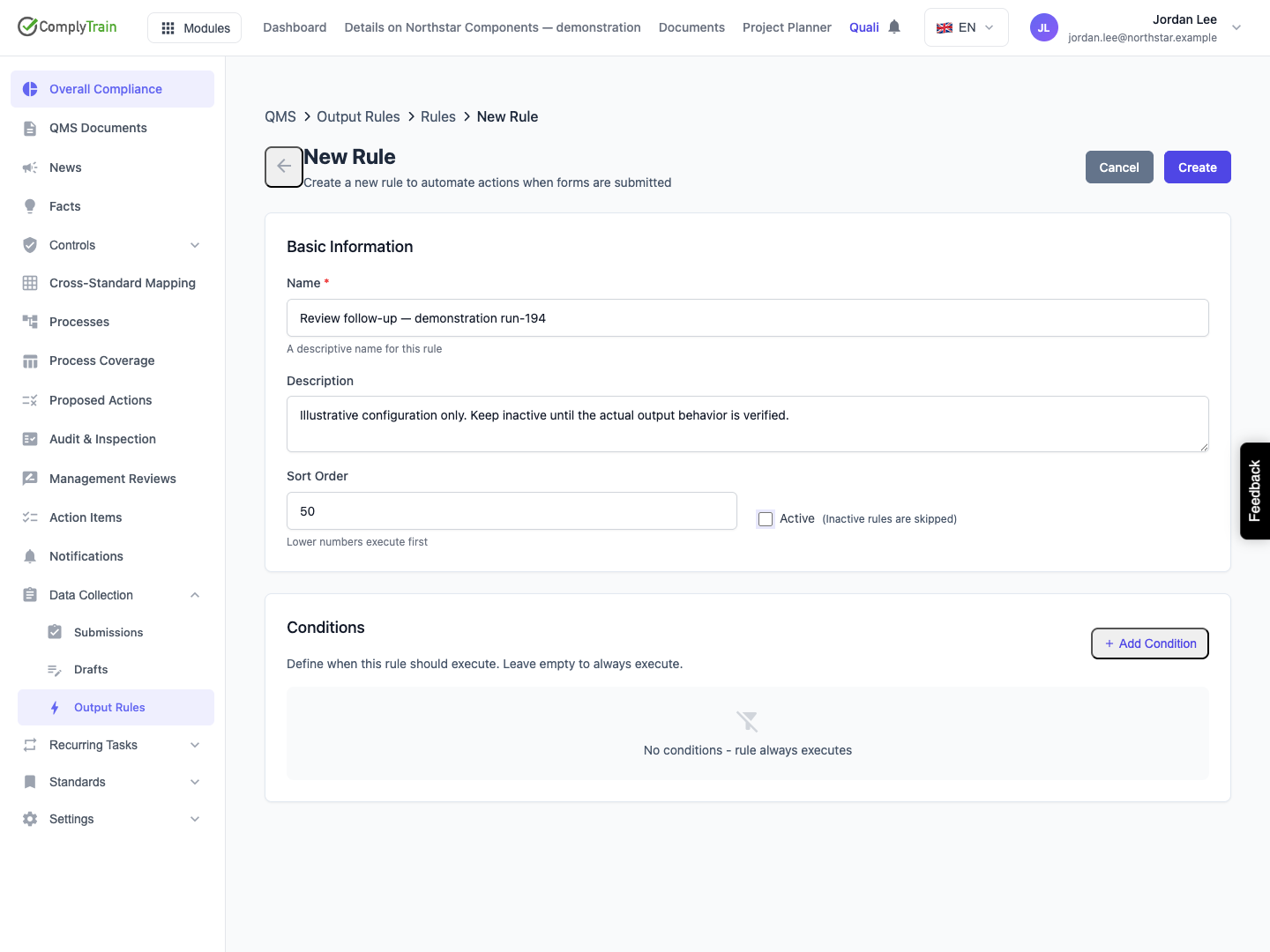
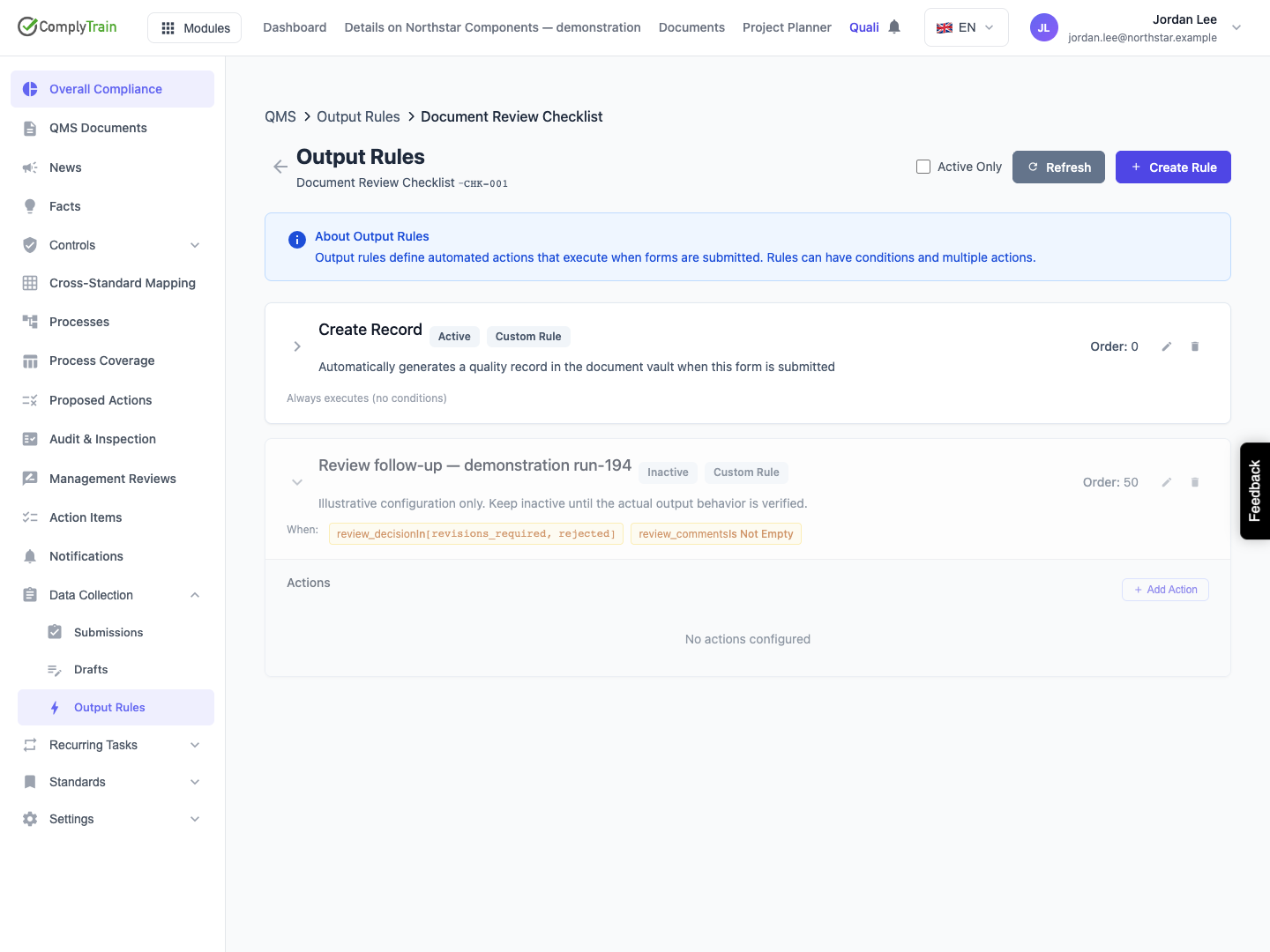
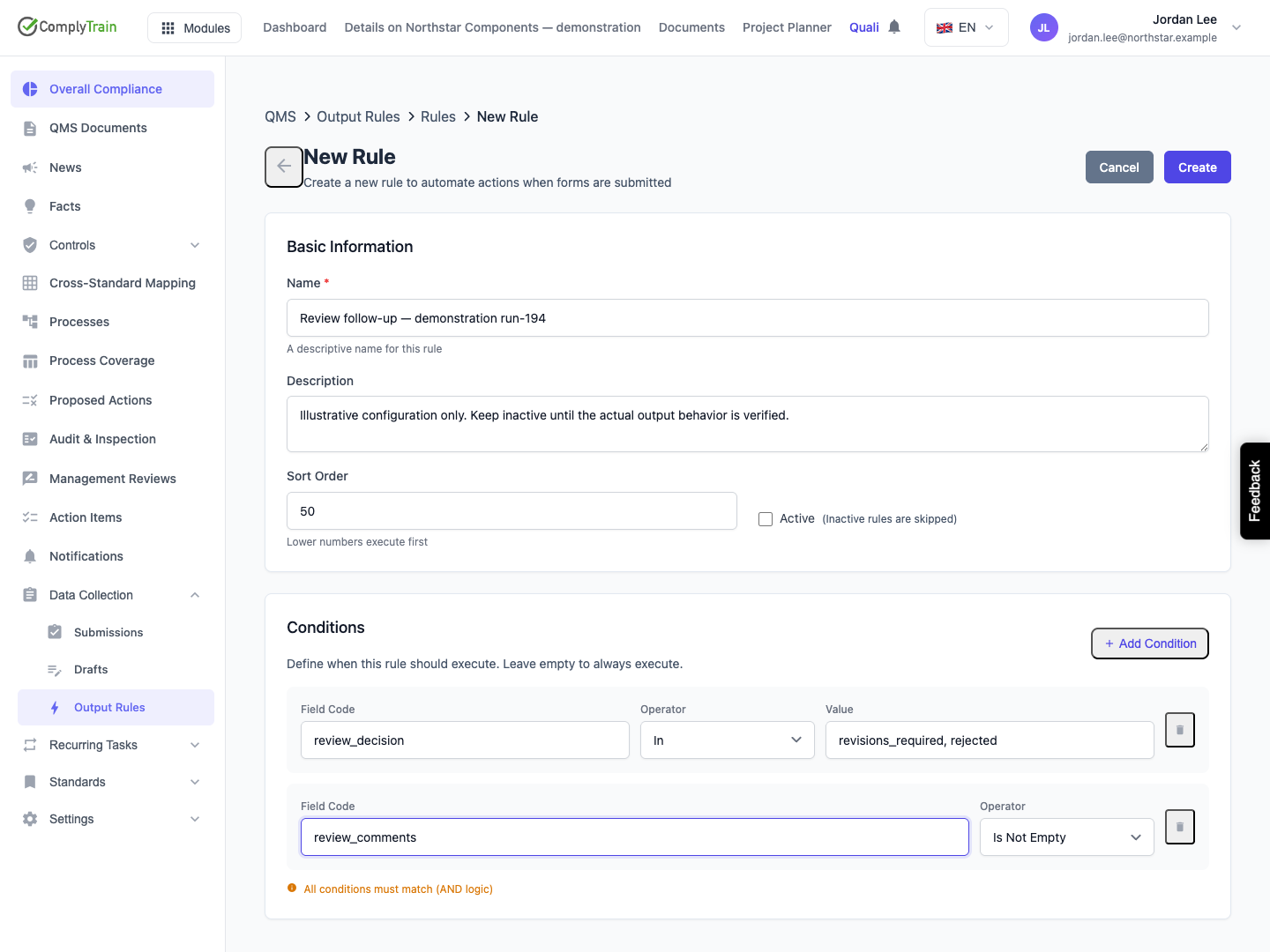
Product location: /qms/output-rules/{documentTemplateId}/rules/{ruleId} (fallback: /qms/output-rules). Edit the intended rule and review Conditions.
Choose Add Condition and enter a Field Code, Operator and, where required, Value. Use the saved field code and stored answer value from the form. The display label helps people read the form; the rule compares the stored value.
Every row must match: conditions within one rule use AND. For a condition that accepts any of several choices in one field, use In with the stored choices separated by commas.
Operator | Meaning and input |
|---|---|
Equals / Not Equals | Compare one stored value. Text equality ignores letter case. |
In / Not In | Compare a stored choice with a comma-separated list of candidate values. Blank list items are discarded. |
Greater Than / Less Than | Compare numeric values. Enter a numeric threshold. |
Greater Than or Equal / Less Than or Equal | Include the boundary value in a numeric comparison. |
Contains / Not Contains | Check text without letter-case sensitivity. |
Is Empty / Is Not Empty | Check for a missing value, blank text or empty list. No comparison value is needed. |
The illustrated review rule uses these two conditions:
Field Code | Operator | Value |
|---|---|---|
| In |
|
| Is Not Empty | Leave the value unset. |
It matches when the decision is either Revisions Required or Rejected and review comments are present. A different decision does not match; a rejected response with no comments also does not match. Use the actual codes and stored choices in your form when adapting this example.
For numeric fields, enter values such as 10, without units or explanatory text, and test just below, at and above the threshold. For a true/false field, enter true or false. Zero and false count as supplied values, so use Equals when you want to distinguish them from other answers.
Use Is Not Empty alongside a negative condition when an answer must be present. For example, a missing answer can satisfy Not Equals; a presence condition makes the rule's intent explicit.
Remove an individual condition with its delete control. Removing every condition makes the rule unconditional for final submissions. Save with Update and reopen to confirm the new condition list before enabling the rule.
Product location: /qms/output-rules/{documentTemplateId}/rules/{ruleId}/actions/new (fallback: /qms/output-rules)
See the reference for each output action for settings, defaults, mappings, permissions and result checks.
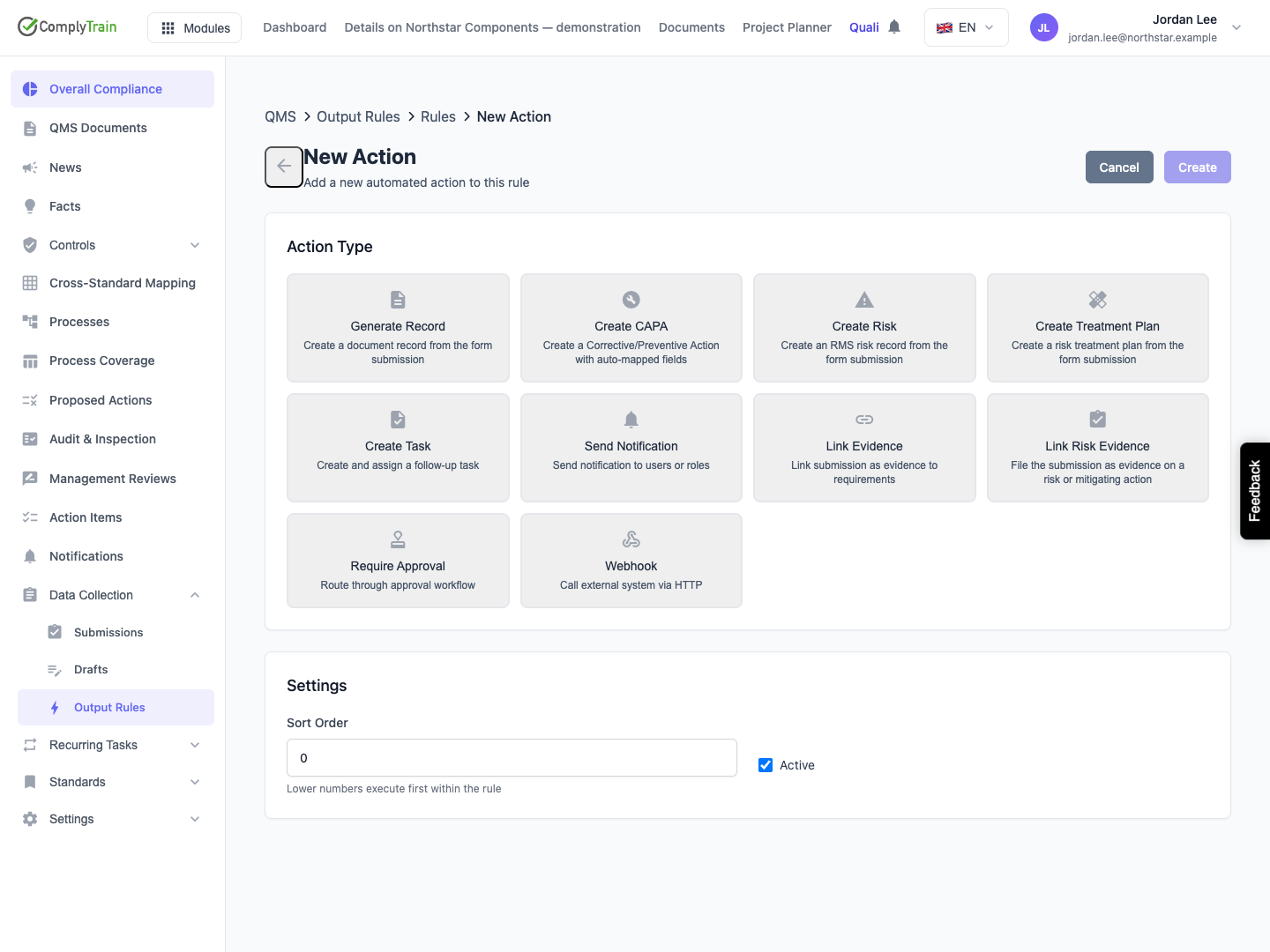
Expand the saved rule and select Add Action. Choose an action type, its Sort Order, Active state and the settings available for that type. The create location is /qms/output-rules/{documentTemplateId}/rules/{ruleId}/actions/new; an existing action uses its actual action ID in place of new.
The choices are Generate Record, Create CAPA, Create Risk, Create Treatment Plan, Create Task, Send Notification, Link Evidence, Link Risk Evidence, Require Approval and Webhook. Choose the type for the result you need and configure its target and mappings. Test the specific outcome before routine use.
For Link Evidence, CAPA is the primary destination. Choose its standard-requirement option when the submitted response itself provides evidence for a requirement. Set the intended target and verify the resulting evidence there; see the destination-specific instructions.
Rules run in their configured order. Active actions within each matching rule run in their own configured order. An individual action failure is recorded and does not automatically prevent subsequent actions from running. Deactivating a rule skips its actions; deactivating one action leaves other active actions eligible.
Place Require Approval before outputs that depend on a review decision in the same rule. Choose the approvers as named users, QMS roles or a form field, the Decision rule and any comment, signature or due-date requirement. Keep Hold the later actions of this rule until the decision selected. Only the later actions in that rule wait for this submission; earlier actions and other matching rules run normally. When rejected, Cancel the waiting actions cancels them and Run the waiting actions anyway lets them run; the rejection is recorded either way. Verify pending, approved and rejected outcomes with controlled responses. See approval configuration.
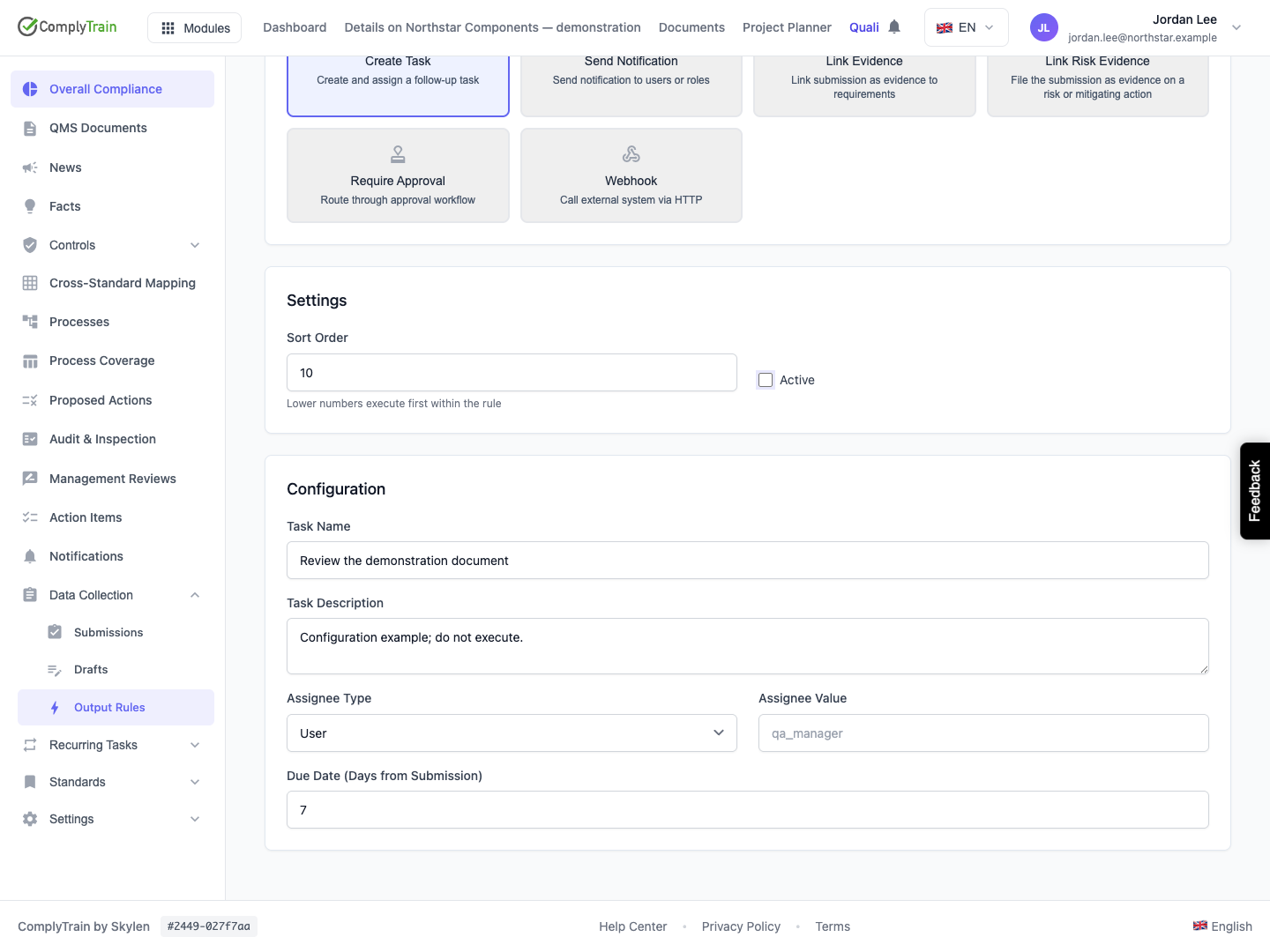
Product location: /qms/output-rules/{documentTemplateId} (fallback: /qms/output-rules). Refresh, expand the intended rule, then reopen the rule or action editor.
After Create or Update, the editor returns to the selected form's rule list at /qms/output-rules/{documentTemplateId}. After saving an action, its parent rule is already expanded with the saved action shown; after saving a rule, expand it to inspect its actions. Locate the saved item before adding another one. Reopen it and compare its values with the intended configuration.
Item | What to check after saving |
|---|---|
Rule | Correct form, name, description, order, Active setting and every condition. |
Action | Correct parent rule, type, order, Active setting, destination, mappings and any approval or delivery settings. |
Cleared description | Reopening shows the description empty. |
Removed conditions | Reopening shows the intended remaining rows, or no conditions when the rule should match every final submission. |
Clearing a description changes explanatory text. Clearing all conditions changes when the rule runs. Review that distinction before activating the updated rule.
Rule updates use version checks. If another administrator changed the rule, reload it, compare their saved changes with yours, then make the intended update against the current version. Keep the other administrator's work unless you deliberately intend to replace it.
Changing an action's type changes its required configuration. Review the destination, recipients, mappings and workflow settings for the new type. Cancel returns from the action editor to the form's rule list, with the parent rule expanded, without saving its pending changes.
When the configuration is ready, activate the rule and the actions you intend to test. Use controlled responses and inspect the saved submission, execution results and destination objects. Include notifications and external endpoints deliberately in the test so the resulting messages and requests reach the intended test recipients.
Test response or setting | Result to inspect |
|---|---|
All conditions match | Every eligible action has its expected result, subject to any approval gate. |
One condition does not match | This rule creates no outputs; other matching rules can still run. |
Rule inactive | None of this rule's actions runs for the new submission. |
One action inactive | That action is skipped; the other eligible actions can run. |
Approval pending | Later actions in that rule wait, while other matching rules continue. |
For each result, check the actual record, task, evidence or delivery. Configuration read-back and a saved form response are useful checks, but they do not replace inspecting the resulting work.
Product location: /qms/output-rules/{documentTemplateId} (fallback: /qms/output-rules). Use the rule or action edit control to deactivate it, or its own delete control to remove it.
To stop future execution while keeping the configuration, edit the rule or action, clear Active, save and reopen to confirm Inactive. Use the unfiltered rule list to find an inactive rule.
Change | Effect |
|---|---|
Deactivate a rule | Future submissions skip the rule and its actions. The configuration remains available to edit or reactivate. |
Deactivate one action | Future matching submissions skip that action; other active actions in the rule remain eligible. |
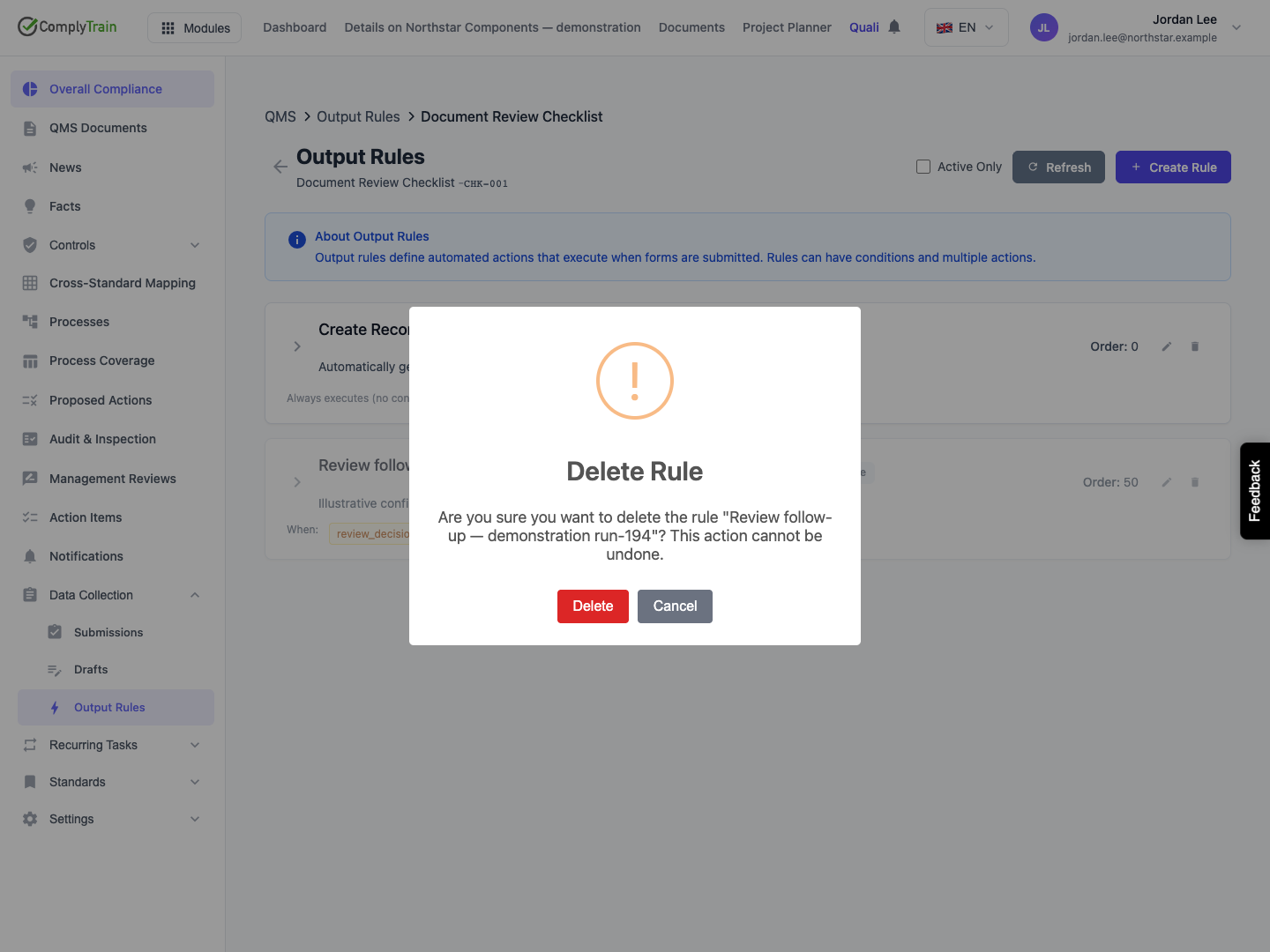
Delete one action | Remove the selected action from the rule. Check its type and purpose in the confirmation. |
Delete the whole rule | Remove the rule and its child actions. Check the rule name and scope in the confirmation. |
Choose Cancel in a deletion confirmation to preserve the item. If you need to keep the setup for later use, deactivate it instead of deleting it. To resume an inactive configuration, review its settings and dependencies, select Active, save and test a new controlled submission.
Deactivation and deletion affect future execution. They do not reverse a record, CAPA, task, evidence link or external request that already exists. Review those results separately through their normal module workflows.
Product location: /qms/output-rules/{documentTemplateId} (fallback: /qms/output-rules). Inspect the saved rule and actions; compare with the relevant form submission.
Open Submissions and inspect the response that should have produced the output. Check the actual stored answers and each execution result. The response and its automatic outputs have separate outcomes: a response can be saved even when an action fails.
Work through these checks in order:
Confirm the submission belongs to the intended form template.
Confirm the rule and required actions were active, then compare every condition with the submitted field codes and values.
Check whether an approval in this rule is waiting for a decision. Review its rejection setting when the decision was rejected.
Inspect the action's target, field mappings and prerequisites, including any required RMS authority for risk outputs.
Open the actual destination object or check delivery at the recipient or receiving service. Compare its source-submission reference with the response you are reviewing.
If a list reports a loading failure, such as Output rules could not be loaded. or The actions of this rule could not be loaded., choose Retry and check again once loading succeeds. The overview figures are hidden until the rules load, so a missing figure is never a zero. Resolve expired sign-in or missing permissions before changing configuration. For an edit conflict, reload the current rule before retrying the update.
Inspect existing outputs before submitting again: another response can start additional work from actions that already succeeded. An edit to configuration changes how subsequent submissions are processed; it is not itself a retry of an earlier response. When requesting help, include the form, submission, rule and action identifiers, the expected output and the recorded result. See submission and execution review.
