
Assign one-off work and distinguish a recurring definition from each due instance.
Work with a task
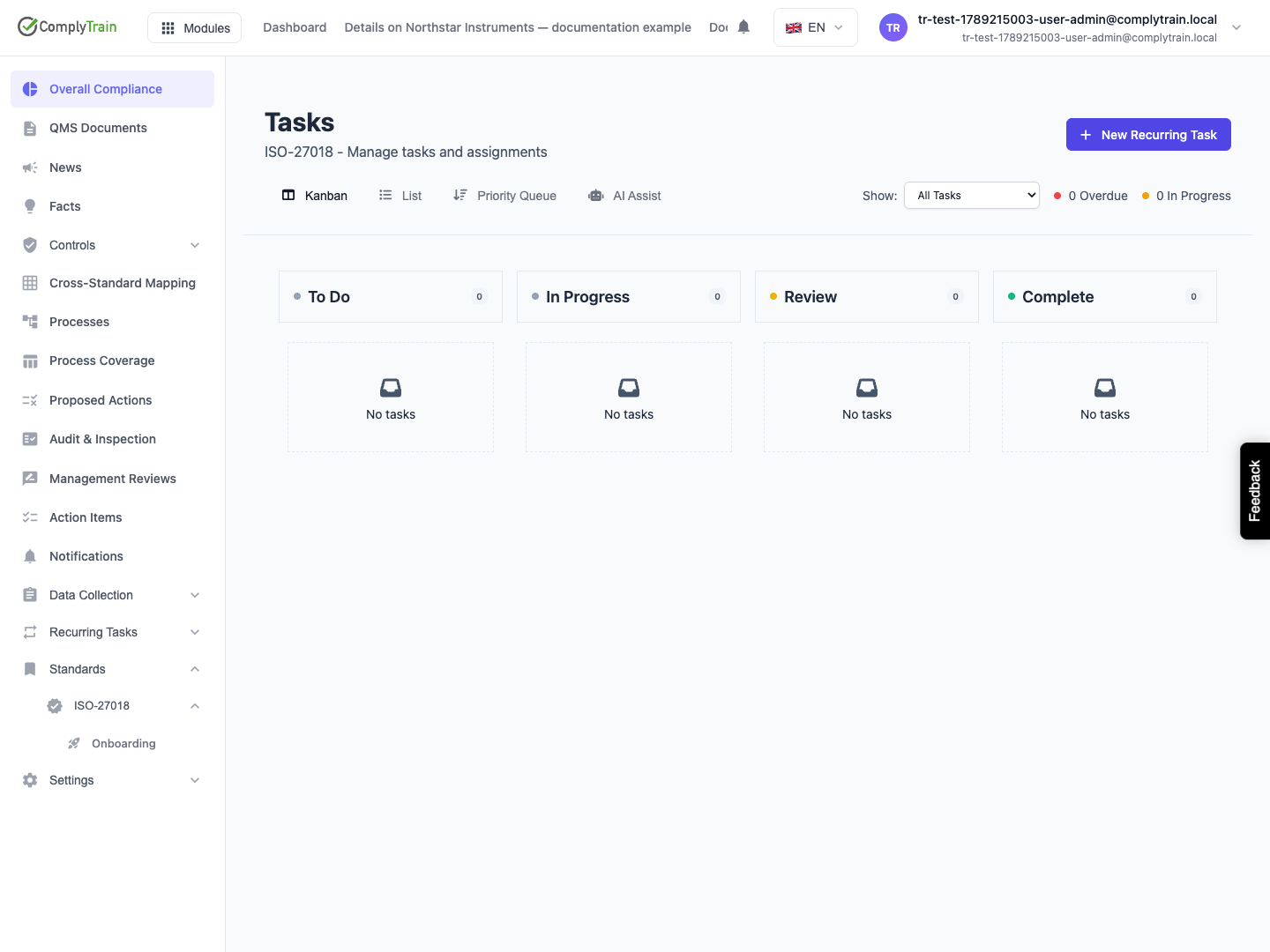
Product location: /qms/{standardCode}/tasks (fallback: /qms/standards). Open the intended task.
Open Tasks within the relevant standard and choose the activity. Review its type, priority, owner, due date and linked requirement before beginning. Board, List and Priority Queue organise the same work in different ways; the task record explains the actual obligation.
Review AI-proposed work before accepting it into the task list. Check that its purpose, owner, due date and linked document or requirement are correct. Follow the lifecycle for that task type and verify the saved result after taking an action.
For a recurring activity, identify the specific occurrence by its name and due date. Starting, assigning or completing one occurrence changes that record; it does not complete future instances.
Create recurring work
Product location: /qms/recurring-tasks/definitions
Open Recurring Tasks and choose Create Manually or Create with AI. Start with a definition that explains the repeated activity, its instructions, schedule and generation lead. Decide whether it is ready to activate and check its standard scope.
Use Create and maintain recurring task definitions for creation, editing and pause/resume. The schedule reference explains the six manual patterns and their date examples. For natural-language preparation, use Create a recurring task from an AI suggestion and review its proposed dates before saving.
Check the saved definition and the generated occurrence separately. The definition supplies the pattern; each occurrence carries its own due date, responsibility and result.
Complete an occurrence
Product location: /qms/recurring-tasks/instances. Select Upcoming Instances and choose the intended occurrence by definition and due date.
Use Complete, skip and reschedule recurring task instances to act on the work due now. Review its instructions, perform the activity, add completion notes and supporting evidence, then reopen the saved outcome.
Choose Skip to record a justified decision not to perform one occurrence. Choose Reschedule for an approved change to that occurrence's deadline. Change the definition when the future pattern itself changes.
The calendar helps compare dates and outcomes. Filter by task and status, then inspect the individual record for the responsible person, explanation and evidence. Follow up linked process work separately when the occurrence is part of a larger workflow.