Create custom roles, choose their permissions from the catalogue, see who holds each role, and understand system roles and when changes take effect.
A role is a named set of permissions. You give roles to people directly or through user groups, and each person can then do what the union of their roles allows, within the limits of their account class. Only organisation Admins can create, change or delete roles.
Product location: /settings/roles. Open Roles & Permissions in Settings, then Roles.
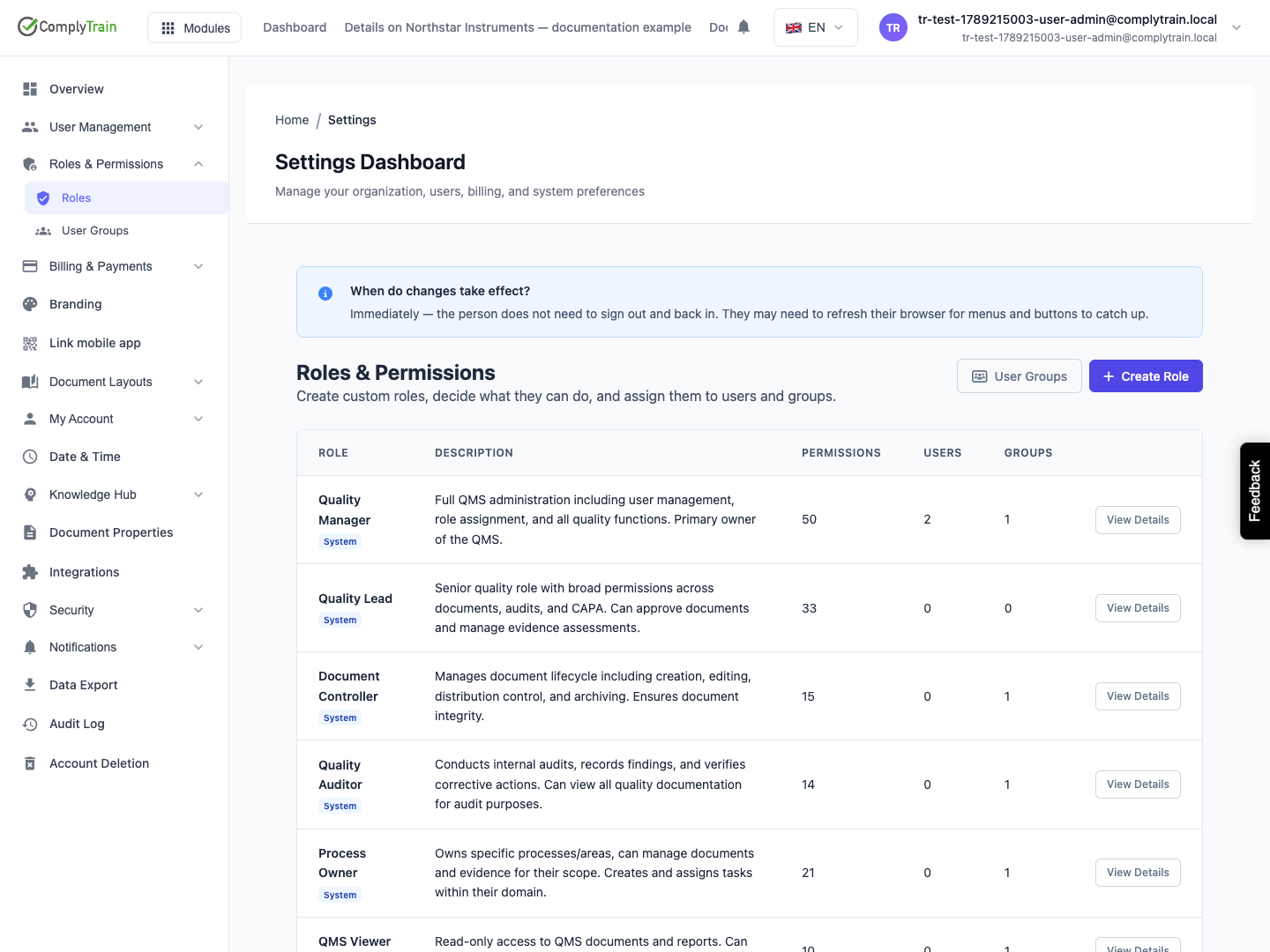
Open Settings, then Roles & Permissions and Roles. The page lists every role in your organisation:
Column | What it shows |
|---|---|
Role | The role name, with a System badge for roles ComplyTrain provides, Custom for roles you created, and Inactive for a role that grants nothing. |
Description | What the role is for. |
Permissions | How many permissions the role grants. |
Users | How many people hold the role directly. |
Groups | How many groups give the role to their members. |
Choose View Details or the role name to open it. Delete appears on custom roles. User Groups opens the group list, and Create Role starts a new role.
The panel When do changes take effect? answers the usual question: "Immediately — the person does not need to sign out and back in. They may need to refresh their browser for menus and buttons to catch up."
Product location: /settings/roles. Open Roles & Permissions in Settings, then Roles.
ComplyTrain provides system roles for common responsibilities. You cannot rename them, delete them or change their permissions, and their page says so: "This is a system role: it cannot be renamed or deleted, and its permissions are fixed. You can still assign it to users and groups."
System role | Intended for |
|---|---|
Quality Manager | Full administration of Quality Management, including its settings, standards, users and roles. |
Quality Lead | Senior quality work across documents, audits and CAPA, including approving documents and assessing evidence. |
Document Controller | The document lifecycle: creating, editing, distribution control and archiving. |
Quality Auditor | Conducting internal audits, recording findings and verifying corrective actions, with read access to quality documentation. |
Process Owner | Owning processes and their evidence, completing tasks and submitting forms. |
QMS Viewer | Read-only access to quality documents and reports. |
Form Filler | Filling in and submitting forms, without form-building or document-management rights. |
Billing Manager | Managing billing for the organisation; see manage your subscription and plan. |
The quality roles appear once Quality Management is set up for your organisation. Risk Management and Training keep their own roles, which you assign in those modules; see RMS roles and permissions. Their permissions are also in the catalogue below, so a custom role can combine permissions from several modules.
When no system role fits a responsibility, create a custom role.
Product location: /settings/roles. Open Roles & Permissions in Settings, then Roles.
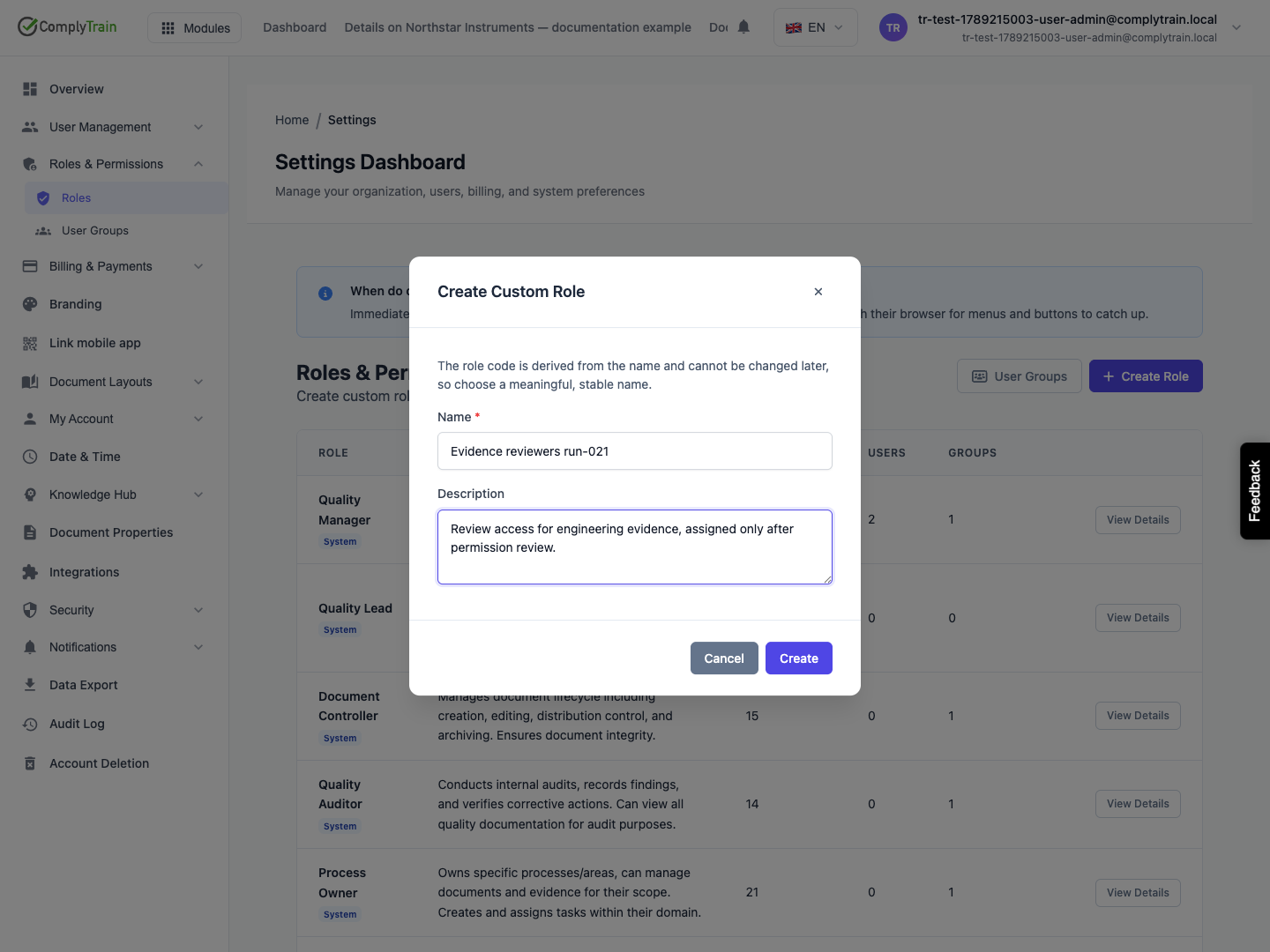
Choose Create Role. Create Custom Role opens.
Enter the Name and, optionally, a Description.
Choose Create. The role appears in the list with a Custom badge and no permissions.
Open the role and choose its permissions.
Field | Rules |
|---|---|
Name | Required, up to 100 characters, and must contain at least one letter or digit. No other role may have the same name, ignoring capitals. |
Description | Optional, up to 500 characters. Say what the role is for and who should hold it. |
The dialog warns: "The role code is derived from the name and cannot be changed later, so choose a meaningful, stable name." The code is custom_ followed by the name in lower case with spaces and punctuation replaced by underscores, so Document contributor becomes custom_document_contributor. Two names that produce the same code cannot both exist. You can rename the role later; the code stays.
Product location: /settings/roles/{roleId} (fallback: /settings/roles). Open the role with View Details.
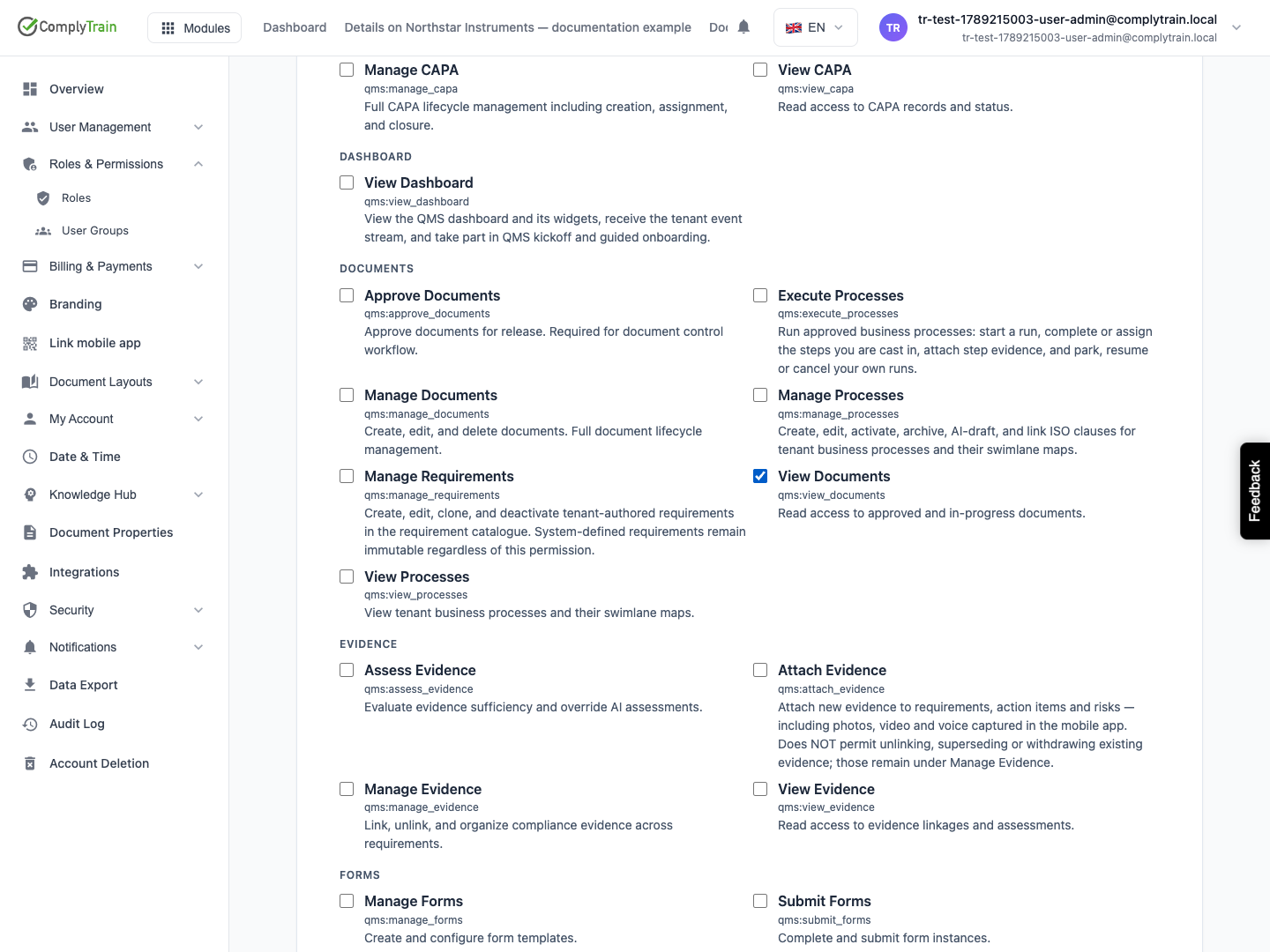
The role page shows the role's name, code and description, and a Permissions card: "What this role can do. Changes apply to everyone holding the role." The catalogue is grouped by module, such as Quality Management, Risk Management, Controls, Training, Billing and Users, and within each module by category. Every permission shows its name, its code and a description of what it allows.
Tick each permission the role should grant, and clear any it should not.
When the selection differs from the saved one, Save Permissions and Cancel appear. Choose Save Permissions.
Permissions updated confirms the save. Cancel restores the last saved selection.
Saving replaces the role's whole permission set with the ticked boxes. The change applies at once to everyone who holds the role, directly or through a group.
Product location: /settings/roles. Open Roles & Permissions in Settings, then Roles.
These are the permissions most often combined into custom roles. The catalogue on the role page is the complete list for your organisation.
Code | Name | Allows |
|---|---|---|
| View Dashboard | The Quality Management dashboard and taking part in standard kick-off. |
| View Documents | Reading approved and in-progress documents. |
| Manage Documents | Creating, editing and deleting documents. |
| Approve Documents | Approving documents for release. |
| View Processes | Viewing business processes and their swimlane maps. |
| Manage Processes | Creating, editing, activating and archiving processes. |
| Execute Processes | Running approved processes and completing your steps. |
| Manage Requirements | Creating and editing your own requirements in the requirement catalogue. |
| View Audits | Reading audit schedules, reports and findings. |
| Conduct Audits | Carrying out audits and recording findings. |
| Manage Audits | Planning audit programmes and assigning auditors. |
| View CAPA | Reading CAPA records. |
| Create CAPA | Raising corrective and preventive actions. |
| Manage CAPA | Managing the whole CAPA lifecycle. |
| Close CAPA | Verifying and closing completed CAPAs. |
| View Evidence | Reading evidence links and assessments. |
| Attach Evidence | Attaching new evidence, including mobile photos, video and voice. |
| Manage Evidence | Linking, unlinking and superseding evidence. |
| Submit Forms | Completing and submitting forms. |
| Manage Forms | Designing form templates. |
| Complete Tasks | Completing assigned tasks and providing evidence. |
| View Reports | Viewing compliance reports. |
| Manage Settings | Configuring Quality Management settings. |
Code | Name | Allows |
|---|---|---|
| View Risks | Reading the risk register, scores and history. |
| Create Risks | Adding risks to the register. |
| Edit Risks | Changing risk details, without scoring. |
| Assess Risks | Scoring and re-scoring risks. |
| Manage Mitigating Actions | Creating, assigning and closing mitigating actions. |
| View RMS Reports | Risk dashboards, reports and analytics. |
| Manage RMS Configuration | Methodologies, categories and other Risk Management settings. |
Code | Name | Allows |
|---|---|---|
| View Training | Seeing assigned training and own progress. |
| Take Training | Completing training, quizzes and videos. |
| Assign Training | Assigning training to people. |
| View Team Progress | Following a managed team's training status. |
| Approve Completion | Approving practical sign-offs and manual completions. |
| Manage Courses | Creating, editing, publishing and archiving courses. |
| View Compliance Evidence | Training records, audit trails and evidence packs. |
Code | Name | Allows |
|---|---|---|
| View controls | Reading the control library, the estate and the Statement of Applicability. |
| Manage controls | Creating and editing controls, applicability and owners. |
| Approve Statement of Applicability | Approving and signing the Statement of Applicability. |
| View Vault Configuration | Seeing how a document vault is set up. Read-only. |
| Configure Vaults | Changing vault capabilities and workflow actions. |
| Manage Vault Access | Granting and revoking access to vaults. |
| Generate & Export Reports | Generating and exporting reports. |
Code | Name | Allows |
|---|---|---|
| Manage Users | Opening User Management to invite, import and maintain users who are not Admins. |
| Manage Billing | Opening Billing & Payments. |
| Manage Document Layouts | Designing document layouts and layout fonts. |
| Run AI Discovery | Running AI Discovery sessions that add organisation facts. No role has it until an Admin adds it. |
Product Library, Project Planner, Organisation Knowledge, Grants & Tenders and Vendor Management list their permissions under their own module names in the same way.
Product location: /settings/roles. Open Roles & Permissions in Settings, then Roles.
Engineers in your organisation draft and revise quality procedures, attach evidence and fill in forms, but approval must stay with the quality team.
Create a role named Document contributor with the description "Drafts and revises QMS documents and attaches evidence. Cannot approve."
Under Quality Management, tick qms:view_dashboard, qms:view_documents, qms:manage_documents, qms:view_processes, qms:view_evidence, qms:attach_evidence, qms:submit_forms and qms:complete_tasks.
Leave qms:approve_documents unticked, so only people with Approve Documents can release a document.
Choose Save Permissions.
Give the role to the engineers, most easily by creating an Engineering contributors group with this role; see grant roles through user groups.
If the engineers also work in a document vault, grant the role access to that vault; a vault access grant can name a role. See configure vaults and access grants.
Check the result with one engineer: they can edit a draft procedure, and no approval action is offered to them.
Product location: /settings/roles/{roleId} (fallback: /settings/roles). Open the role with View Details.
To rename a role or change its description, open it, choose Edit, change Name or Description and choose Save Changes. Role updated confirms it. The same name rules apply, and the code does not change.
To delete a custom role, choose Delete in the list or on the role page. Delete role? warns: "This permanently deletes the role … and removes it from all users and groups that hold it." Choose Delete. Vault access granted to the role ends with it. People keep whatever other roles give them, so check the role's holders before you delete it.
Product location: /settings/roles/{roleId} (fallback: /settings/roles). Open the role with View Details and scroll to the holder panels.
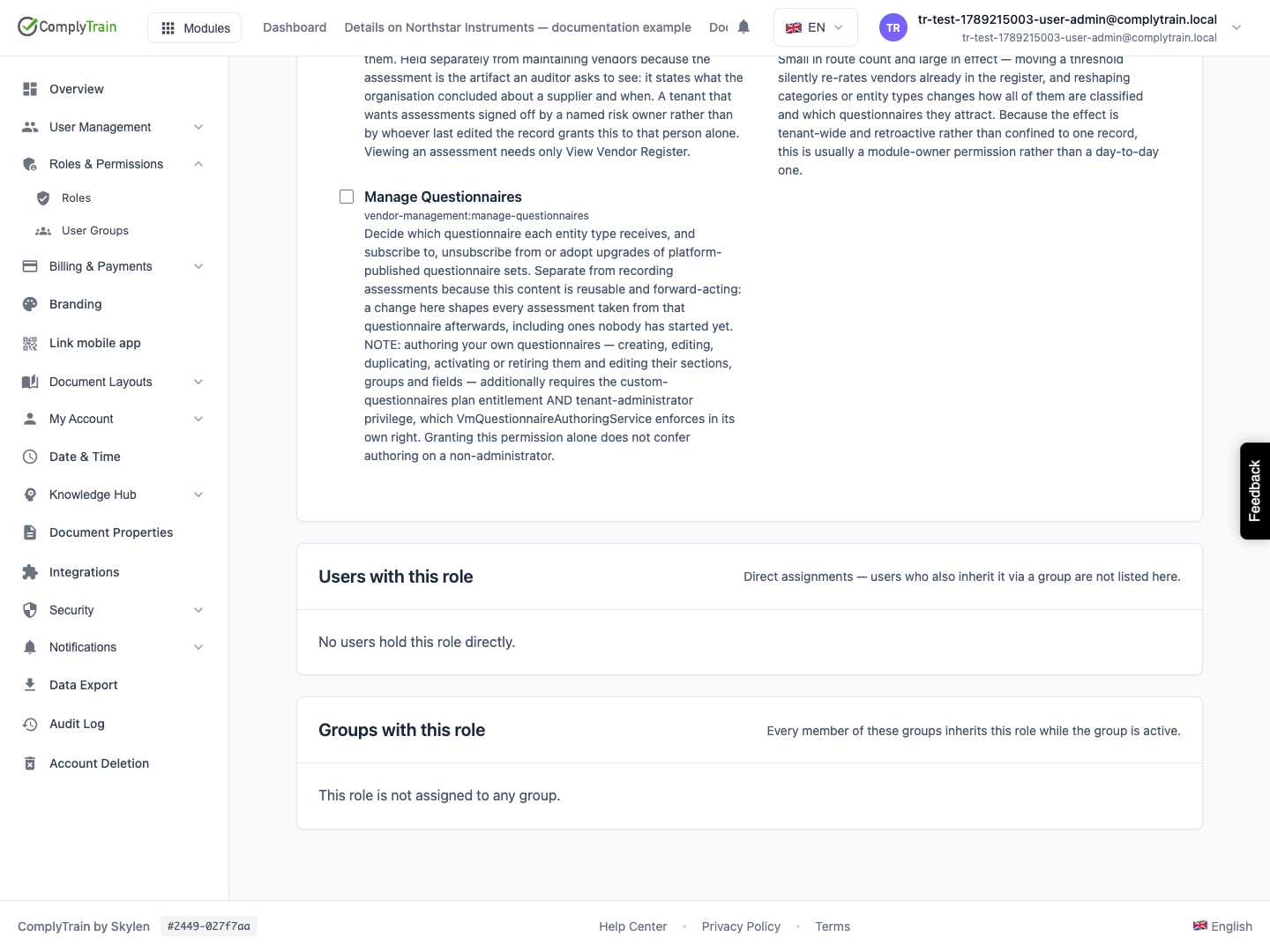
The role page ends with two panels:
Users with this role lists people who hold the role directly: "Direct assignments — users who also inherit it via a group are not listed here." No users hold this role directly. appears when there are none.
Groups with this role lists the groups that give the role: "Every member of these groups inherits this role while the group is active." This role is not assigned to any group. appears when there are none.
View Details opens the person or group. To see everyone affected, open each group and read its members. You assign roles from a person's Role & Permissions tab, from a group, or in Quality Management under Users & Roles; see invite and manage users and QMS user roles.
Product location: /settings/roles. Open Roles & Permissions in Settings, then Roles.
Every change to roles, permissions and group membership applies immediately, without signing out; the affected person may need to refresh their browser for menus and buttons to catch up. A few rules frame what a role can do:
Admins pass every permission check, whatever roles they hold.
Training learners can use only Training, whatever roles they hold.
Inactive roles and roles from inactive groups grant nothing.
Some records have their own access on top of roles, such as vault access grants and the responsibilities set in each module. See configure vaults and access grants and process configuration.
