Choose a calendar pattern or fixed interval, understand generation lead time, and check upcoming due dates.
Product location: /qms/recurring-tasks/definitions. Choose Create Manually. Scroll to Schedule Configuration.
Open Task Definitions → Create Manually → Schedule Configuration. Choose the pattern that describes the actual obligation. Changing Schedule Type resets that type's fields, so check the day, month or interval again before saving.
The Schedule Preview - Next 5 Occurrences panel below the schedule fields lists the next five dates for the current settings, or names the value that is missing or out of range. Check it before saving.
Type | Default and controls | Meaning |
|---|---|---|
Daily | No additional day selector | The next daily date is the following calendar day. |
Weekly | Monday; choose Monday–Sunday | The next selected weekday strictly after the starting date. Choosing Monday on a Monday starts with the following Monday. |
Monthly | Day 1; choose 1–31 | The selected day each month, adjusted to the month's last day when necessary. |
Quarterly | Day 1; choose 1–31 | The selected day in March, June, September and December. |
Annually | January 1; choose month and day | The next occurrence of that calendar month and day. |
Custom Interval | 30 days; choose 1–365 | A fixed number of calendar days between scheduled dates. |
Calendar recurrence and a fixed interval answer different questions. Monthly on day 1 means the first of each month. Every 30 days moves through calendar dates as months vary in length. Use the obligation's wording to choose between them.
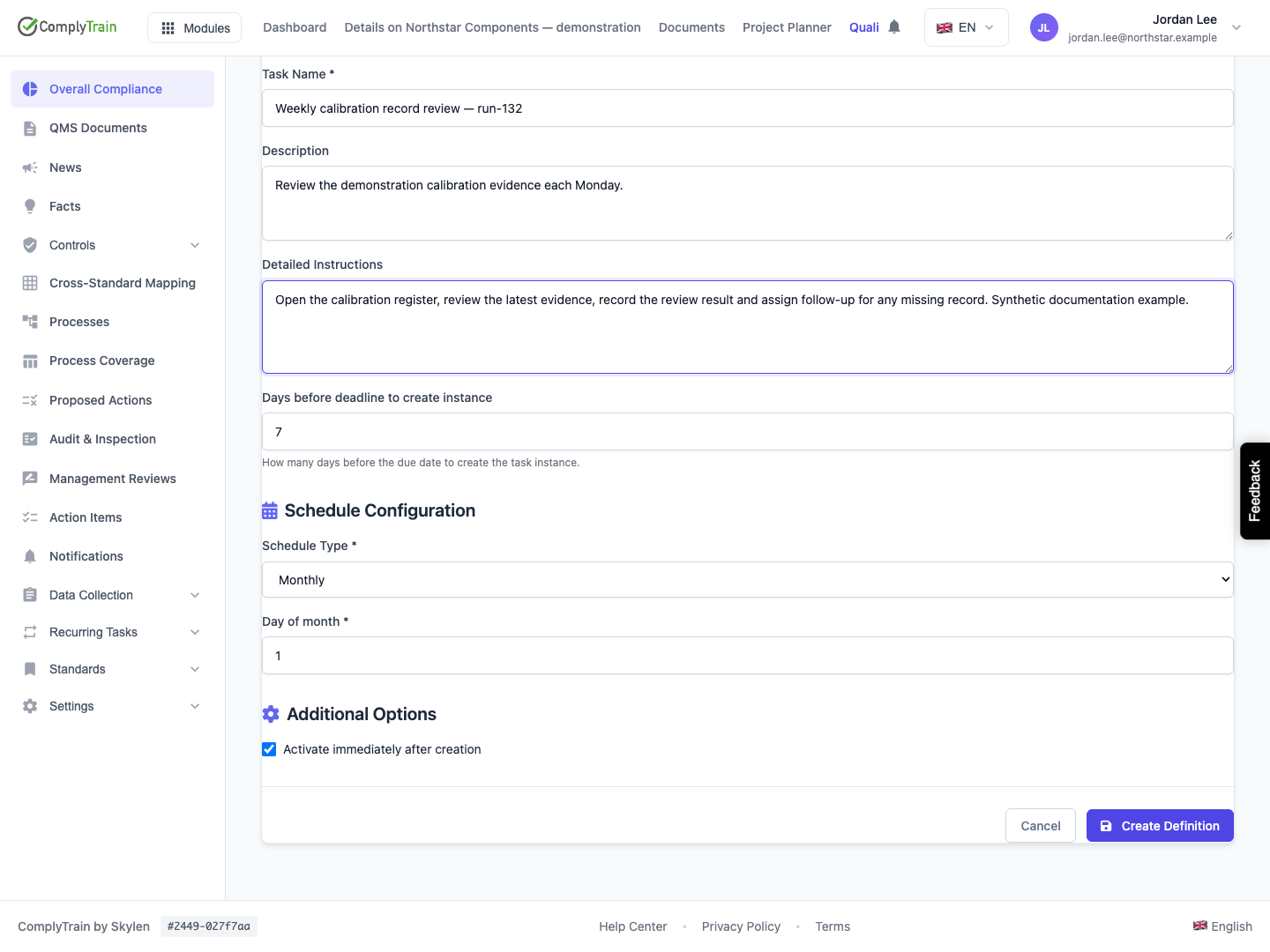
Product location: /qms/recurring-tasks/definitions. Choose Create Manually. Scroll to Schedule Configuration.
Choose Monthly and enter Day of month. If that day is still ahead in the current month, it is the next date; otherwise the next occurrence belongs to the following month.
When the configured day does not exist in a target month, use that month's last day. For example, a day-31 recurrence progresses from 31 January 2027 to 28 February and then 31 March. February's adjustment does not turn the definition into a permanent day-28 schedule.
After saving, check Next Due and compare subsequent generated occurrences with the selected pattern. Choose a fixed interval only when the obligation genuinely means a number of days between dates.
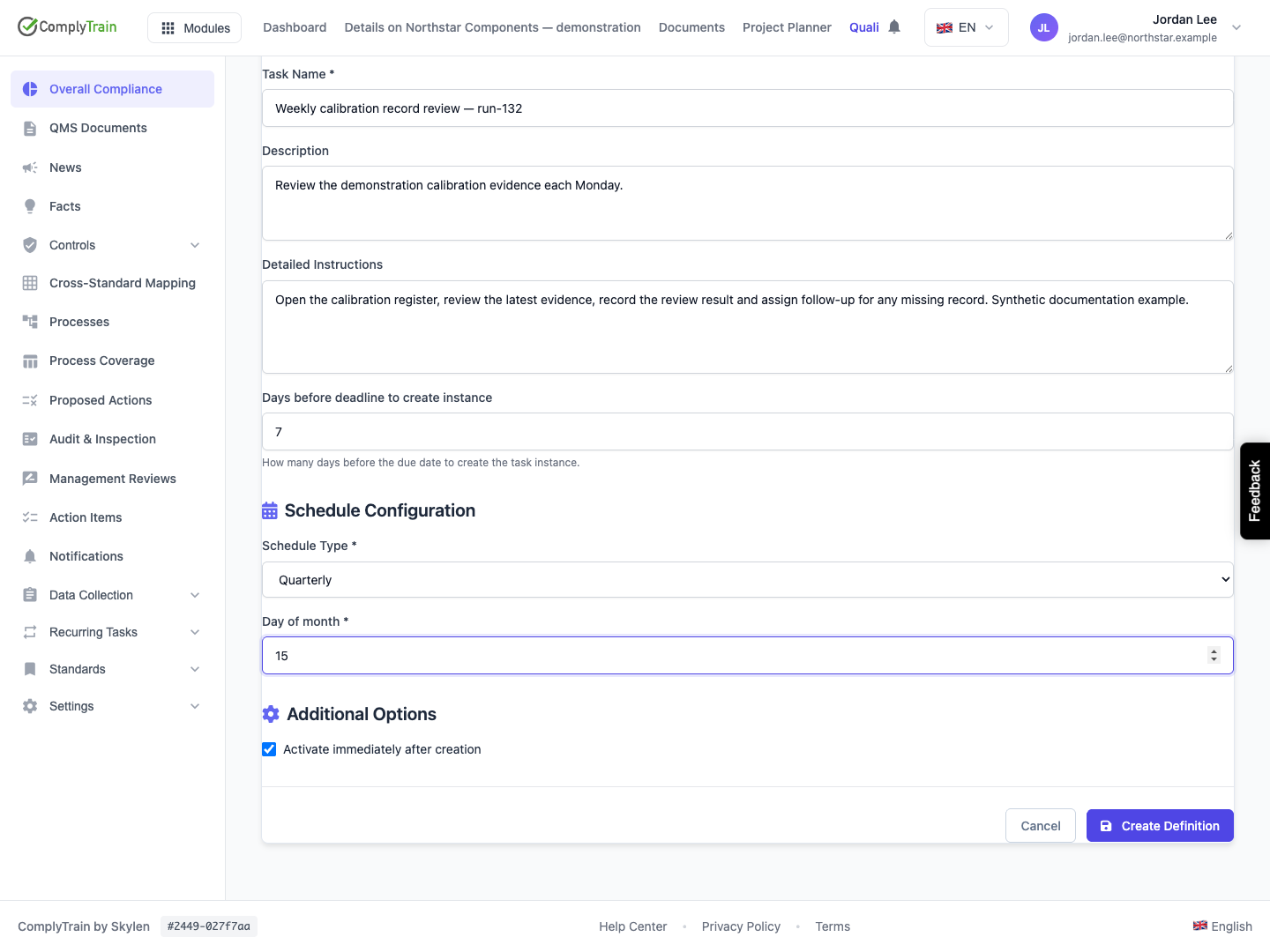
Product location: /qms/recurring-tasks/definitions. Choose Create Manually. Scroll to Schedule Configuration.
Choose Quarterly and enter the day. The manual form's quarter cycle is March, June, September and December. Day 15 therefore means 15 March, 15 June, 15 September and 15 December.
Starting on 31 May 2027, the next day-15 quarterly occurrence is 15 June. Starting after the December occurrence moves to March of the following year. For day 31, June and September use their last day.
Check the selected cycle against the obligation before saving. A financial reporting period and the date on which its review is due need not be the same date.
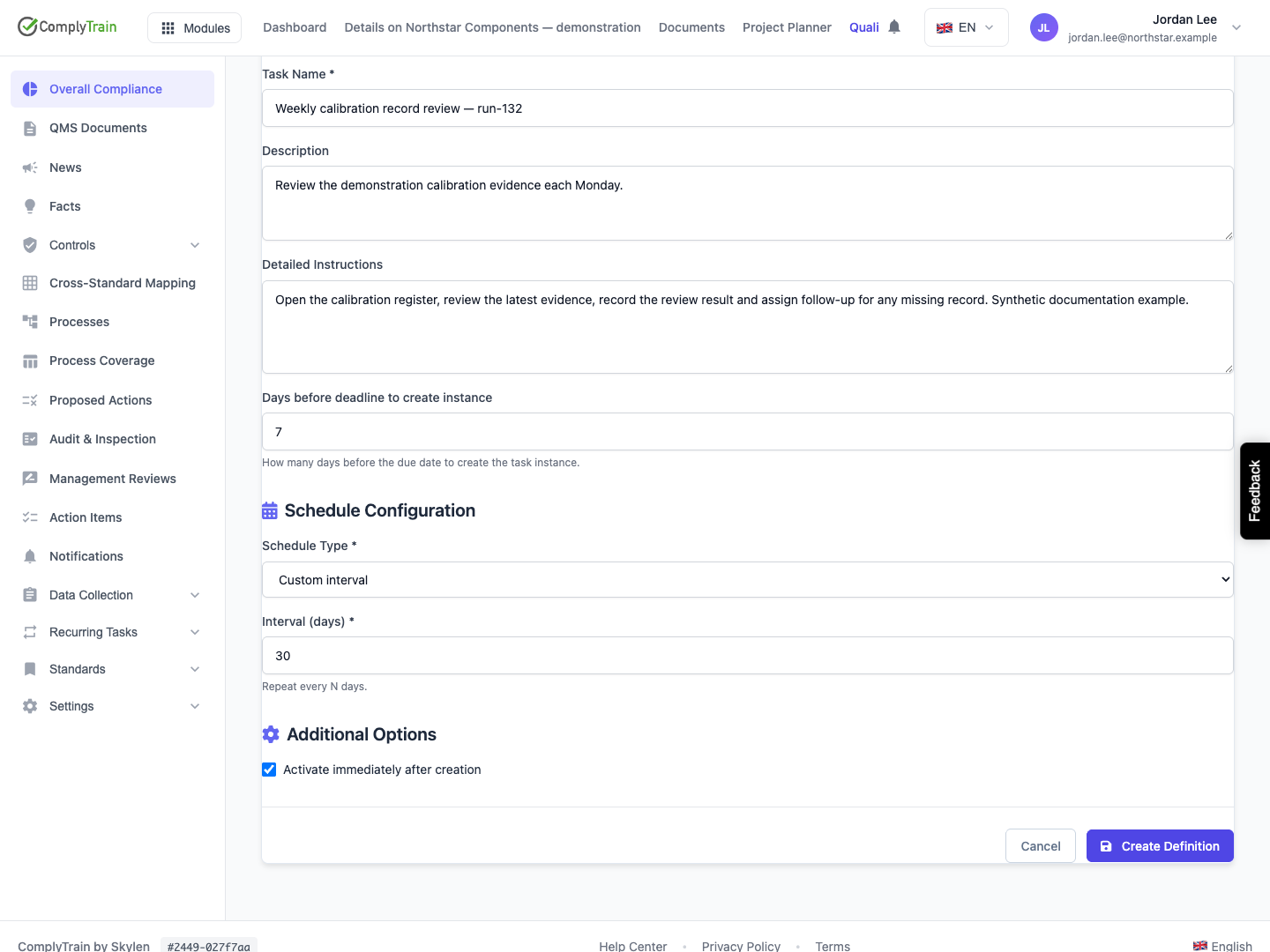
Product location: /qms/recurring-tasks/definitions. Choose Create Manually. Scroll to Schedule Configuration.
Choose Custom Interval and enter 1–365 calendar days. The first date is the starting date plus the interval. Later dates advance from the scheduled occurrence date, rather than the date on which someone completes the work.
For example, 30 days after 13 September 2026 is 13 October; another 30 days gives 12 November. Completing the October occurrence late does not redefine the November schedule.
Use the individual occurrence's Reschedule action for a permitted change to one deadline. Edit the definition when the recurring pattern itself needs to change.
Product location: /qms/recurring-tasks/definitions. Choose Create Manually. Scroll to Schedule Configuration.
Days before deadline to create instance determines when work becomes eligible for generation. It defaults to 7 and accepts 0–90 days. With a three-day lead and a Monday due date, preparation starts on the preceding Friday. A definition created after Friday is already inside that window.
Saving the definition records the schedule. Background processing then creates eligible occurrences and advances Next Due to the following scheduled date. Check the occurrence list for generated work; the definition and its next date serve a different purpose.
Value to inspect | What it tells you |
|---|---|
Definition's active state | Whether future generation is enabled. |
Next Due | The next scheduled date awaiting generation. |
Generation lead | How early that date becomes eligible. |
Instance Due Date | The deadline of one generated occurrence. |
Completion date | When that occurrence was recorded as done. |
After a long pause, review the retained next date and outstanding occurrences before relying on the resumed schedule. Check generation separately from completion; a later occurrence does not provide evidence that an earlier one was performed.
Product location: /qms/recurring-tasks/definitions. Choose Create Manually. Scroll to Schedule Configuration.
Use boundary dates when reviewing a new recurrence. These examples describe the expected calendar pattern, not the date of a particular user's next task.
Configuration and starting date | Next scheduled date |
|---|---|
Monthly day 31, starting 31 January 2027 | 28 February 2027 |
Monthly day 31, starting 31 January 2028 | 29 February 2028 |
Annual 29 February, starting 31 January 2027 | 28 February 2027 |
Annual 29 February, starting 31 January 2028 | 29 February 2028 |
Quarterly day 15, starting 31 May 2027 | 15 June 2027 |
Weekly Monday, starting Monday 14 September 2026 | Monday 21 September 2026 |
For a date adjusted to the end of a short month, the saved configuration remains the original requested day. Check the next occurrence in a longer month as well. This is especially useful when an organisation reviews schedules before activating them.
Product location: /qms/recurring-tasks/definitions. Select Active Definitions. Read the intended definition’s Next Due date.
Use the absolute Next Due and occurrence Due Date when planning work, including the year at annual boundaries. Relative labels such as Today help scanning; the actual date identifies the obligation.
Compare date-only deadlines as calendar dates. A task due on Monday remains Monday's occurrence when viewed from different product screens. Check the complete date when discussing work across timezones and agree any operational time-of-day expectation in the instructions.
Other originating workflows can provide specific-date or event-triggered definitions. Read the source and the resulting occurrence before interpreting such a record. An event-triggered obligation acquires its date through its triggering workflow rather than a daily or monthly pattern.
When a pattern changes, reopen the definition, verify its next date, then review already generated work separately. The schedule reference, calendar and instance details should all describe the same dates.
