Describe repeated work, review the proposed instructions and five dates, and verify the saved definition and compliance context.
Product location: /qms/recurring-tasks/definitions. Choose Create with AI.
Open Recurring Tasks → Task Definitions → Create with AI. You need Manage settings permission. Describe one activity, how often it repeats, the intended day, evidence to retain and the relevant standard context.
For example: “Inspect the calibration records every Monday for ISO 9001. Record the evidence reviewed and follow up missing calibration.” Use monthly on the first day for a calendar date and every 30 days for a fixed interval.
Enter 10–2,000 characters of meaningful text; surrounding whitespace does not satisfy the minimum. Quick examples replace the input with a suggested starting point. Adapt the obligation, dates and standard references to your organisation before parsing.
Choose Parse with AI once and wait for the proposal. Parsing prepares suggested wording and configuration. It does not create a definition or generate work.
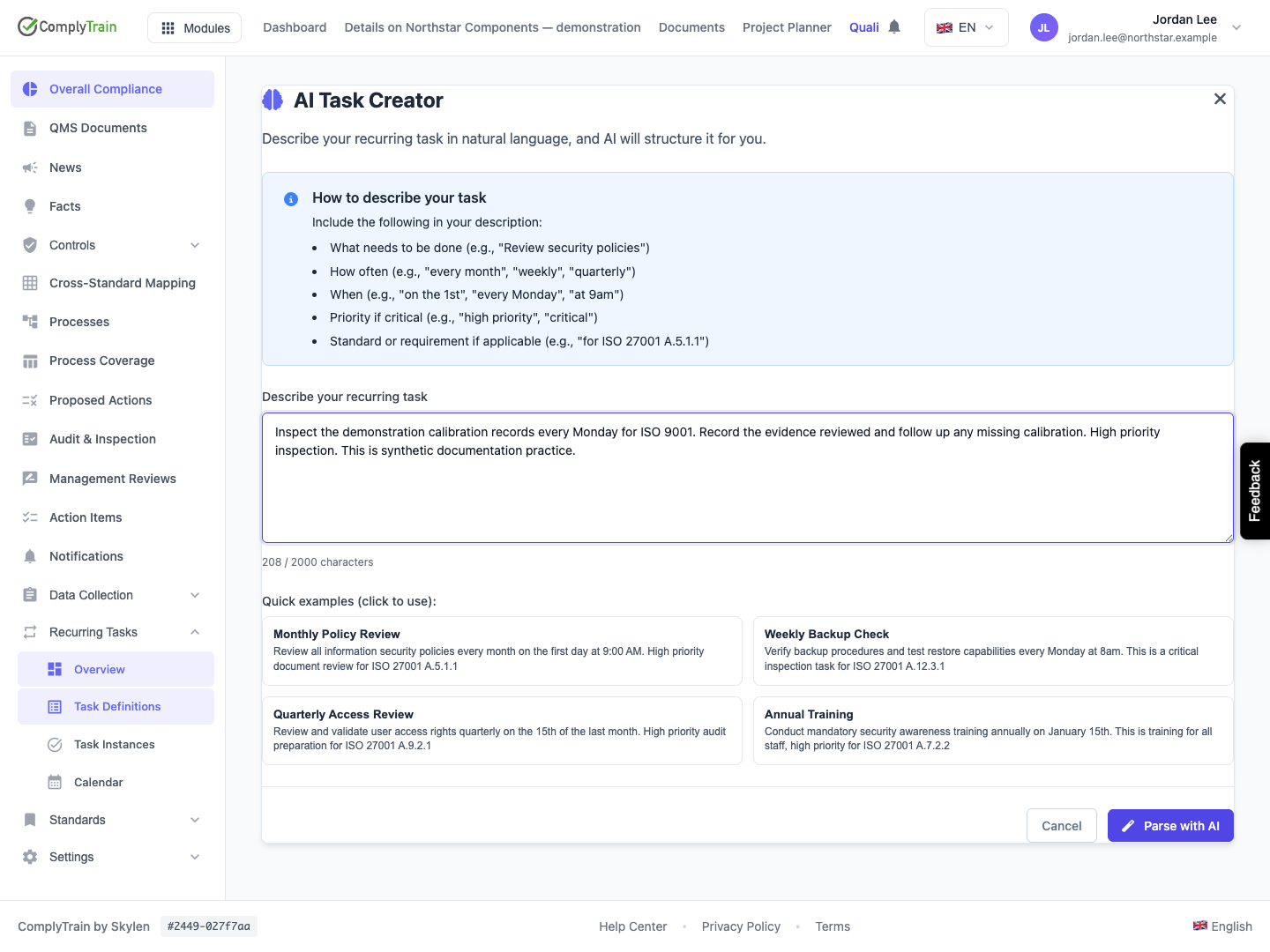
Product location: /qms/recurring-tasks/definitions. Choose Create with AI.
Read AI Notes and any confidence warning. A warning below 70% identifies an uncertain suggestion, but even a high-confidence result needs review against the actual obligation.
Proposed field | What to check |
|---|---|
Task Name | Use a clear, tenant-unique name of at most 200 characters. |
Description | Check the short explanation and remove assumptions that do not apply. |
Detailed Instructions | Review the steps, evidence and completion criterion when instructions are returned. |
Detected Schedule | Confirm the frequency and relevant weekday, month/day or interval. |
AI Notes | Read qualifications and unresolved assumptions before creating work. |
Linked to Compliance | The standard and requirement matched to enabled records in your organisation. Only these are saved with the definition; current standard marks the standard you are working in. |
Mentioned in your text, not linked | A standard or requirement named in your description that matches no enabled standard or active requirement. It is not saved; the definition is created without it. |
Edit the displayed name, description and instructions as needed. For a different schedule, choose Back to Edit, make the original description more precise and parse again. Recheck the entire new proposal because its wording and interpretation can change.
Product location: /qms/recurring-tasks/definitions. Choose Create with AI.
Review Next 5 Occurrences before creating the definition. Check both the first date and the continuing pattern. For a Monday schedule starting on Sunday 13 September 2026, the five dates are 14, 21 and 28 September, then 5 and 12 October.
For monthly, quarterly and annual work, include a month-end or year boundary in the review. Use the schedule reference to compare the dates with the intended rule. The preview is a schedule proposal; it is not a list of generated or completed tasks.
If the dates or explanation do not fit the obligation, return to the description and correct it, or use Create Manually for direct control of the schedule fields. When the proposal shows The detected schedule is incomplete or invalid and cannot be saved., Create Task is unavailable: choose Back to Edit, describe the schedule more precisely and parse again.
Product location: /qms/recurring-tasks/definitions. Choose Create with AI.
Check the actual standard and requirement relationship, not just a familiar name in the AI-generated description. Within a standard, the definition is saved under that standard. From the general Recurring Tasks page, it is saved under the standard shown in Linked to Compliance, or organisation-wide when none is linked. A requirement is linked only when it matches an active requirement of that standard by code or clause; review it against its actual clause and scope.
A reference to “ISO 9001” provides context; a specific requirement relationship identifies which obligation the work supports. Keep those meanings distinct: Linked to Compliance lists what will be saved, and Mentioned in your text, not linked lists references that will not.
Review the assignee or responsible role on generated occurrences. A name mentioned in the original prompt is not an assignment decision by itself. The resulting task needs an accountable person or role and adequate permissions to carry it out.
Product location: /qms/recurring-tasks/definitions. Choose Create with AI and review the parsed proposal before Create Task. After saving, inspect the exact name in Active Definitions.
Choose Create Task when the proposed text, dates and context are correct. This creates an active recurring definition with an AI Generated source badge. Its generation lead uses the default of 7 days; use the definition editor if a different lead is needed.
Find the exact reviewed name in Active Definitions, reopen it and check:
The name, description and instructions retain your edits.
The schedule and Next Due agree with the reviewed pattern.
The saved standard and requirement relationships are appropriate.
The active state and generation lead fit the intended start of work.
The source identifies AI-assisted creation.
Check Upcoming Instances after eligible work is generated. Creation, generation and completion are separate outcomes. Use the instance guide to act on an individual due occurrence.
Product location: /qms/recurring-tasks/definitions. Choose Create with AI.
Back to Edit returns to the original description. Transfer any useful reviewed wording into that description before parsing again. Cancel or the close control exits without creating the proposal.
Situation | Next step |
|---|---|
Description fails validation | Provide meaningful text within the permitted length. |
Proposed schedule is ambiguous | State the frequency and day or interval explicitly, then parse again. |
Low-confidence result | Read the AI notes and verify the affected details before continuing. |
Parsing fails | Retain your description, review the message and use Try Again when ready. |
AI service is unavailable | Use the manual creator for the same obligation, or ask the administrator to restore the configured service. |
Duplicate name on creation | Inspect the existing definition first; give a genuinely different obligation a distinct name. |
Save is interrupted | Check the definitions list for the intended record before retrying creation. |
Session or access has changed | Sign in again or request the necessary role before retrying. |
Keep the original obligation available for review. The proposal is a starting point for a controlled recurring activity; the saved definition and each occurrence provide its operational records.
