Plan generated work with month, week and day views, combine filters, and follow up the correct occurrence.
Product location: /qms/recurring-tasks/calendar. Choose the required period and inspect the task and status filters.
Open Recurring Tasks → Calendar. You need View dashboard permission. The calendar shows generated occurrences, including outstanding work and recorded outcomes. Future dates appear as instances become eligible for generation.
The initial Month view uses Monday–Sunday columns. Neighbouring-month dates are lighter and today's cell is highlighted. A populated day shows its count, up to three definition names and +N more when additional occurrences exist.
Use the legend to distinguish Pending, In Progress, Completed, Overdue and Skipped. The example shows five generated occurrences on Monday 14 September 2026. Activity names identify the work; the status identifies its current outcome.
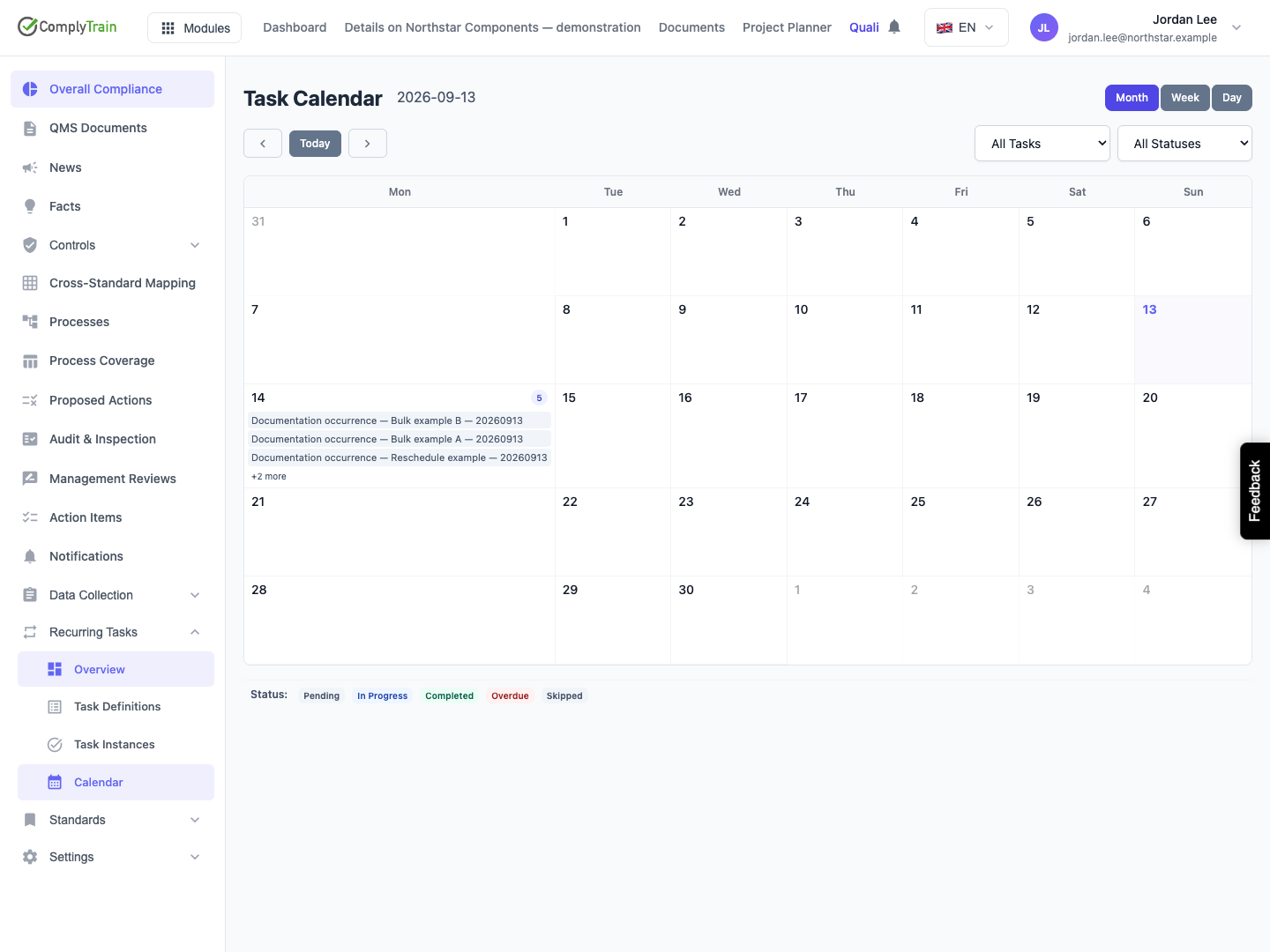
Product location: /qms/recurring-tasks/calendar. Choose Month. Select a populated day, then Full View if needed.
Select a populated date to expand its names and statuses. Select it again to collapse the list. When a name is shortened or you need more context, choose Full View to open that day.
Confirm the date before choosing the activity to follow up. Several instances can share a definition name, and the same day can contain work from different standards or sources.
Product location: /qms/recurring-tasks/calendar. Open the required day through Month and Full View. Select the definition in All Tasks.
Day view gives each occurrence a larger card with its definition name, status and due date. Where available, it also shows the standard, completion date and completion notes. The count beside the heading describes the displayed cards.
Use All Tasks to focus on one definition. This narrows the occurrences in the selected period; it does not alter the definition's schedule. Read the due date and outcome together when reviewing missed work or recent completions.
To record completion, skip or reschedule, open the corresponding occurrence through Task Instances and follow the instance workflow. Keep the name and date together when finding it there.
Product location: /qms/recurring-tasks/calendar. Choose Week. Use the arrows or Today to select the period.
Choose Week for the Monday–Sunday period around the selected day. A week opened after Full View follows that selected date. Cards show names and statuses; an empty column means there are no matching displayed occurrences for that day.
Use the arrows to move one month, week or day according to the current view. Today returns to today's period while retaining the view and filters. Compare the displayed range with the deadline you are investigating.
Use a week view to balance upcoming work across days, then open a day for detail. A calendar card represents a due occurrence rather than a booked appointment duration.
Product location: /qms/recurring-tasks/calendar. Choose the required period and inspect the task and status filters.
The task and status filters work together. Select a definition and Pending, for example, to inspect its outstanding unstarted occurrences in the period. Choose Completed to review saved completions, or Skipped to review deliberate non-performance.
Selecting Completed for a period in which that definition has only Pending work produces an empty result. It does not change the task's status. Clear removes both filters and restores the broader period view.
What you see | What to check |
|---|---|
Expected task absent | Selected period, task filter, status and the occurrence's actual due date. |
No future occurrence yet | Definition activation, next date and generation lead. |
Completed task absent from Pending view | Use Completed or All Statuses and check its date. |
Rescheduled task no longer on its old day | Inspect the new date and saved reschedule details. |
Definition name absent from the selector | Check a period containing generated occurrences and inspect the definition itself. |
Product location: /qms/recurring-tasks/calendar. Choose the required period and inspect the task and status filters.
Change the period or use Today to reload the relevant data after completing or rescheduling work elsewhere. If loading fails, use Try Again and wait for a successful result before reviewing counts and empty states.
Compare the cell, heading and occurrence due date as the same calendar date. When discussing an obligation with a colleague, include the full date and definition name so that a different view or filter does not identify the wrong occurrence.
Use the calendar to decide what needs attention, then inspect the occurrence for its instructions, assignment and evidence. Review the saved outcome after acting, and check linked process work where applicable.
