Record the problem, root cause, actions and effectiveness evidence.
Product location: /qms/capas
A corrective and preventive action (CAPA) connects a defined problem with its investigation, actions and review. Open QMS / Action Items, select CAPAs, then New CAPA. A CAPA can also originate from a linked audit finding or another configured source.
You need Manage CAPA permission to create or change CAPAs; View CAPA permits reading them. A workflow may impose additional transition requirements. An organisation's limit on open CAPAs can also prevent creation; closed and cancelled records do not consume that open-work allowance.
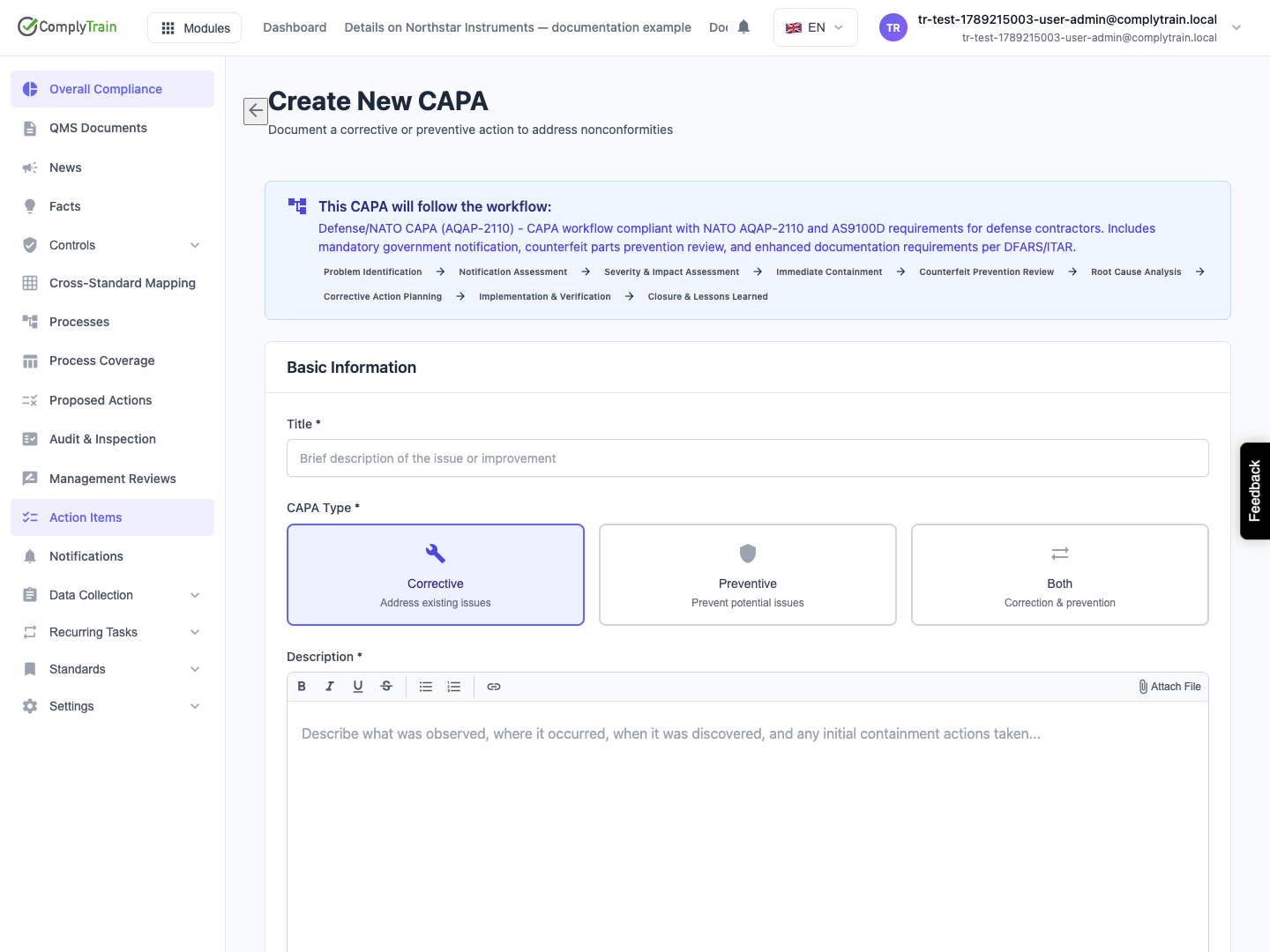
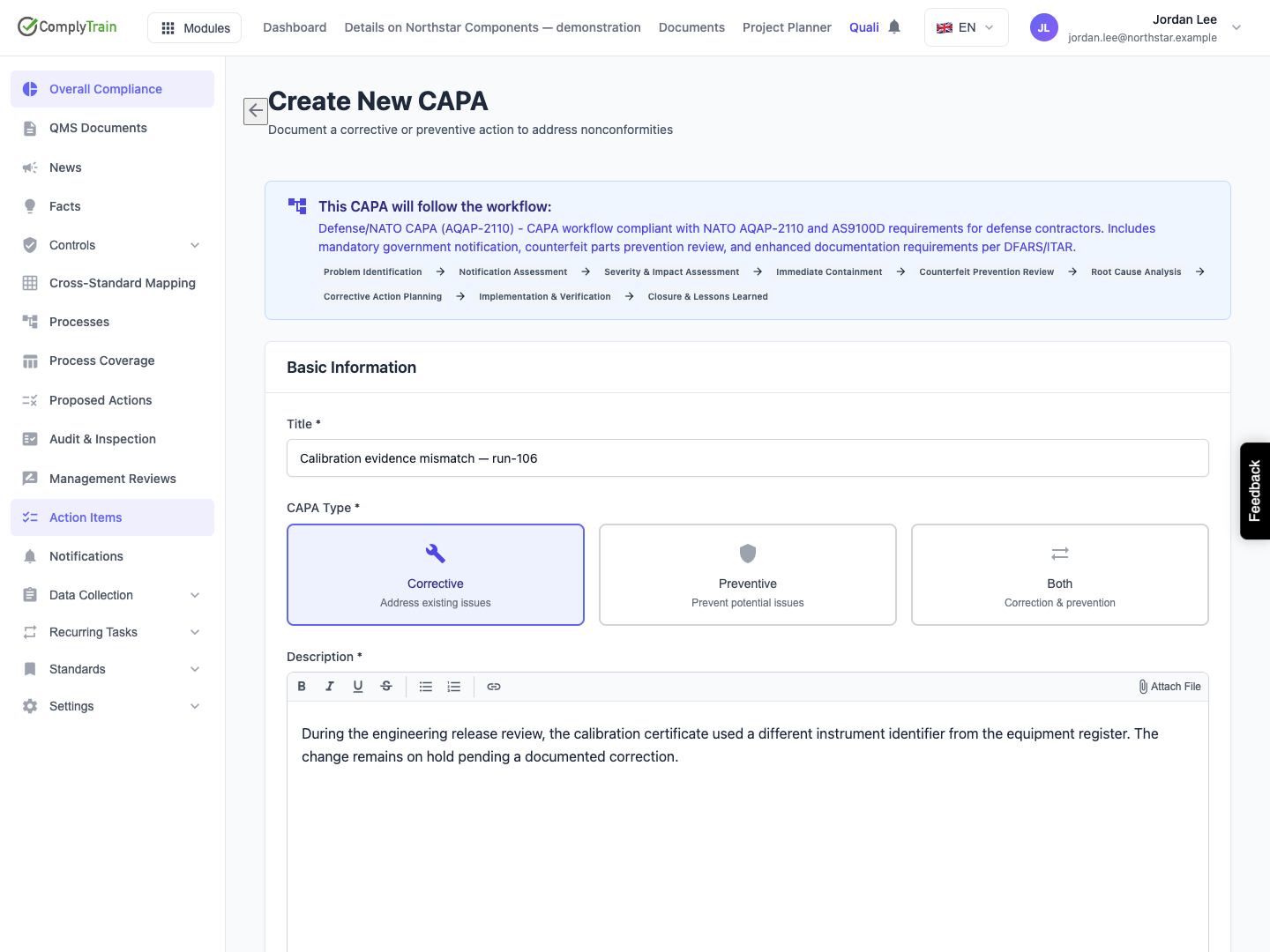
Before entering the issue, read the workflow name and stages shown above the form. The workflow is configured for your organisation. Its name or reference to a standard is not evidence that an individual case meets that standard's requirements.
Use a specific problem statement. For example: "The calibration certificate for engineering change EC-042 names a different instrument from the equipment register." Record the observation, affected work, supporting reference and immediate containment. Keep conclusions about the cause separate until investigated.
Product location: /qms/capas/new
Field | What to enter and check |
|---|---|
Title | A recognisable description, 5–500 characters. Use the affected process or item rather than an unexplained internal abbreviation. |
CAPA Type | Corrective addresses an existing issue; Preventive addresses a potential issue; Both covers both purposes. Corrective is initially selected. |
Description | The observed problem, context and immediate response. The form requires 20–10,000 characters and provides rich-text formatting and attachments. |
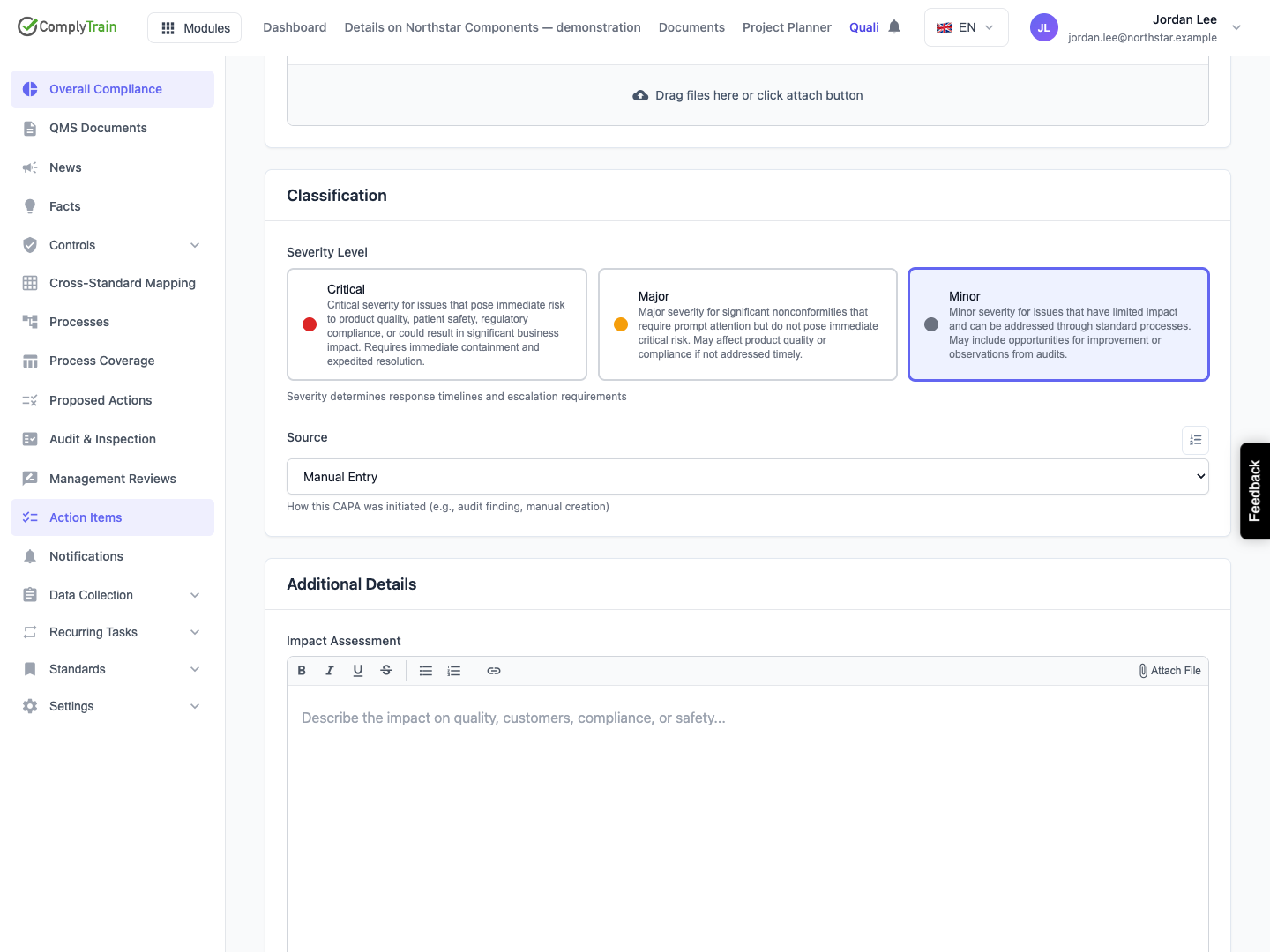
Severity Level | Select the configured severity deliberately. The form initially selects the first level in configured severity order; do not assume it is the lowest severity. |
Source | How the issue was identified. Choices come from the organisation's source catalogue. Selecting a source label does not itself link an audit finding or form submission. Use the originating record's supported action when that link is required. |
External Reference | Appears for a source that requires a reference. Provide the identifiable complaint, inspection or other source reference. |
Impact Assessment | Explain affected products, processes, services and potential consequences. Distinguish observed effects from possible effects. |
Target Close Date | Set a realistic target or leave it blank to use the severity-based schedule. The create form prevents choosing a past date. |
Tags | Type a category and press Enter to add it. Use the removal control on a tag to remove it before submission. |
The creation form does not include an owner or standard selector. Do not infer an assignment or a standard association from the selected source or workflow name.
Select Create CAPA once. Confirm that the detail page opens with the new CAPA number and correct title. Reopen the record before treating it as saved. If creation reports an error, check the list for the record before submitting again.
Product location: /qms/capas/{capaId} (fallback: /qms/capas). Open the intended CAPA and the action described below.
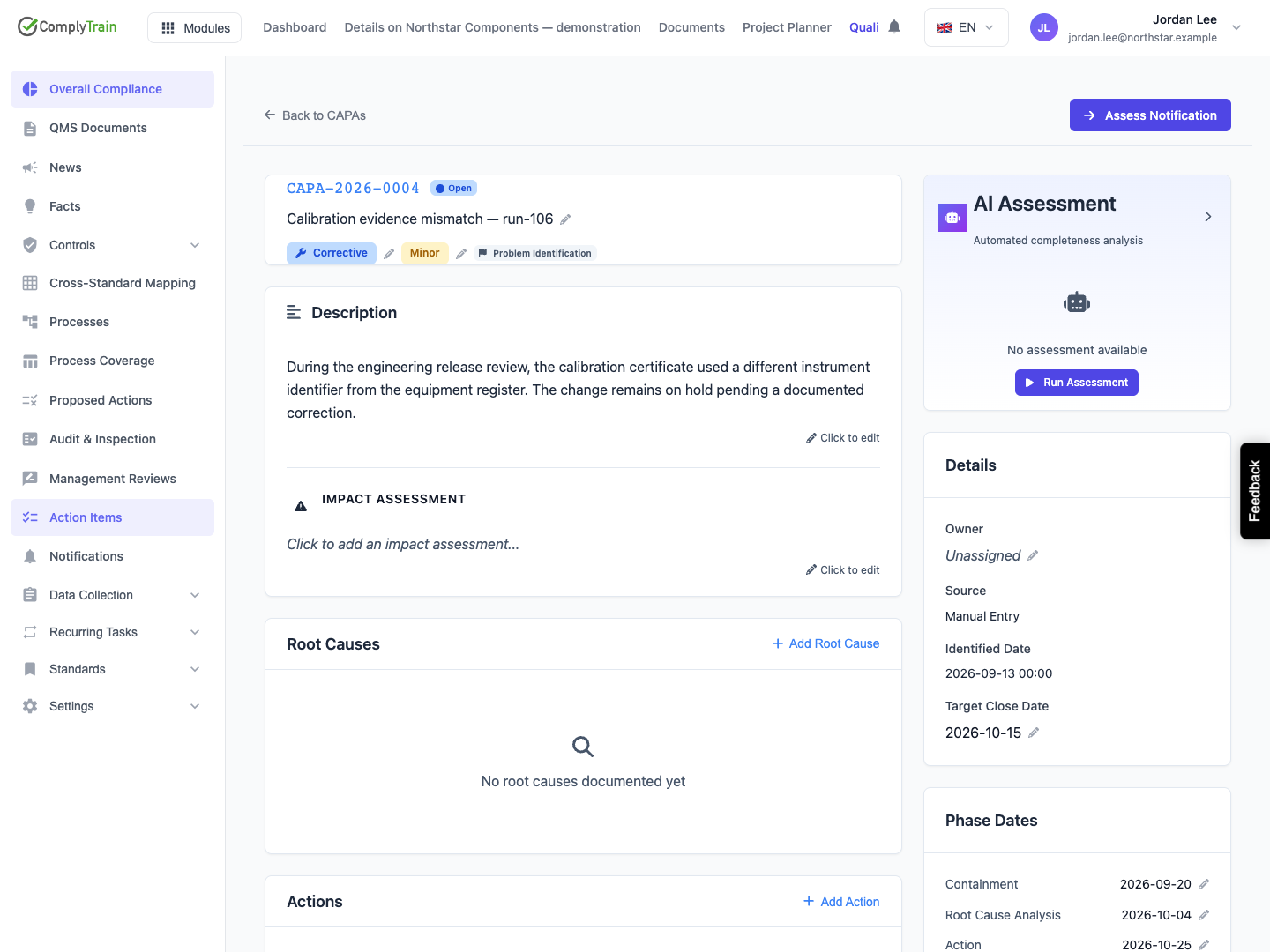
The record separates its overall status and workflow stage from the status of individual actions. The initial record is Open; completing an action does not automatically close it.
Review the following:
The CAPA number, title, type, severity and current stage.
The Description and Impact Assessment.
Details: owner, source, identified date and target close date; an associated standard appears when present.
Phase Dates: containment, root-cause analysis, action and verification deadlines.
Root Causes, Actions, Evidence and Activity.
The demonstrated manually created record shows Unassigned. Confirm responsibility rather than assuming the creator became the owner. An assignment displayed as a name should be checked against the intended account and its access.
Editable text, selectors and dates save from their inline controls. Wait for the saved indication before leaving the page. If another user changed the record, refresh, compare their changes and reapply only the intended edit. Repeatedly resubmitting an older form can obscure which version was reviewed.
Phase deadlines are calculated cumulatively from the configured severity timings at creation. The target close date is a separate value: setting an earlier target does not automatically bring all four phase deadlines forward. Review the schedule as a whole.
Product location: /qms/capas/{capaId} (fallback: /qms/capas). Open the intended CAPA and the action described below.
Use Add Root Cause to record the supported cause, analysis method and primary designation. See root-cause analysis for the record fields and analysis controls.
Use Add Action to identify containment, corrective and preventive work. Select Related Root Cause, give the action a due date, and choose its verification and effectiveness requirements. These choices remain with the saved action. The action lifecycle guide explains creation, editing, completion, verification and returning work for correction.
Evidence should support the investigation and the work actually performed. Keep an identifiable record of what was reviewed, by whom and with what result. A statement that a document exists is different from evidence that its contents were checked.
Product location: /qms/capas/{capaId} (fallback: /qms/capas). Open the intended CAPA and the action described below.
Available transition buttons appear at the top of the record. Their names and required conditions depend on the configured workflow. A transition can require a comment, signature, evidence, a permitted group or acknowledgement of AI concerns. Closing some severity levels also requires management review.
Review any AI Readiness Check concerns alongside the evidence and conditions for the intended stage. AI readiness information supports the review; it does not replace required evidence or approval. After a transition, reopen the CAPA and inspect its saved stage and activity.
Select the intended transition. When it requires a comment or signature, or closes the CAPA, Workflow Transition opens and shows the From and To stages. Enter the Transition Comment; it is marked as required when the workflow demands one. Where a signature is required, type your full name in Electronic Signature; it is recorded as your signature in the CAPA history. When closing a CAPA whose severity requires management review, select Management review of this CAPA has been completed unless you belong to a management group. A transition with no required inputs that does not close the CAPA is applied as soon as you select it.
If the AI readiness assessment has concerns and the workflow allows proceeding, AI Readiness Check opens next. Enter the Reason for Proceeding, select I acknowledge these concerns and choose to proceed anyway and choose Proceed Anyway, or choose Go Back.
Review the destination stage and your entries, then choose Confirm Transition once. Cancel in either dialog leaves the stage unchanged. After the move, the page confirms CAPA moved to the new stage. Check the saved stage, the newly available transitions and the Activity entry, including the recorded comment, signature and any acknowledgement reason.
Product location: /qms/capas/{capaId} (fallback: /qms/capas). Open the intended CAPA and the action described below.
Before treating a CAPA as closed, check the actual parent status, required workflow stages, action completion and verification, evidence, management review where required, and any planned effectiveness follow-up. A Verified action and a Closed CAPA represent different decisions.
Use Activity to inspect recorded transitions and comments. A Cancelled record, where that outcome is supported, is not a successfully resolved CAPA. The current detail page has no general Delete CAPA or Cancel CAPA button; do not infer those actions from status filters.
If an action proves ineffective, preserve the earlier completion and verification evidence and record the further investigation and corrective work. Follow the organisation's correction procedure rather than silently replacing the original conclusion.
Product location: /qms/capas/{capaId} (fallback: /qms/capas). Open the intended CAPA and the action described below.
Situation | Next check |
|---|---|
Create CAPA is disabled | Title and description must meet their minimum lengths; complete the required fields. |
No default workflow or no initial step | Ask the administrator to configure an available workflow before creating the case. |
Source reference error | Supply the source's required reference or start from the actual source record. |
Plan limit reached | Ask the administrator to review the open-work limit and existing CAPAs. Do not close unresolved records just to free capacity. |
Evidence required | Check the supporting evidence on the CAPA and verify that the attempted upload or link actually saved. |
Version conflict | Reload the record, compare changes and retry the intended edit against the current version. |
Access denied | Ask the administrator to review the user's CAPA permission and any transition group requirements. |
