Record an evidence-based explanation and review AI suggestions before applying them.
Product location: /qms/capas/{capaId} (fallback: /qms/capas). Open the intended CAPA and the action described below.
The root-cause record identifies the supported explanation, selected analysis method, category and primary designation. Use the analysis method to organise the investigation, distinguish evidence from hypotheses, and connect the conclusion to corrective actions.
Product location: /qms/capas/{capaId} (fallback: /qms/capas). Open the intended CAPA and the action described below.
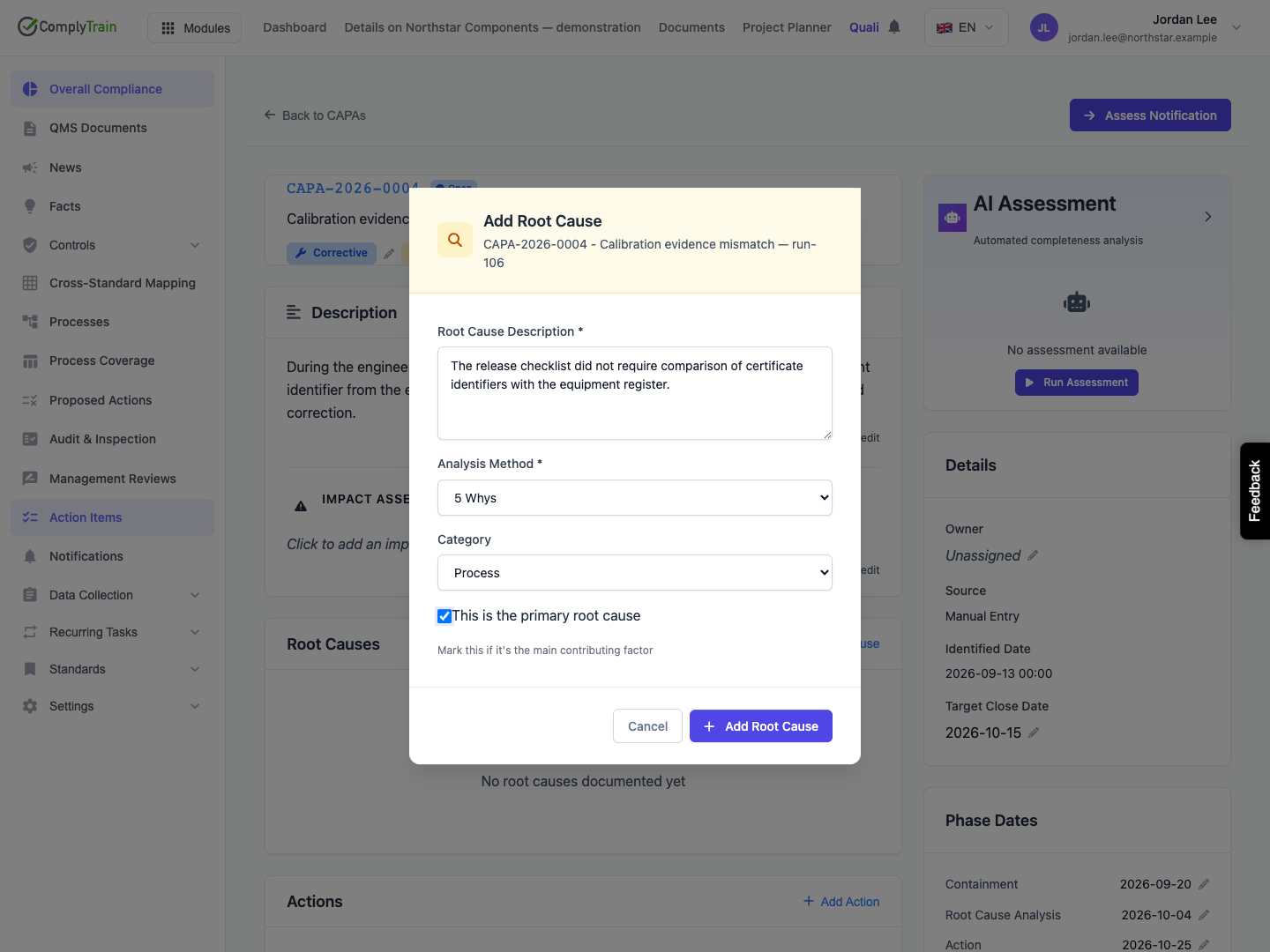
Open the CAPA and select Add Root Cause.
Enter a description of at least twenty characters. State the supported cause and distinguish unresolved hypotheses where necessary.
Select Analysis Method: 5 Whys, Fishbone (Ishikawa), Fault Tree Analysis, Pareto Analysis, FMEA or Other.
Optionally select a category: Process, People, Equipment, Materials, Environment or Management.
Select This is the primary root cause when appropriate. Other causes can remain contributing causes.
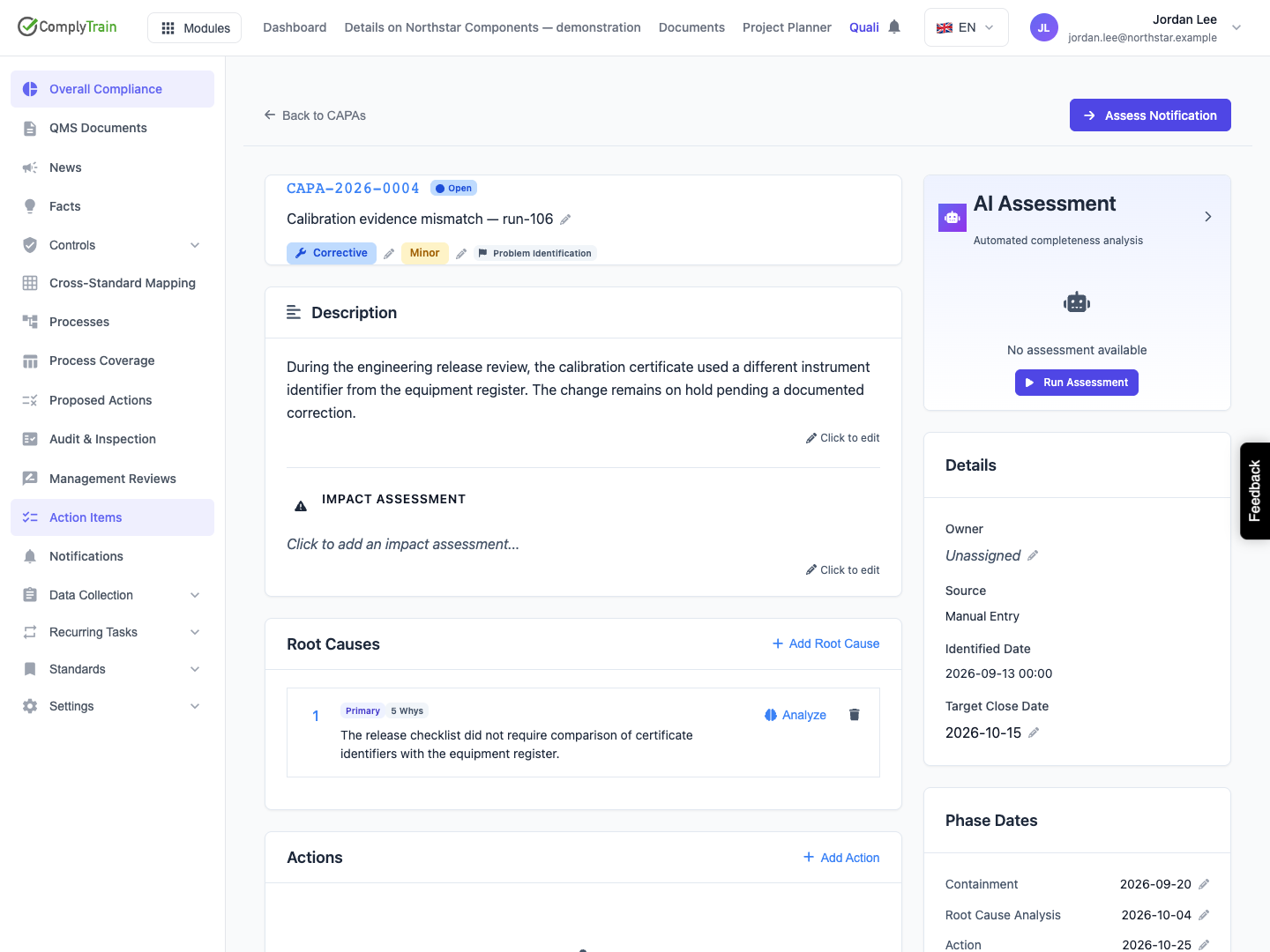
Select Add Root Cause, then reopen the CAPA and confirm that the description, method and primary marker remain.
Do not confuse the optional root-cause category with the six categories inside a Fishbone analysis. They are different controls.
The saved cause has an Analyze action for the five named methods. Other retains the descriptive record without a method-specific Analyze action. The delete control removes the root-cause record; preserve the investigation and review history according to your organisation's procedure before making a correction.
Product location: /qms/capas/{capaId} (fallback: /qms/capas). Open the intended CAPA and the action described below.
Select Analyze for a saved 5 Whys cause. The wizard starts with the saved problem statement and one question. Enter an answer explaining why the preceding condition occurred, using the available evidence.
Add another "Why?" becomes available when the last answer contains at least ten non-whitespace characters. The wizard supports up to seven answers. Remove last is available when there is more than one. The completed count does not assess whether the reasoning is correct.
The next question is based on the preceding answer. Revise the chain if evidence changes, and use Root Cause Summary to express the supported conclusion. Avoid treating an arbitrary number of answers as a requirement to stop investigating.
Suggest requests an answer for a particular question. Generate Summary requires at least one completed answer. Returned suggestions can be inserted directly into the working fields, so review them after generation and before using them in a controlled record.
Product location: /qms/capas/{capaId} (fallback: /qms/capas). Open the intended CAPA and the action described below.
The Fishbone editor groups possible causes into People, Process, Equipment, Materials, Measurement and Environment. Add a cause in a category's input and use its plus control or Enter. Use the remove control on an individual cause to remove it from the working analysis.
The total counts all entered causes. It is not a confidence measure. Record factual observations separately from explanations that still need investigation.
Each category offers an AI suggestion control; Generate Summary becomes available when at least one cause exists. Review generated text for relevance and evidence. Use Analysis Summary to explain the supported relationship between the causes and the problem.
Product location: /qms/capas/{capaId} (fallback: /qms/capas). Open the intended CAPA and the action described below.
The Fault Tree editor provides a narrative analysis field.
Identify the top event, contributing events and the intended AND/OR relationships. Explain which observations support each relationship and where assumptions remain.
Product location: /qms/capas/{capaId} (fallback: /qms/capas). Open the intended CAPA and the action described below.
The Pareto editor provides a narrative field for describing the analysis.
Use an identified observation period and consistent categories. Record counts or measured impact, identify the source data and explain how the ranking was determined.
Product location: /qms/capas/{capaId} (fallback: /qms/capas). Open the intended CAPA and the action described below.
The FMEA editor provides a narrative field for describing the analysis.
The supporting analysis should identify the failure mode, its effect and cause, the selected rating method, current controls and follow-up actions. Record the assumptions and scale definitions with the analysis so another reviewer can interpret any numerical result.
Product location: /qms/capas/{capaId} (fallback: /qms/capas). Open the intended root cause and choose Analyze.
Save your analysis before closing the editor. The saved work belongs to the CAPA's root-cause record, so you can return to it for further investigation or review.
The summary you save becomes the root cause's description on the CAPA. For Fault Tree, Pareto and FMEA, the narrative field is that description. If you close the dialog with unsaved changes, Discard unsaved analysis? asks you to choose Discard or Keep editing.
Open the intended root cause and choose Analyze.
Enter or revise the method's working analysis and summary. For Five Whys, retain the question-and-answer chain; for Fishbone, retain the causes in their categories.
Choose Save analysis. Save analysis stays unavailable until the summary has at least 20 characters. When the save succeeds, the dialog closes and the page confirms Root cause analysis saved. If the save fails, the error is shown and your work stays in the dialog.
Reopen the analysis on the same root cause: the button reads Edit Analysis once a Five Whys or Fishbone analysis has saved answers or causes, and Analyze otherwise. Check the saved answers, causes or narrative and its summary before continuing.
When you remove an answer or cause, or clear a summary, save that change as well. Explain significant revisions in the investigation record so later reviewers can understand how the conclusion developed. Saving analysis records the investigation; it does not approve the conclusion or close the CAPA.
Product location: /qms/capas/{capaId} (fallback: /qms/capas). Open the intended CAPA and the action described below.
AI suggestions are proposed explanations. Compare them with source records, interviews, observations and measurements; remove unsupported statements and retain uncertainty where it remains.
An AI request may fail or return no useful suggestion. Keep the existing evidence-based investigation and retry only when appropriate; failure to generate text does not establish that no root cause exists.
Once the conclusion is reviewed, use Related Root Cause when creating a CAPA action to connect it to the saved cause. Distinguish immediate containment from corrective action. Verification and later effectiveness evidence may require revisiting the analysis; preserve the earlier conclusion and document why it changed.
