Register auditable entities and auditors, select structured scope and verify the saved team roster.
Product location: /qms/audits. Select Universe, Auditors or Audits as described below; these tabs share this URL.
Open QMS / Audit & Inspection. Universe holds the entities that can be audited; Auditors holds the auditor registry; Audits holds individual engagements. You need the audit-management permission for these management actions.
A useful example is an engineering evidence audit: register the engineering release process, define which records and activities are in scope, then assign a qualified reviewer. A registry entry, an engagement role and a user account are separate records. Creating one does not automatically create the others.
Product location: /qms/audits. Select Universe.
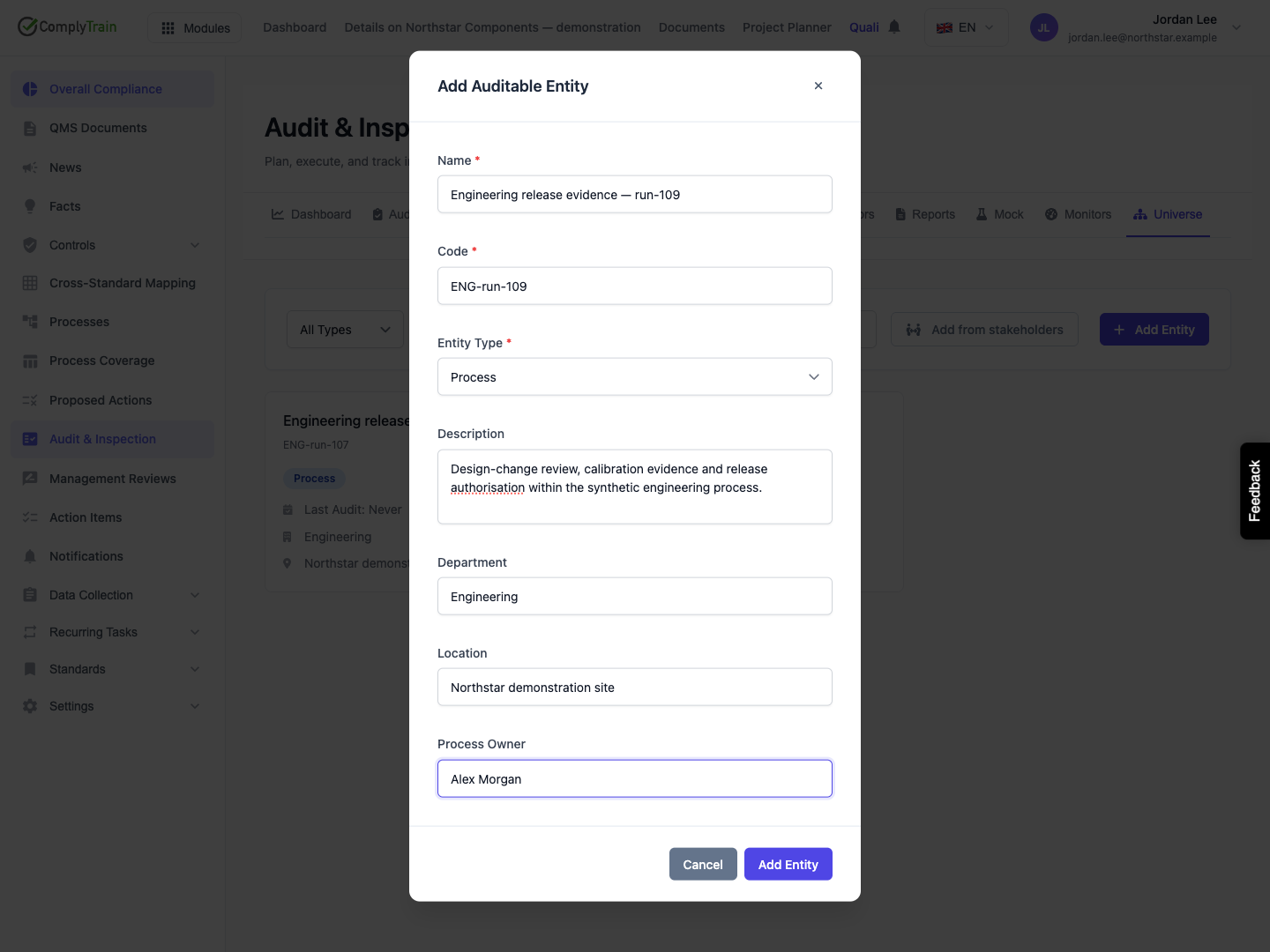
In Universe, select Add Entity and enter:
Field | Purpose and limits |
|---|---|
Name | Identify the auditable area. The service requires 2–300 characters. |
Code | A short unique reference, up to 50 characters. The UI requires a code even though the service can hold entities without one. |
Entity Type | The UI offers Process, Department, Site, Supplier, Product, Service and System. See the released type limitation below before choosing Product or Service. |
Description | Define boundaries and exclusions, up to 2,000 characters. |
Department and Location | Identify the organisational area and physical context; each is limited to 200 characters by the service. |
Process Owner | A free-text field in the form. This release does not submit it as the saved owner field; do not use it as proof of assignment. |
Select Add Entity, then reopen Universe. Confirm the name, code, department and location. The example process persists after reload. Its initial risk score of zero is a starting value, not a completed risk assessment or evidence that no weaknesses exist.
The released create service accepts Process, Department, Site, Supplier, System and Product Line. The visible Product and Service values do not match that supported list. Do not relabel an entity just to bypass a rejection; retain the intended classification and request a product correction.
Product location: /qms/audits. Select Universe.
The page presents entity-type, status and search filters. In this release, the list-loading method does not pass those selections to the list request. Check the displayed results before treating a filtered view as a complete or narrowed population.
Select an entity card to reopen its details. The editor offers name, code, type, description, department, location and process owner. It has no status, hierarchy, standard-scope or risk-assessment editor. The update service requires a record version that this editor does not send, so an edit can be rejected; reopening and checking the saved values is essential.
Use the delete control only when removal is appropriate and permitted, then read its confirmation. Deleting an entity is different from retiring it. Although the list includes Inactive and Archived filters, this form has no control for moving a record into either state. Preserve an entity referenced by audit work while its retention or correction is being resolved.
Product location: /qms/audits. Select Universe.
When stakeholder management is available, Add from stakeholders lists eligible internal stakeholders and external vendors. Choose an audit type for each row before importing it. This is a per-entity decision, not a single classification applied to every vendor and internal department.
Import retains both a link to the stakeholder and a snapshot of its name. The snapshot supports reproducible audit references and does not automatically follow later renaming. Review any source-divergence notice and the source record before deciding whether the audit-universe wording needs correction.
If the source is unavailable, the import action may be hidden. An empty import list can also mean that available stakeholders have already been imported. Do not create a duplicate simply because an older audit uses the name that was current at import.
Product location: /qms/audits. Select Auditors.
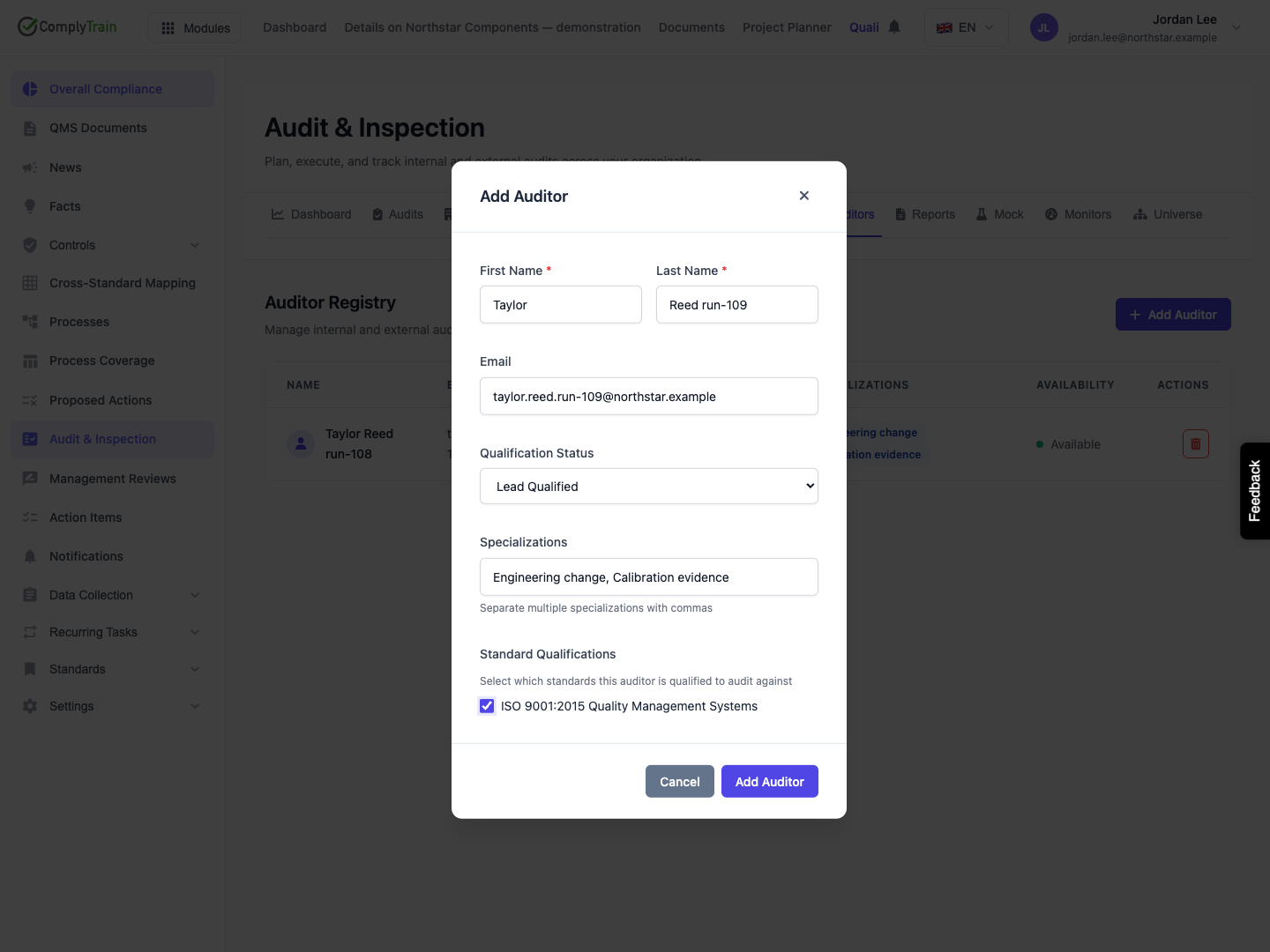
In Auditors, select Add Auditor. Enter the required first and last names, then the optional email, qualification status, comma-separated specialisations and applicable enabled standards.
Qualification | Meaning in the registry |
|---|---|
Trainee | An auditor developing competence; this is the initial selection. |
Qualified | A recorded auditor qualification. |
Lead Qualified | A recorded lead-auditor qualification. |
Suspended | A qualification currently suspended. |
Revoked | A qualification withdrawn. |
Choose the value supported by your qualification records. Selecting a status does not itself establish competence or upload a certificate. Specialisations are split at commas; remove stray empty values and use terms that help identify the intended expertise.
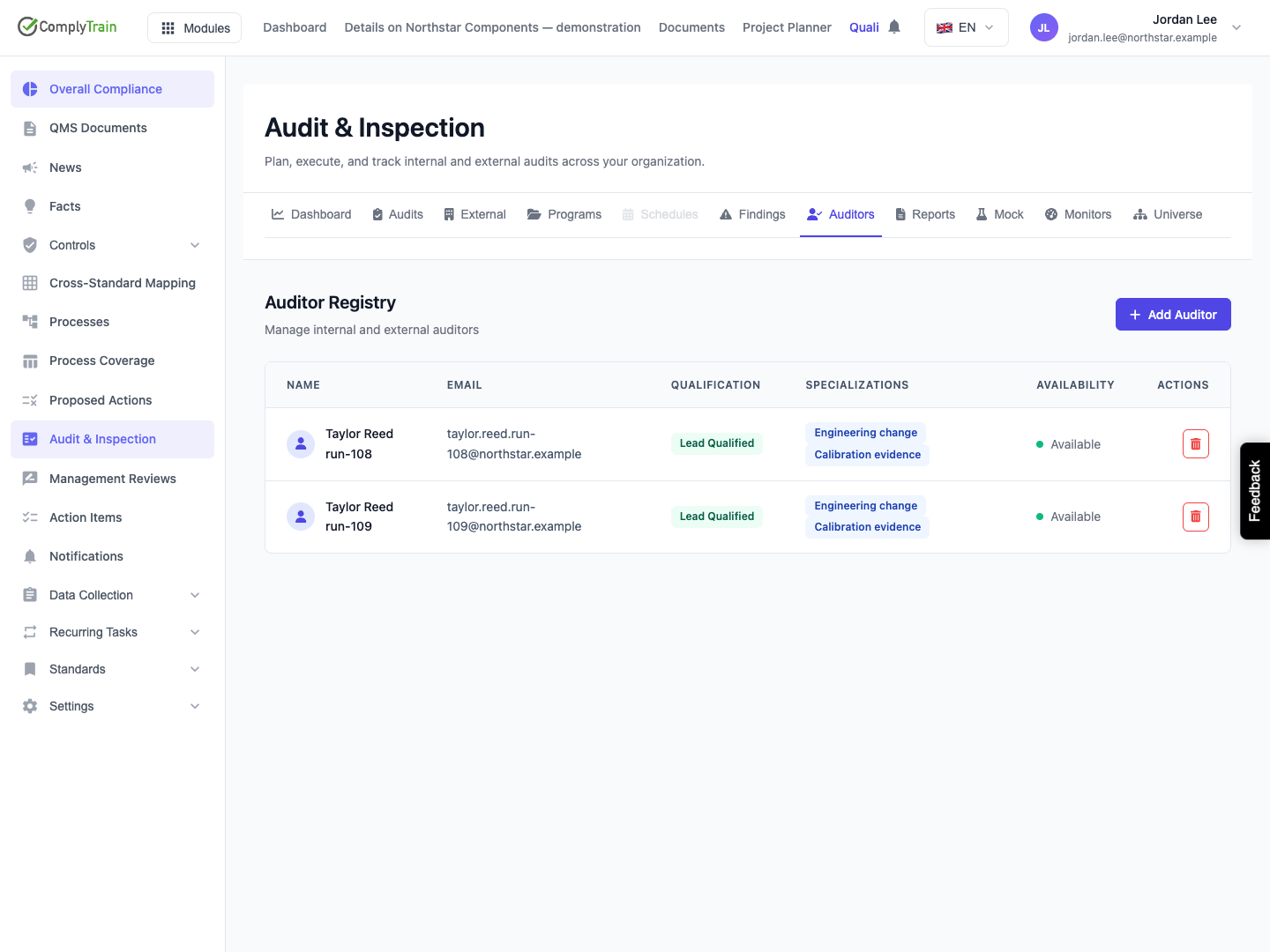
Select Add Auditor, reopen the registry and check the saved qualification and standard scope. The creation form does not offer a user-account link, qualification dates or expiry, availability calendar, exclusions or certificate attachment. Do not infer those configurations from the registry's broader data model.
The demonstrated entry remains unlinked to a login account. Its email is a registry field; entering it does not invite the person, grant permissions or prove that the signed-in account will be recognised as this auditor. The current registry presents creation and deletion without a general edit workflow. Resolve qualification or account-link changes through the administrator's supported process.
Product location: /qms/audits. Select Audits → open the engagement → Scope or Team.
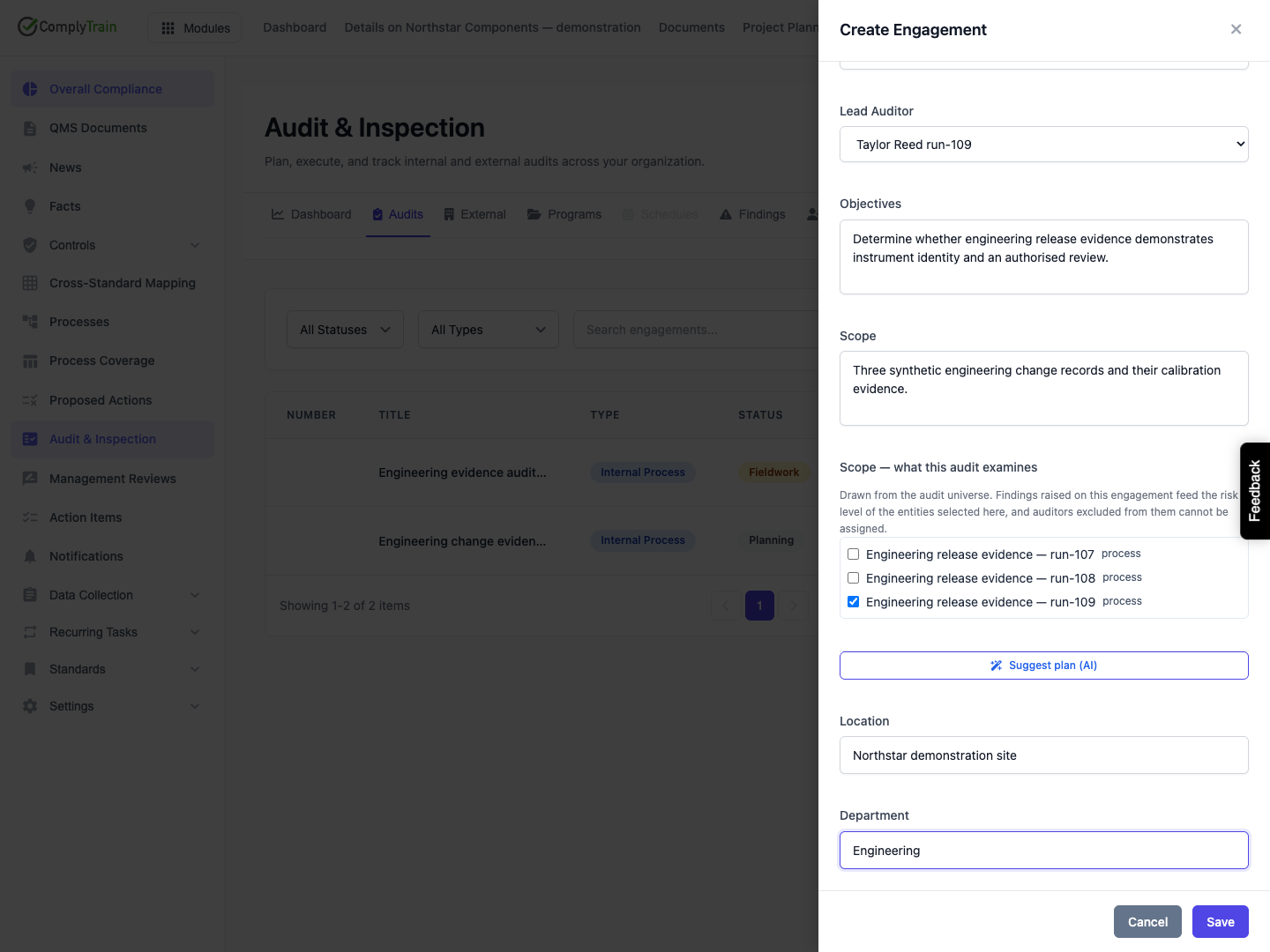
Open Audits / Create Engagement. Fill the engagement details, then select the relevant universe entities under Scope entities. The text Scope field describes boundaries; selecting entities adds structured links used by other audit functions.
Save from the main audit workspace, reopen the engagement and verify its resulting scope. Each linked scope item records the entity name and type used when it was added. An engagement created without structured scope cannot attribute its findings to a universe entity for entity-based risk calculation.
In the released per-standard creation path, the standard link is created but the selected universe entities are not attached by that path. Confirm structured scope rather than assuming the checkboxes were saved. If attachment fails, the engagement may still exist: inspect it before creating another copy.
Product location: /qms/audits. Select Audits → open the engagement → Scope or Team.
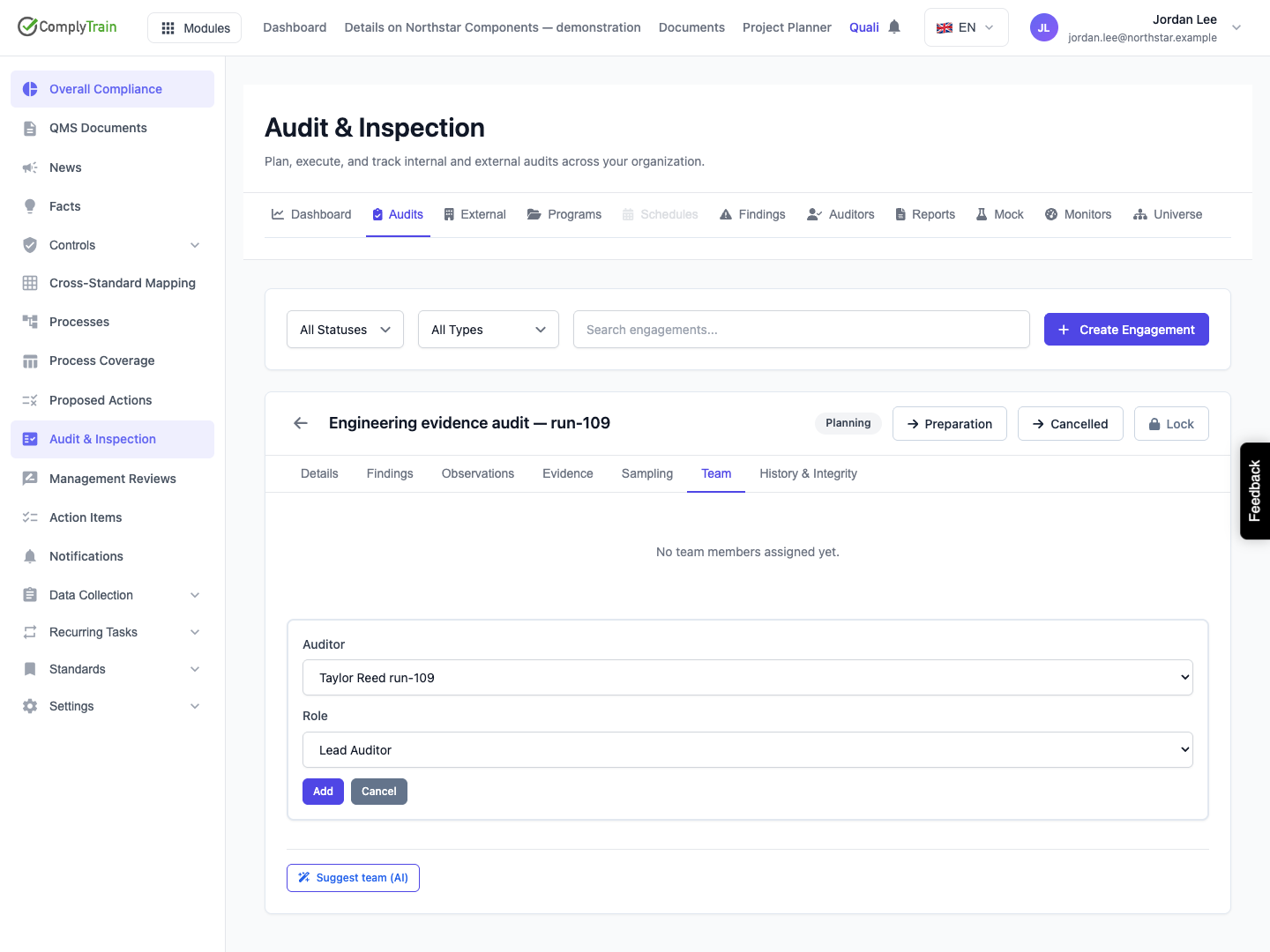
Open the saved engagement, choose Team, then Add Team Member. Select a registered auditor and a role, then Add.
Role | Intended contribution |
|---|---|
Lead Auditor | Leads and coordinates the engagement. |
Auditor | Performs the assigned audit work. |
Observer | Observes the work. |
Technical Expert | Provides technical expertise. |
SME | Provides subject-matter expertise. |
Business Responsible | Represents the business area under audit. |
Trainee | Develops audit competence under supervision. |
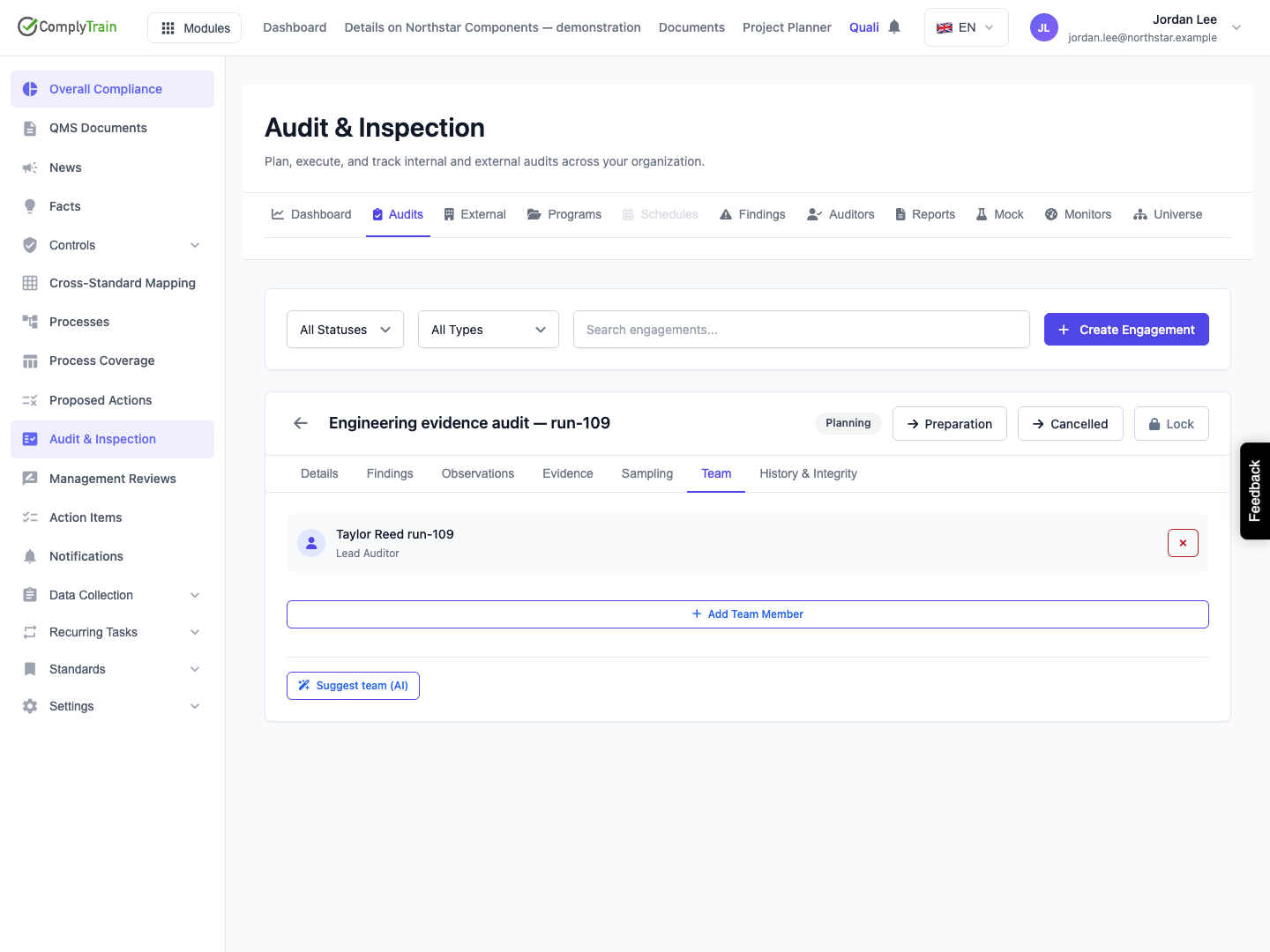
Reopen the engagement and check the team roster. The illustrated Lead Auditor roster assignment persists. The creation form's separate Lead Auditor selection does not persist in this release, even when a registered auditor was selected. A saved roster role does not fill that separate field or create an account link.
The same auditor cannot be added twice to one engagement. Removal uses the member's remove control and confirmation. A locked engagement prevents team changes until a permitted unlock has been recorded.
The Add Team Member form does not collect assigned areas or an independence-verification decision. Do not describe successful addition as proof of independence, availability or permission. Review those requirements using the organisation's qualification and conflict-of-interest records.
Product location: /qms/audits. Select Audits → open the engagement → Scope or Team.
Suggest team can propose people for the engagement. Review each proposed role, relevant expertise and rationale before accepting an assignment, then inspect the saved roster. A recommendation is not an appointment until the add action succeeds.
The in-audit voice copilot has additional conditions: voice availability, an engagement in Fieldwork, and recognition of the signed-in user as the lead or a team member. A registry entry without an account link may not satisfy that identity check. Keep ordinary audit work and evidence collection available while resolving the missing prerequisite.
