Follow a finding through review, response, verification and closure while preserving the evidence and review trail.
Product location: /qms/audits. Select Findings, then open or create the intended finding. The tab and selected record are not encoded in this URL.
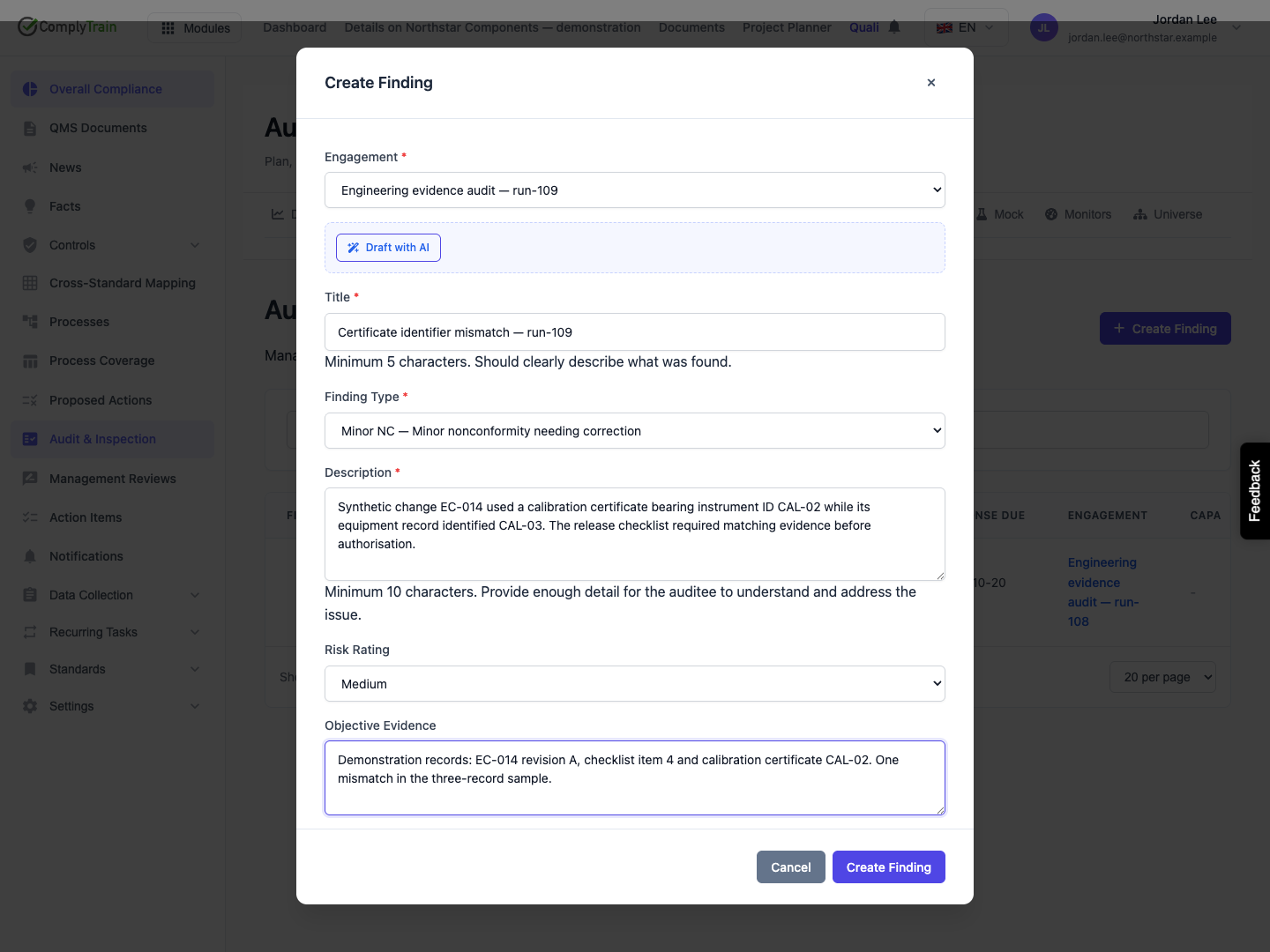
Open QMS / Audit & Inspection / Findings and select Create Finding. The finding belongs to an engagement. Use an identifiable requirement, the observed condition and specific supporting evidence so the auditee can understand what needs to be addressed.
For example: "The certificate linked to change EC-014 identified CAL-02, while the equipment record identified CAL-03. The release checklist required matching evidence." This describes the observed mismatch without prematurely claiming why it happened.
Finding-management actions require the audit-management permission. A role title or membership of an audit team does not automatically establish that permission. The response form records the acting user; entering someone else's response does not make them the submitting account.
Product location: /qms/audits. Select Findings, then open or create the intended finding. The tab and selected record are not encoded in this URL.
Field | Required information and behaviour |
|---|---|
Engagement | Select the audit containing the finding. The creation selector loads up to 100 engagements; a missing older audit may require administrative follow-up. |
Title | A recognisable summary, at least 5 and at most 500 characters. |
Finding Type | Major NC, Minor NC, Observation, Opportunity or Positive. Minor NC is initially selected. Classification and risk rating are separate choices. |
Description | At least 10 characters explaining what was observed and the requirement or expectation involved. |
Risk Rating | Optional Low, Medium, High or Critical; initially no rating. |
Objective Evidence | Specific records, measurements or observations. Include identifiers, versions and the relevant sample context. This text is not a file attachment or an automatic link to an evidence record. |
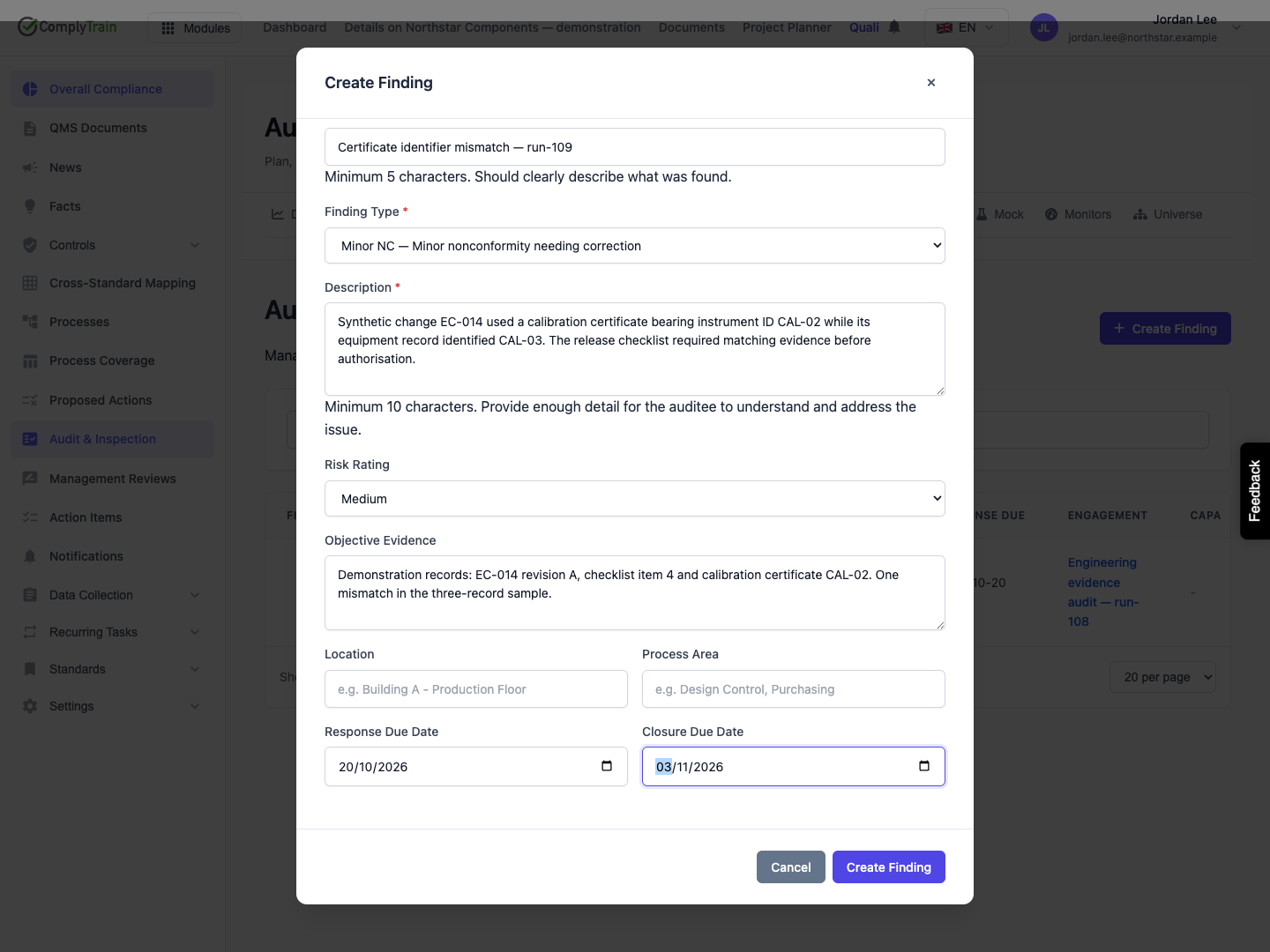
Location and Process Area | Optional context identifying where the issue was found. |
Response Due Date | When the auditee's response is due. |
Closure Due Date | When the full resolution and review should be complete. |
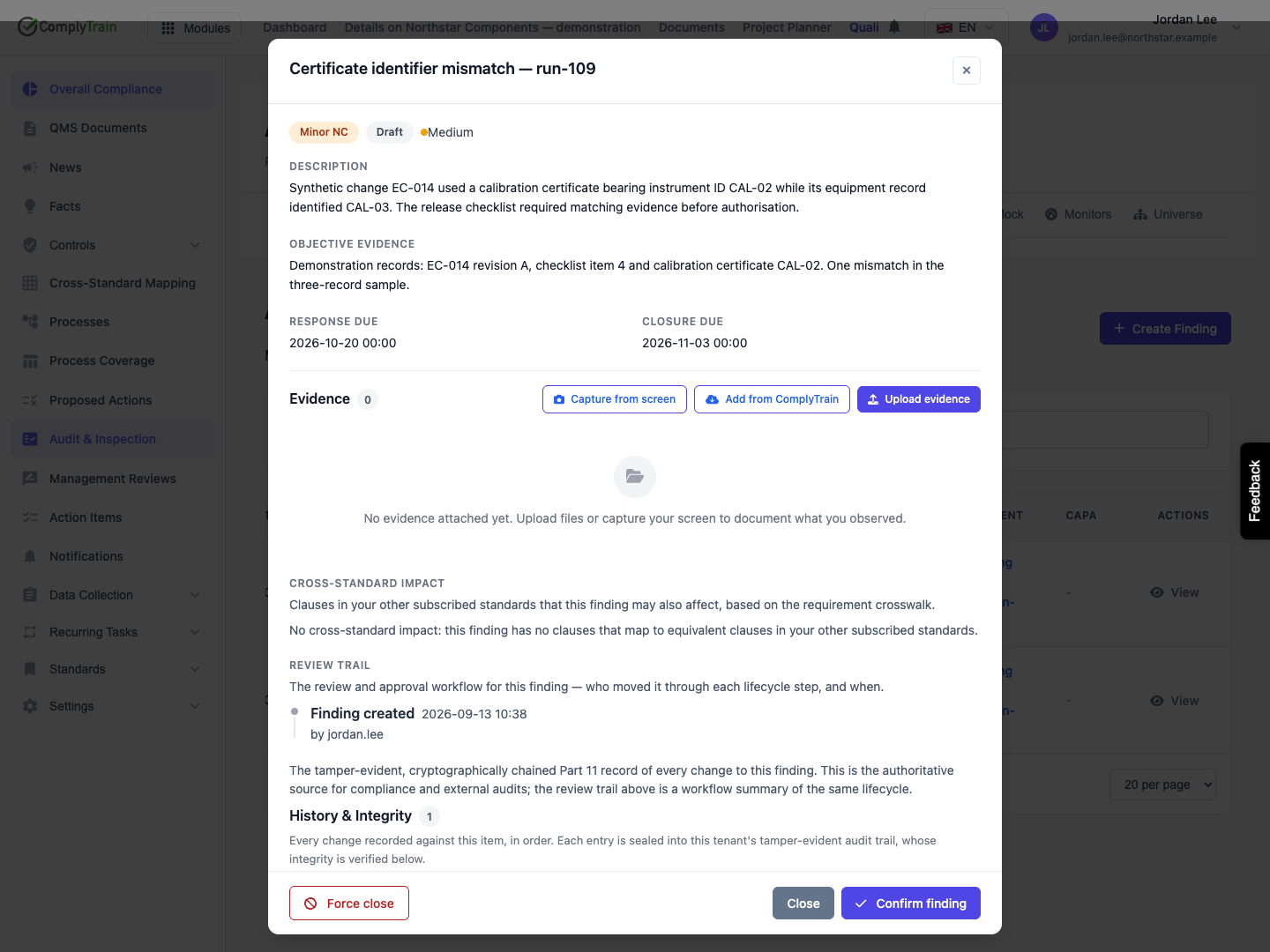
Select Create Finding and inspect the saved row. Use View to open its detail; clicking the title alone does not open it. Confirm the engagement, classification, dates and evidence description. The initial lifecycle state is Draft.
If creation fails, correct the field error and check the list before resubmitting. A finding's number may be blank in this released workspace; use its distinguishable title and engagement when reporting a problem, rather than assuming a generated number exists.
Product location: /qms/audits. Select Findings, then open or create the intended finding. The tab and selected record are not encoded in this URL.
After selecting the engagement, Draft with AI offers its observations and optional evidence context. Select at least one observation, then Generate draft. Review the generated title, classification, description and proposed standard clauses.
The proposal is applied to the form for review; it is not a saved finding until Create Finding succeeds. Existing entered text may require confirmation before replacement. If an unsupported classification was suggested, the form can substitute Observation and explain the change. Clause suggestions that do not match subscribed standards can be discarded.
The creation form sends the title, classification, description and other visible finding fields. It does not submit the AI draft's proposed clause mappings or an explicit observation/evidence link collection. Treat those displayed proposals as context to reconcile; verify actual saved mappings and links before claiming traceability.
Product location: /qms/audits. Select Findings, then open or create the intended finding. The tab and selected record are not encoded in this URL.
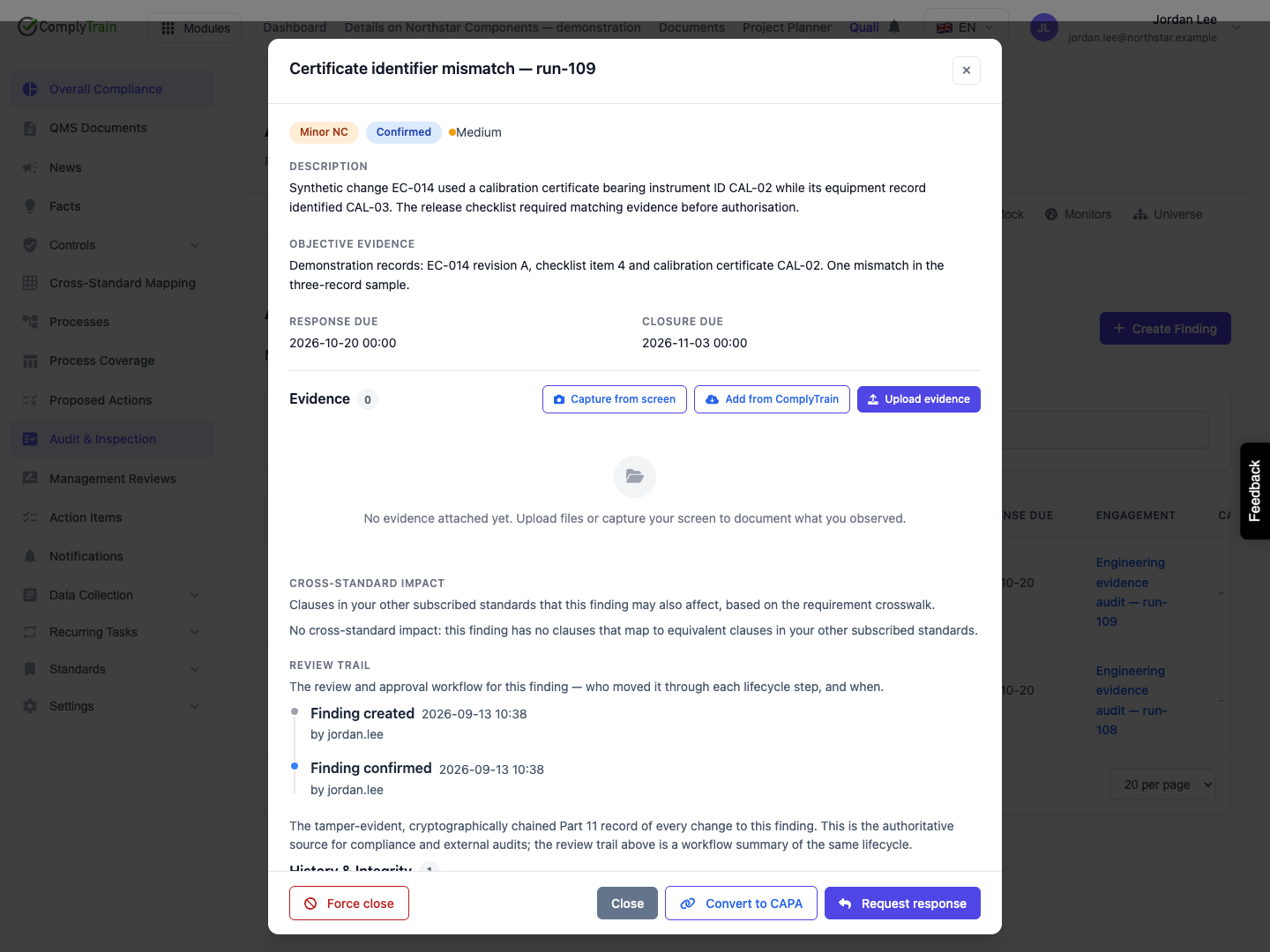
Open View, review the condition and evidence with the audit team, select Confirm finding, then confirm the decision. The status becomes Confirmed and the review trail records the transition.
Confirmation is the review decision. It is not a response, a correction or evidence of effectiveness. Use Request response and its confirmation when formal follow-up is required. The next state is Response Required, with Record response available.
Product location: /qms/audits. Select Findings, then open or create the intended finding. The tab and selected record are not encoded in this URL.
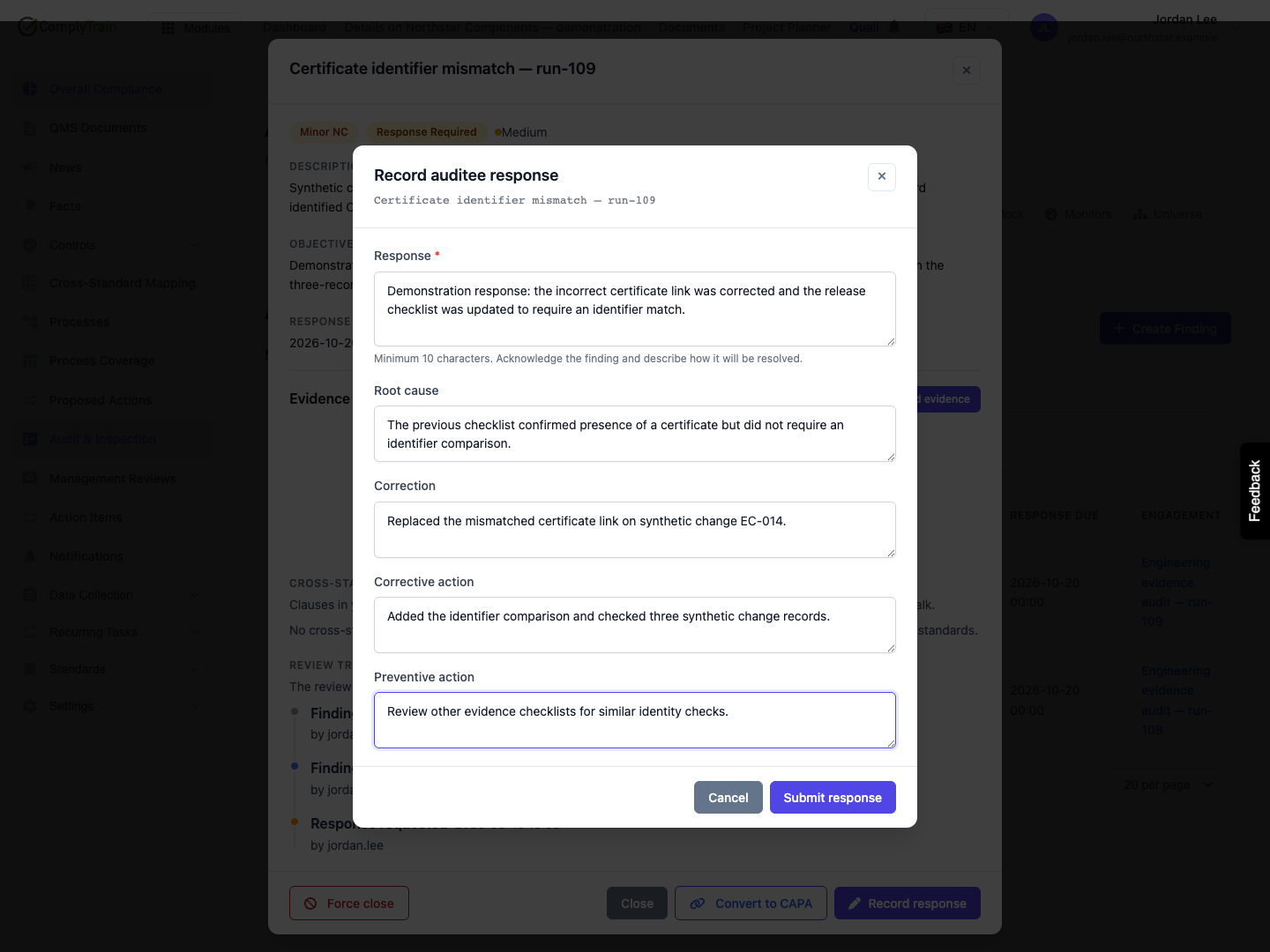
Select Record response and enter the response, with at least ten non-whitespace characters. The remaining fields distinguish different parts of the resolution:
Response field | What it should explain |
|---|---|
Response | Acknowledge or address the finding and describe how it is being resolved. |
Root cause | Why the condition arose, supported by the investigation. |
Correction | The immediate fix to the specific affected instance. |
Corrective action | What removes the cause and reduces recurrence. |
Preventive action | Work addressing similar potential issues elsewhere. |
For the example, correction replaces the mismatched certificate link; corrective action adds an identifier comparison to the checklist. Keep investigation conclusions separate from unsupported hypotheses.
Select Submit response. Confirm Response Received and inspect the saved response. This status means a response has been recorded; it does not mean its contents have been accepted as effective. The form may submit an administrative user's record of an auditee response, so preserve the original auditee statement as supporting evidence where required.
Product location: /qms/audits. Select Findings, then open or create the intended finding. The tab and selected record are not encoded in this URL.
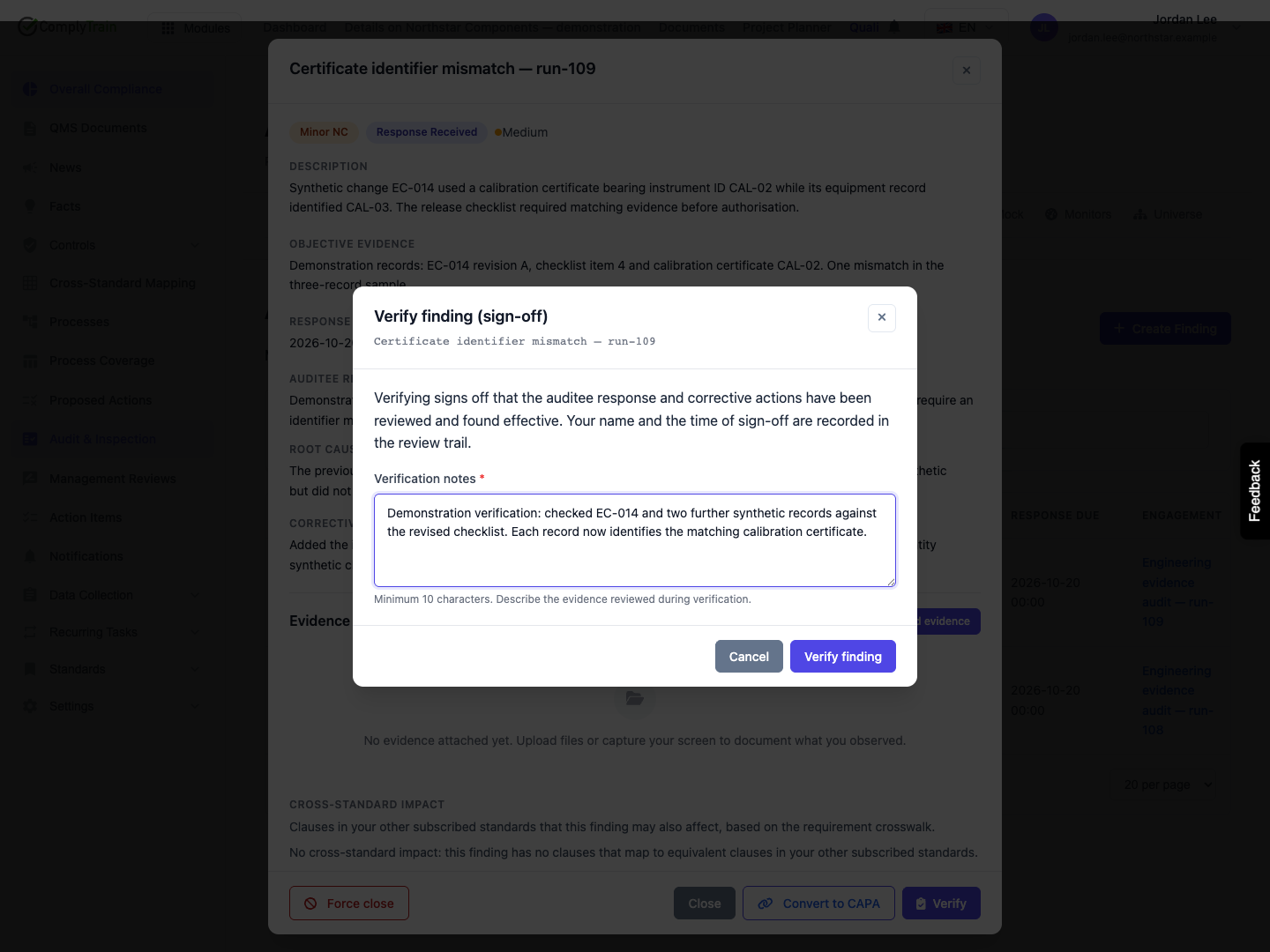
After reviewing the response and the evidence of corrective work, select Verify. Enter at least ten characters in Verification notes, explaining what was checked and why the result supports the conclusion, then Verify finding.
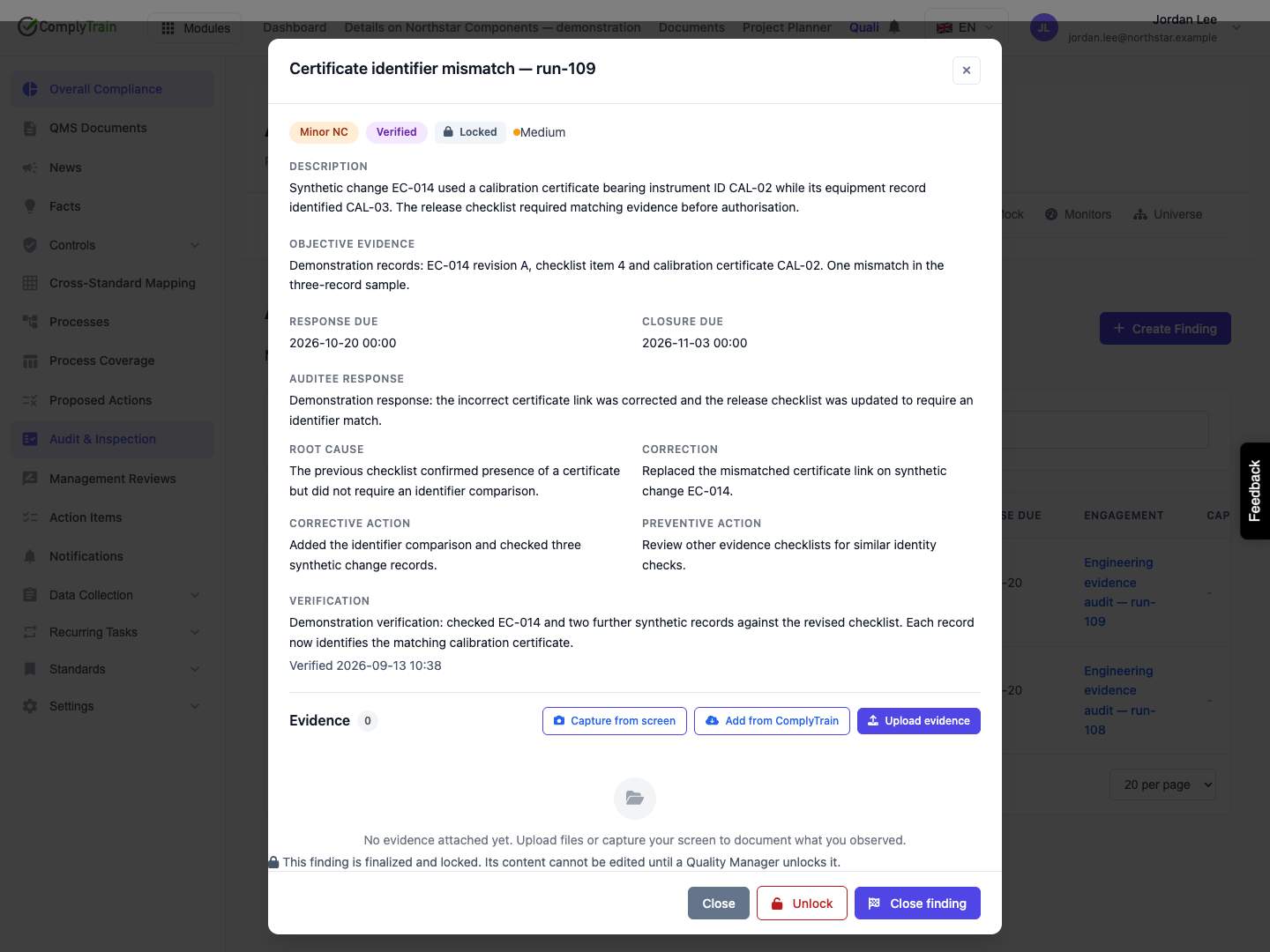
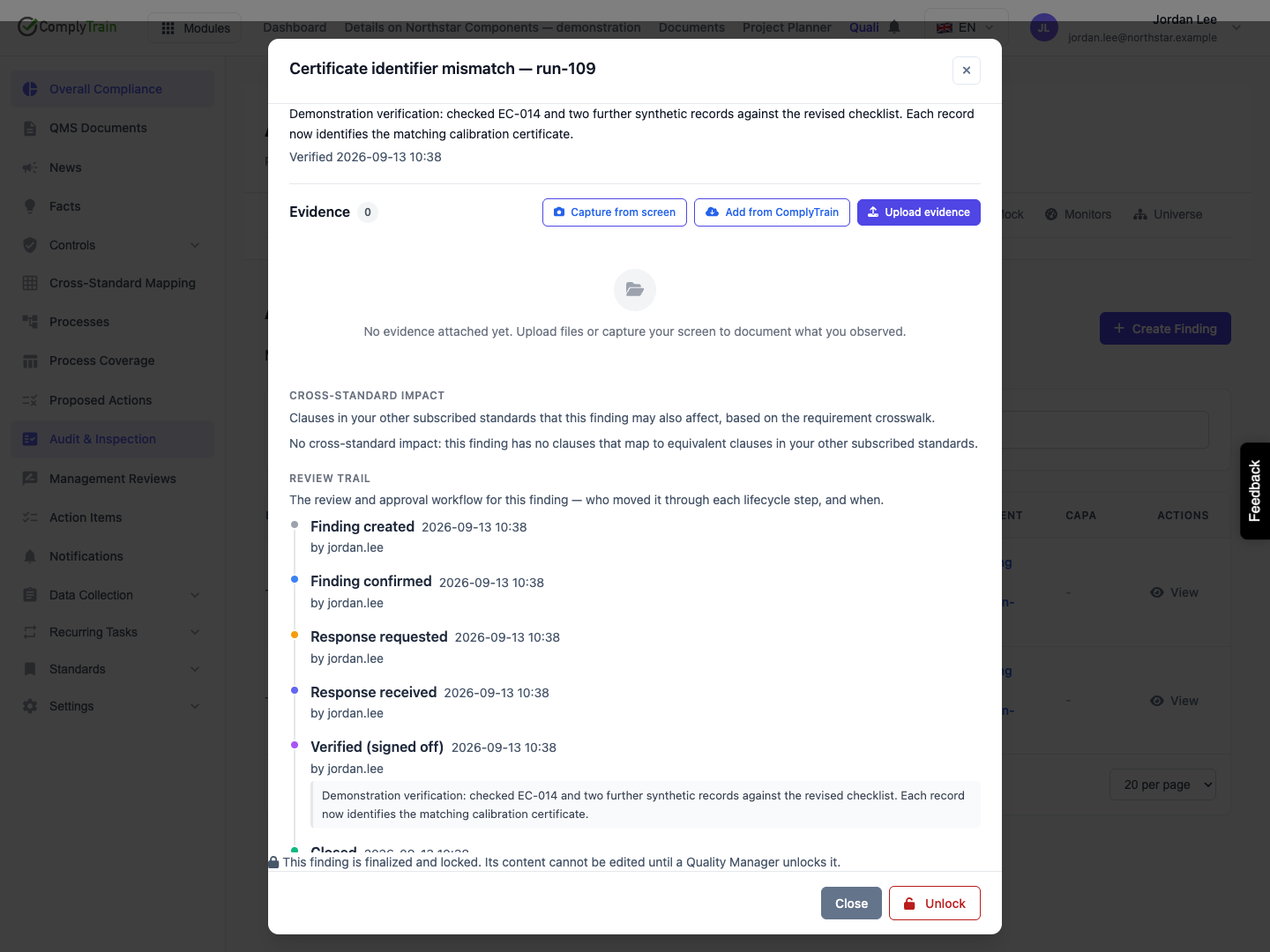
The action records verification notes, the acting reviewer and time, and locks the finding's content. Verified and Locked describe different aspects of the same record: the reviewed outcome and protection against subsequent content changes.
The interface calls this sign-off. This dialog contains a review note; it does not request a signing password or create proof that a separate cryptographic document-signing procedure was followed. Apply any additional approval requirements established by your organisation. Where the standard has an Audit Records vault, verification also attempts to file a record snapshot. That filing is best-effort: verification can succeed without a document if the vault is unavailable or filing fails. Check the actual record document and its separate signature state.
The normal flow does not require a different user to record the response and verification. Arrange independent review through the organisation's roles and procedure when required; a successful button click alone does not establish segregation of duties.
Product location: /qms/audits. Select Findings, then open or create the intended finding. The tab and selected record are not encoded in this URL.
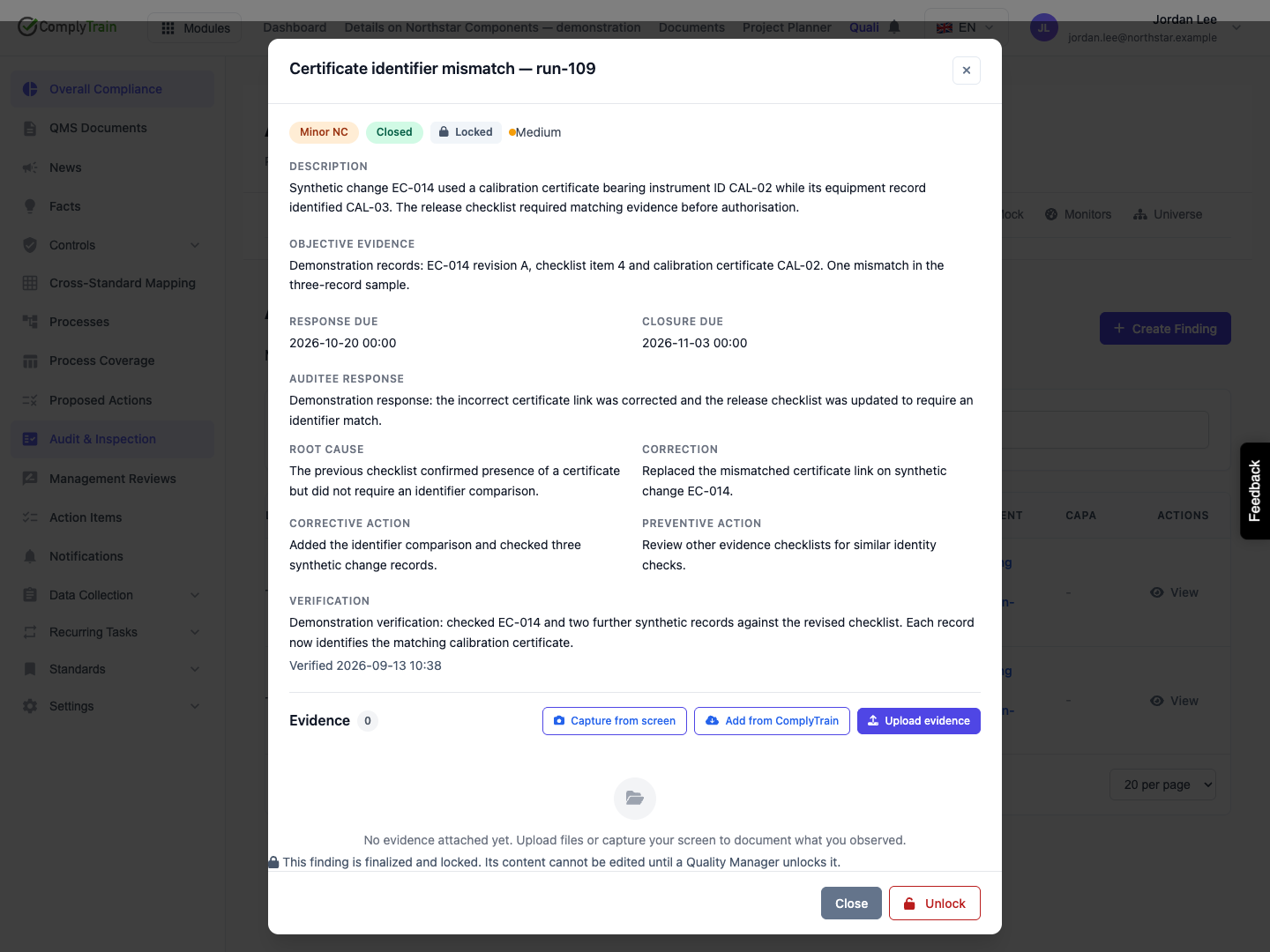
From Verified, select Close finding, add optional closure notes and confirm. Reopen the finding from the list. Check Closed, its lock, response and verification notes, then read Review trail.
The trail distinguishes creation, confirmation, response request, response receipt, verification and closure. Compare the actor, date and notes for each decision. If a person is shown as Unknown or a field is blank, investigate that identity or data issue before using the display as an approval record.
History & integrity is a separate event view. Inspect its actual verification outcome; the existence of a history panel does not itself show that its integrity check succeeded.
Product location: /qms/audits. Select Findings, then open or create the intended finding. The tab and selected record are not encoded in this URL.
Action | When it is available and what it means |
|---|---|
Accept | Available for Observation and Opportunity findings in Draft or Confirmed. It creates the terminal Accepted state without requiring the response and verification sequence. It is not available for Major NC, Minor NC or Positive. |
Force close | An administrative closure from an unfinished state, with a required justification recorded as an override. It bypasses the normal response and verification sequence. |
Convert to CAPA | Creates and links a CAPA from an issued finding that has no CAPA and is not locked. It is unavailable in Draft and after verification locks the content. Review the generated CAPA before beginning its investigation. |
Unlock | A privileged action for a locked record. It requires the QMS settings-management permission and a reason of at least ten characters. It clears the content lock and records why; it does not reset Closed or Accepted to an earlier lifecycle state. |
Normal Closed and Accepted are terminal states. Do not describe an unlock as reopening the review workflow. If a terminal conclusion is wrong, preserve the original decision and use the organisation's supported correction process.
Force close is a distinct disposition, not a shortcut for demonstrating corrective effectiveness. Although it is labelled administrative, its API uses the audit-management permission; the organisation must control who may use that permission and when an override is acceptable.
Product location: /qms/audits. Select Findings, then open or create the intended finding. The tab and selected record are not encoded in this URL.
The detail can propose clauses in other subscribed standards using requirement crosswalk relationships. Review the source clause, related clause, equivalence type and rationale. Unscored means the relationship is available without an AI assessment; it does not mean it was rejected.
Use Add to finding only after confirming relevance. A locked or terminal finding disables clause adoption. No suggestions can mean that the finding has no mapped clauses or that its clauses have no applicable crosswalk; it does not establish that other standards are unaffected.
Product location: /qms/audits. Select Findings, then open or create the intended finding. The tab and selected record are not encoded in this URL.
Situation | What to check |
|---|---|
Missing Verify or Close finding | Read the current lifecycle state; those actions require Response Received and Verified respectively. |
Short response or verification note | Supply a meaningful note of at least ten characters, then retry once. |
CAPA conversion unavailable | Check for Draft, an existing CAPA link or a content lock. |
Save or transition rejected | Read the error, reload and compare the saved state before repeating the action. |
Locked content | Use a permitted reasoned unlock only when correction is authorised. A lifecycle transition can still be available while content is locked. |
Wrong engagement or missing evidence link | Correct the underlying record through a supported action; text references alone do not establish a structured link. |
Use evidence collection and sampling to retain the observations supporting the finding.
