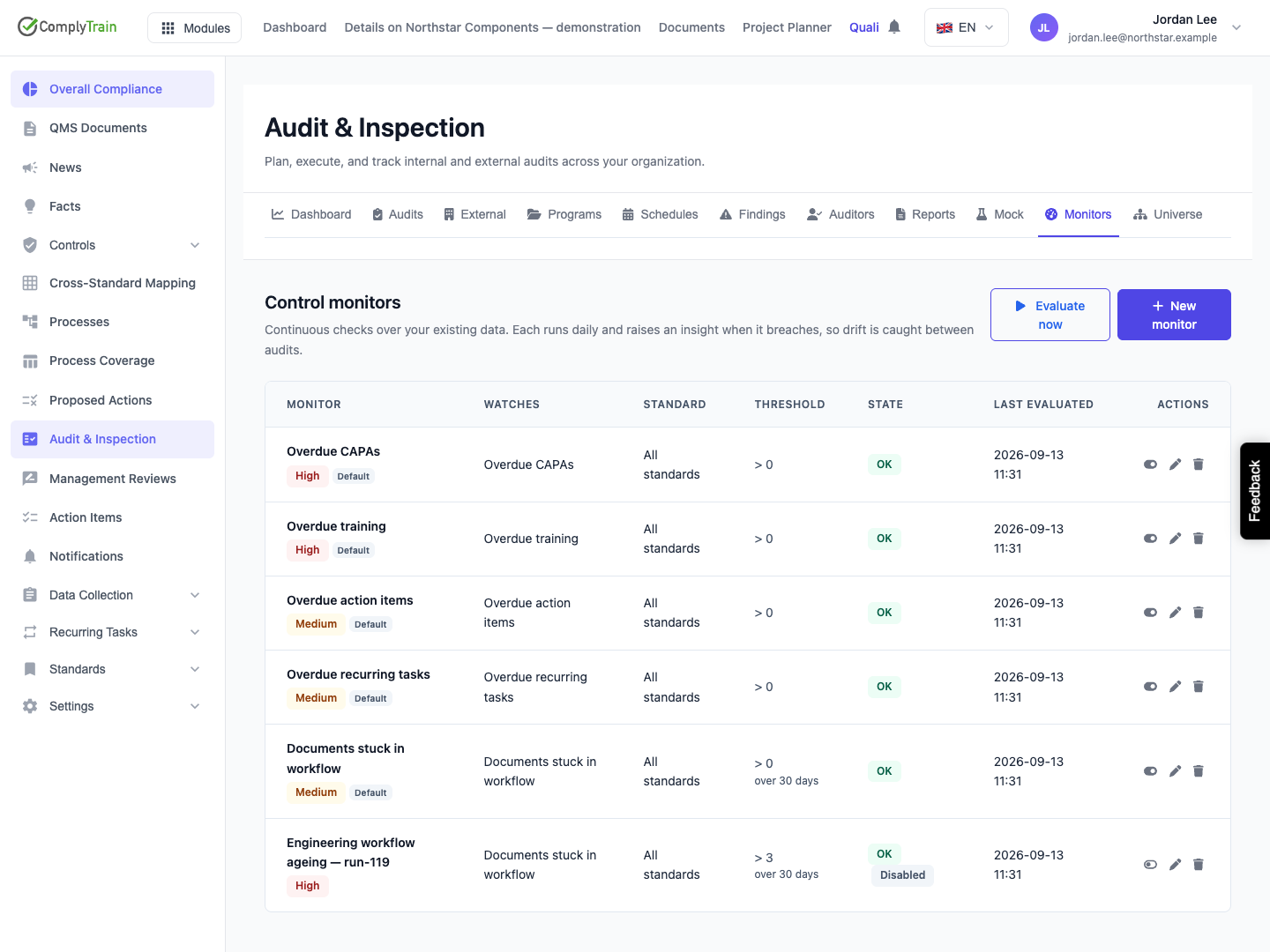
Watch overdue work and stalled documents, understand breach thresholds and manage a monitor from creation through evaluation and disabling.
Product location: /qms/audits. Select Monitors. The tab and selected record are not encoded in this URL.
Open Quality (QMS) → Audit & Inspection → Monitors. The page title is Control monitors. Viewing, creating, editing, deleting and evaluating monitors require Manage Audits access.
A monitor counts records already held in ComplyTrain. It can flag overdue work between audits; it does not perform an audit, approve evidence or close a CAPA. Use the result to investigate the actual records and arrange follow-up.
The general audit workspace creates monitors for All standards. A monitor created inside a standard's audit workspace inherits that standard. The form has no separate scope selector, and editing does not change the saved source or standard. To change either, create an appropriately scoped replacement and retire the old configuration deliberately.
A standard-specific list shows that standard's monitors. Evaluate now still evaluates all enabled monitors in the tenant, including monitors outside the visible standard. This action also creates missing default monitors for the five source types.
Product location: /qms/audits. Select Monitors. The tab and selected record are not encoded in this URL.
Data source to watch | Records counted |
|---|---|
Documents stuck in workflow | QMS documents in Draft, In Progress, Ready for Review or Reviewed whose last update is older than the configured window. The age is measured from the document's last update, not necessarily from entry into its current status. A document's own standard, or its template's standard when absent, determines standard scope. |
Overdue recurring tasks | Recurring-task instances with a due date before today and Pending, In Progress or Overdue status. Standard scope comes from the task definition. |
Overdue action items | QMS action items in Pending or In Progress with a due time already passed. Standard scope comes from the action's QMS data. |
Overdue training | Assignments already marked Overdue, plus Assigned or In Progress assignments whose due time has passed. Standard scope comes from the associated curriculum. This is an assignment count, not a compliance percentage or unique learner count. |
Overdue CAPAs | CAPAs whose target close date is before today and whose status is neither Closed nor Cancelled. Individual action deadlines and intermediate phase deadlines are not this source's target. |
A record without the relevant standard association will not contribute to a standard-specific count. Dates described as “before today” are evaluated using the service's calendar date; a due date of today is not yet before today. Time-based due checks compare against the current service time.
Product location: /qms/audits. Select Monitors. The tab and selected record are not encoded in this URL.
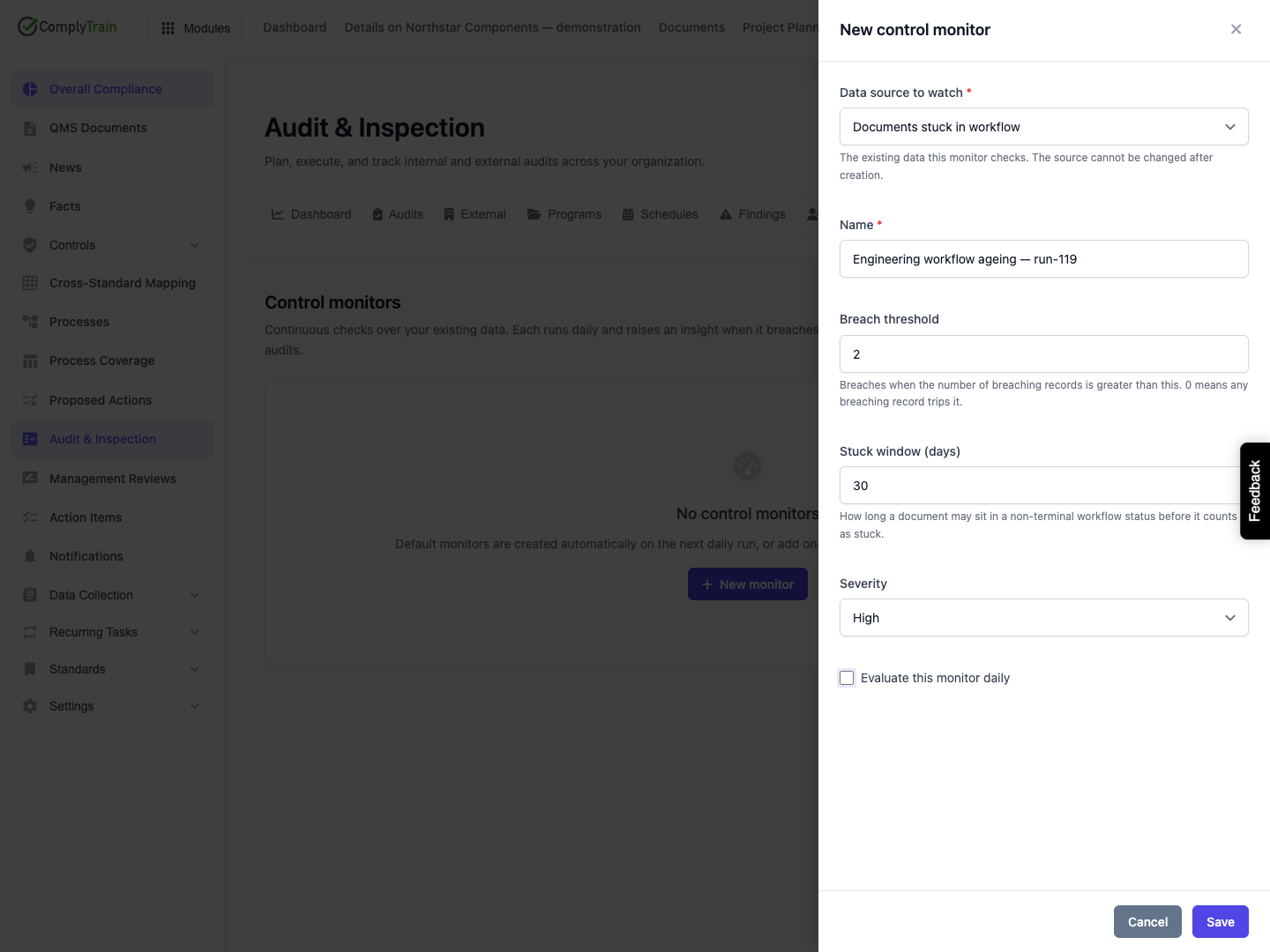
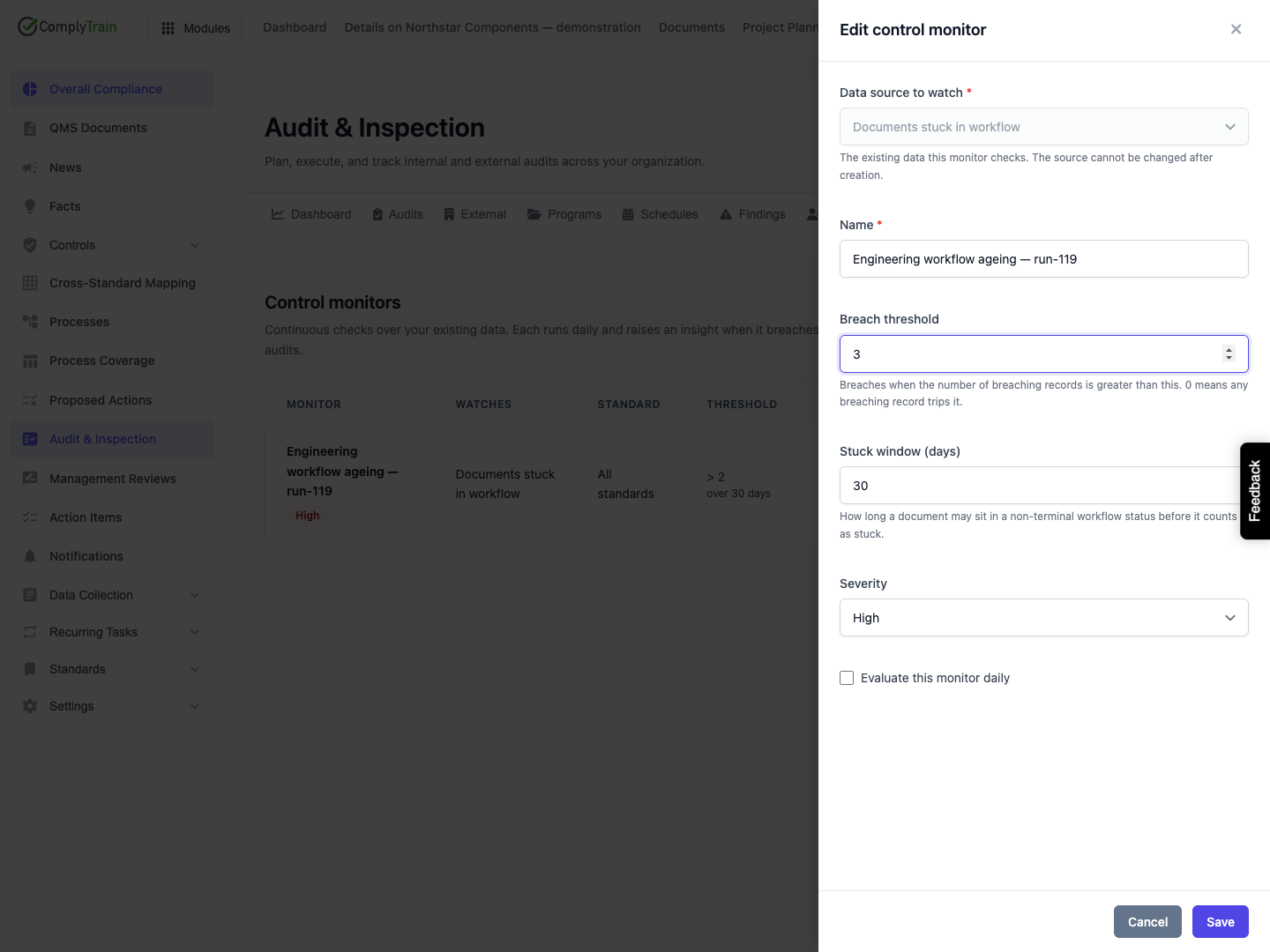
Select New monitor and complete these settings.
Field | Default and effect |
|---|---|
Data source to watch | Overdue CAPAs initially. Select one of the five supported sources. The source becomes fixed after creation. |
Name | Required, nonblank descriptive name; keep it within 200 characters. Use a name that states what the monitor watches and its intended scope. |
Breach threshold | 0 initially. Enter a nonnegative whole number. The monitor breaches only when the count is greater than the threshold. With a threshold of 2, two records are within threshold and three breach. |
Stuck window (days) | Appears only for Documents stuck in workflow. 30 initially; use a positive whole number. Other sources use their due dates and have no configurable look-back window. |
Severity | Medium in the new-monitor form. Alternatives: Info, Low, High and Critical. Severity classifies the alert; it does not alter the count or threshold. |
Evaluate this monitor daily | Selected initially. Clear it to save configuration without including the monitor in evaluations. |
For example, configure Engineering workflow ageing to watch documents with a 30-day window, threshold 2 and High severity. Leave daily evaluation clear while reviewing the configuration. Saving a disabled monitor does not evaluate it.
Save requires a nonblank name. The service rejects fractional thresholds and windows; supply whole numbers rather than relying on the number input to round them. Cancel, the close control or the backdrop abandons unsaved edits.
Product location: /qms/audits. Select Monitors. The tab and selected record are not encoded in this URL.
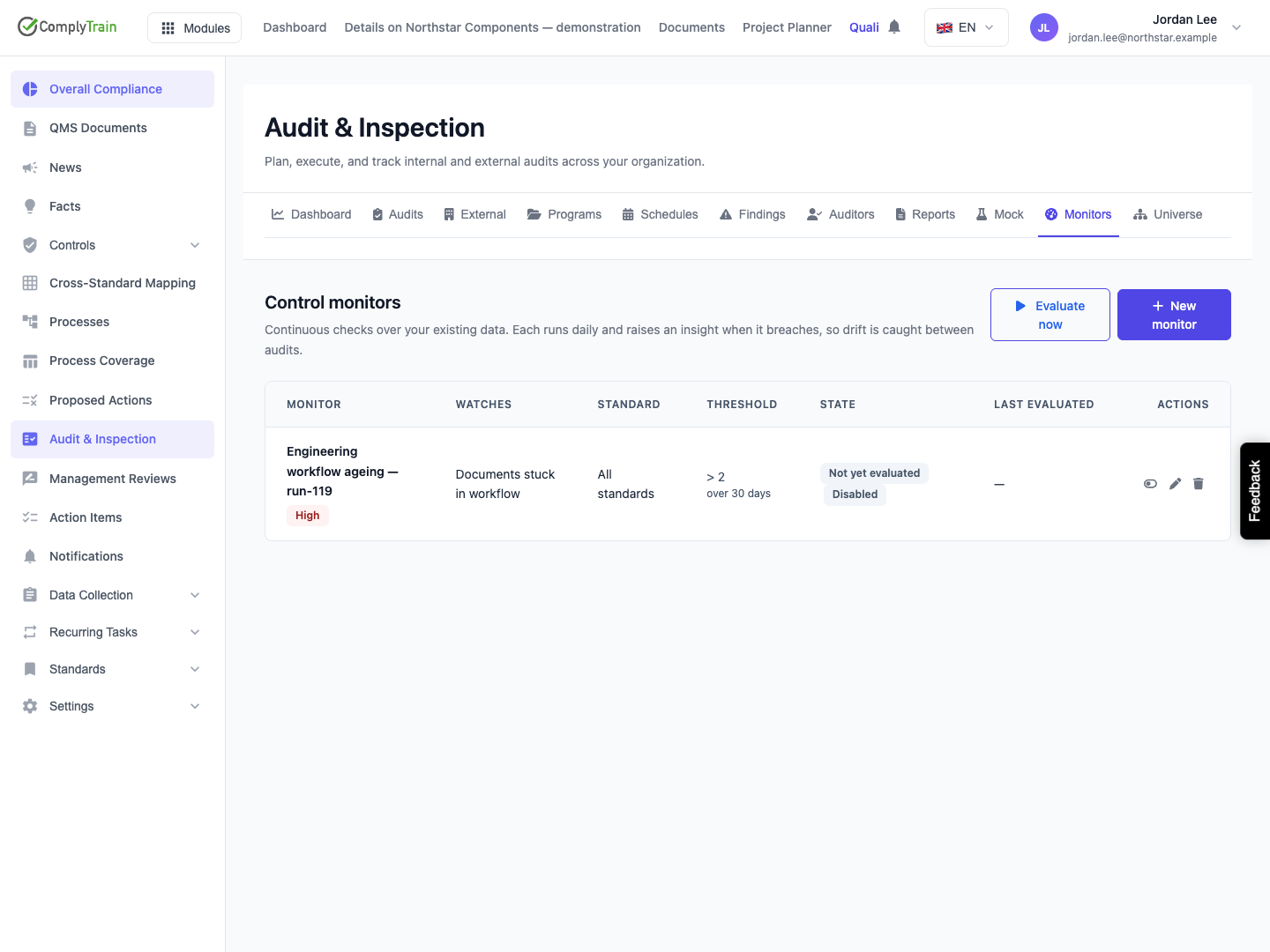
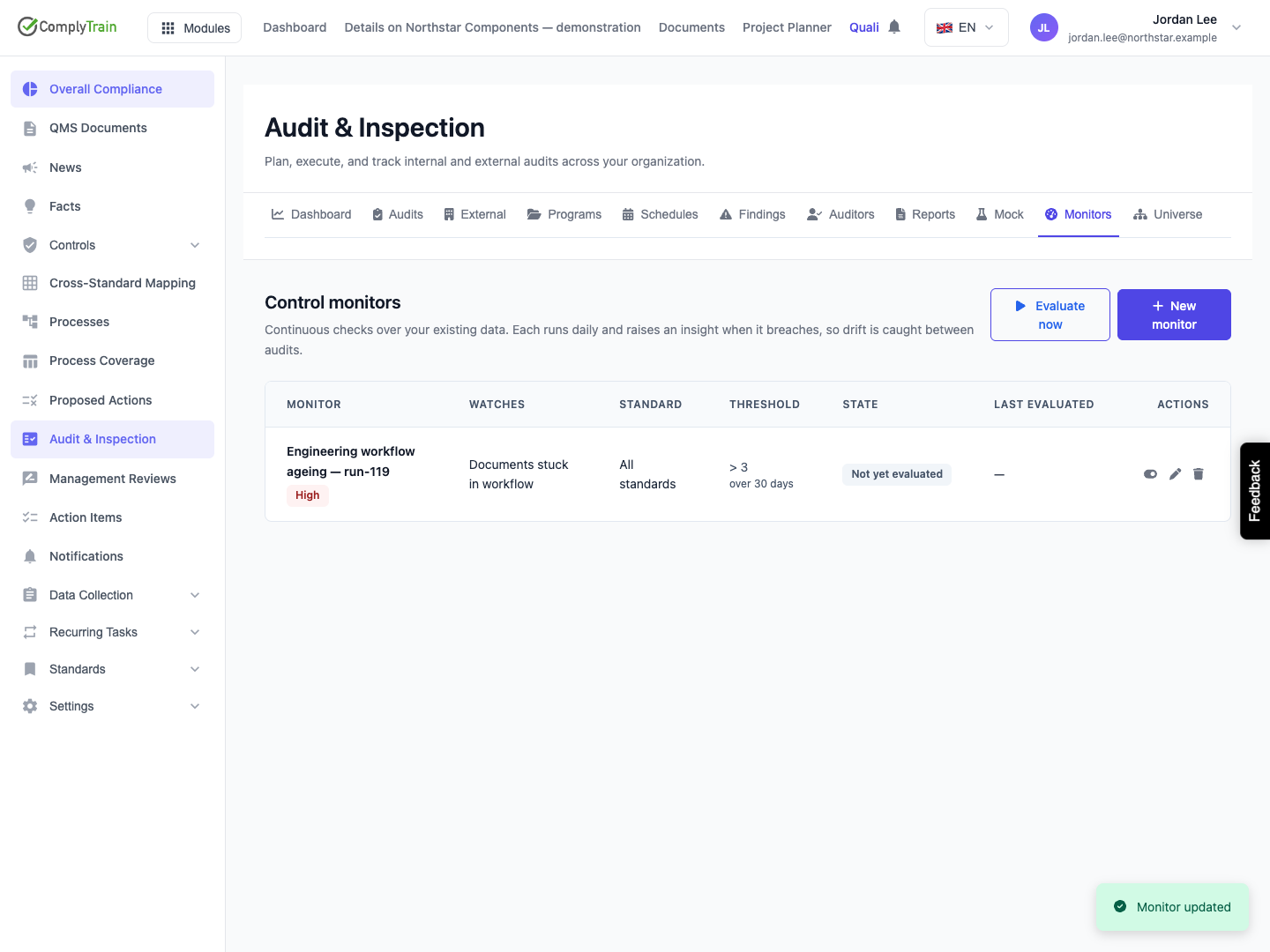
After saving, reopen Monitors and inspect the name, watched source, standard, threshold and state. A new monitor displays Not yet evaluated. A disabled monitor also displays Disabled. Neither label represents a passing check.
The Default badge identifies an automatically seeded monitor. Default configuration is supplied by the deployment; do not assume it matches a custom form's Medium severity or your organisation's chosen threshold. The standard source defaults use High severity for overdue training and CAPAs, and Medium for the other sources unless configured otherwise.
Product location: /qms/audits. Select Monitors. The tab and selected record are not encoded in this URL.
Use the row's Edit control to change the name, threshold, applicable window, severity or enabled state. The source selector is disabled. Save, then check the retained values; concurrent edits are not presented as a version-conflict workflow in this screen.
Changing a threshold can immediately change the displayed state because the list compares the last stored count with the current threshold. That is not a new evaluation. Check Last evaluated, and use Evaluate now when you need the result against current records.
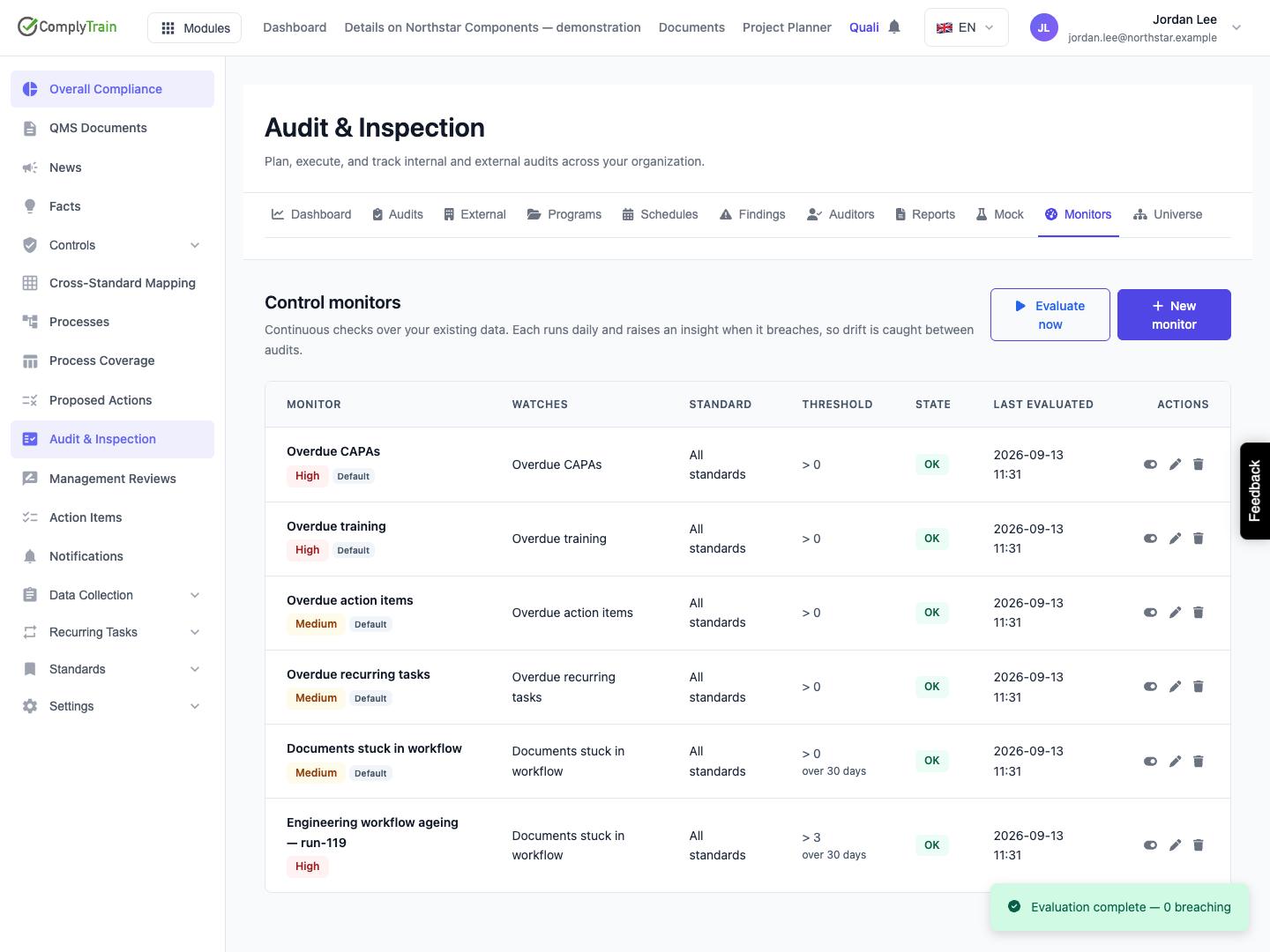
Select Enable monitor to include a disabled monitor in subsequent evaluations. Enabling alone does not refresh its count. Then select Evaluate now and wait for the result. The operation applies to all enabled monitors in the tenant and may add missing defaults to the list.
Recheck the example monitor's State and Last evaluated. A recent OK indicates that its stored count was within the selected threshold. It does not mean that there are no overdue records: a positive threshold permits some records without a breach.
Product location: /qms/audits. Select Monitors. The tab and selected record are not encoded in this URL.
Display | Meaning and next action |
|---|---|
Not yet evaluated | No successful evaluation timestamp is stored. Enable if appropriate and request an evaluation. |
OK | The stored count is at or below the current threshold. Check the evaluation date and enabled state. |
A count followed by “breaching” | The stored count exceeds the current threshold. Inspect the underlying overdue or stalled work. |
Disabled alongside another state | The monitor is excluded from evaluations. Its previous count and timestamp remain visible, so an old OK or breach can still be shown. |
An evaluation success message but an unchanged old timestamp | A source check may have failed while other monitors were evaluated. The service preserves failed monitors' prior state and insights. Investigate the stale timestamp; an aggregate completion message is insufficient. |
A load or evaluation error | Use Retry for a load failure, check access and connectivity, then request another evaluation when appropriate. Do not treat missing data as zero. |
The page's breach summary reflects the returned monitors' stored counts and current thresholds. Disabled monitors can therefore remain in that summary. It does not certify that every visible source was successfully checked in the latest run.
Product location: /qms/audits. Select Monitors. The tab and selected record are not encoded in this URL.
Evaluation records current breaches as drift insights. At the onset of a breach, the service attempts to notify users who hold Manage Audits access and attach a snapshot to the next planned or preparation-stage engagement in scope. A monitor that remains breached is not a new onset on every evaluation.
These follow-up actions are best effort. No suitable engagement means no automatic evidence attachment; notification or attachment failure does not necessarily fail the evaluation. Open the relevant insights, notifications and engagement evidence to confirm the actual outcome. A snapshot is a record of the detected condition, not the underlying document or proof that corrective action occurred.
Successful evaluation after the count falls within threshold resolves the associated drift insight. A failed source check preserves its previous insight instead of treating the failure as clearance. Correct the originating record through its own workflow and evaluate again; editing a monitor's severity or disabling it does not complete the overdue task.
The manual's illustrated example verifies on-demand evaluation of a nonbreaching monitor. It does not establish daily job execution, delivery to every recipient or a completed breach-to-remediation cycle.
Product location: /qms/audits. Select Monitors. The tab and selected record are not encoded in this URL.
Select Disable monitor when you want to retain its configuration but stop evaluating it. Reopen the page and confirm Disabled. The previous evaluation result and date remain. Re-enable and evaluate when monitoring should resume.
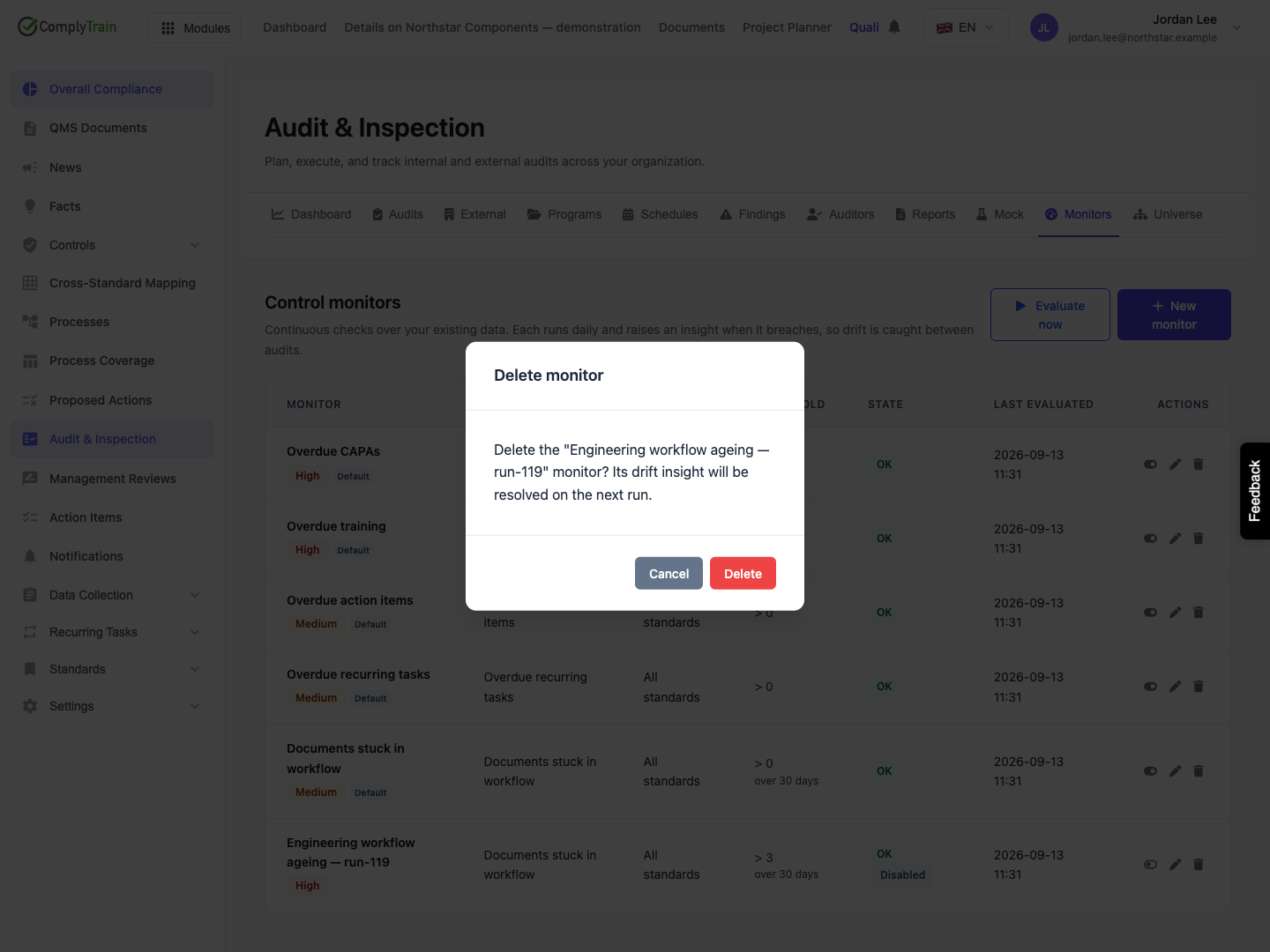
Use Delete only when the configuration is no longer needed. The confirmation names the monitor and explains that an associated drift insight is resolved on the next evaluation. Cancel preserves it. Confirming deletion removes the monitor configuration; it does not delete or repair the source records it watched.
A deleted seeded default can be created again when evaluation ensures the default sources exist. Disable a default when the intent is to stop that configured check. Review overlapping custom and default monitors so that different names are not mistaken for independent evidence about the same records.